What SolarLayout Rooftop does
Rooftop PV design in the browser, in five steps from the roof on the map to the strings, the energy of a year and the files for handover.
SolarLayout Rooftop designs a rooftop PV system in the browser, on a phone, a tablet or a computer. You outline the roof on the map. The app lays out the modules, works out the shade, wires the modules into strings, and computes the energy the design makes in a year, on one model of the roof in 3D.
Free, no account needed. Your designs are kept on this device. A design on one device is not on another: the project file carries it across. See Your designs and the project file.
There is no Run button. Each change you make runs the design again: the layout, the shade, the strings and the energy follow the roof as you change it, and the result shows the energy of year 1.
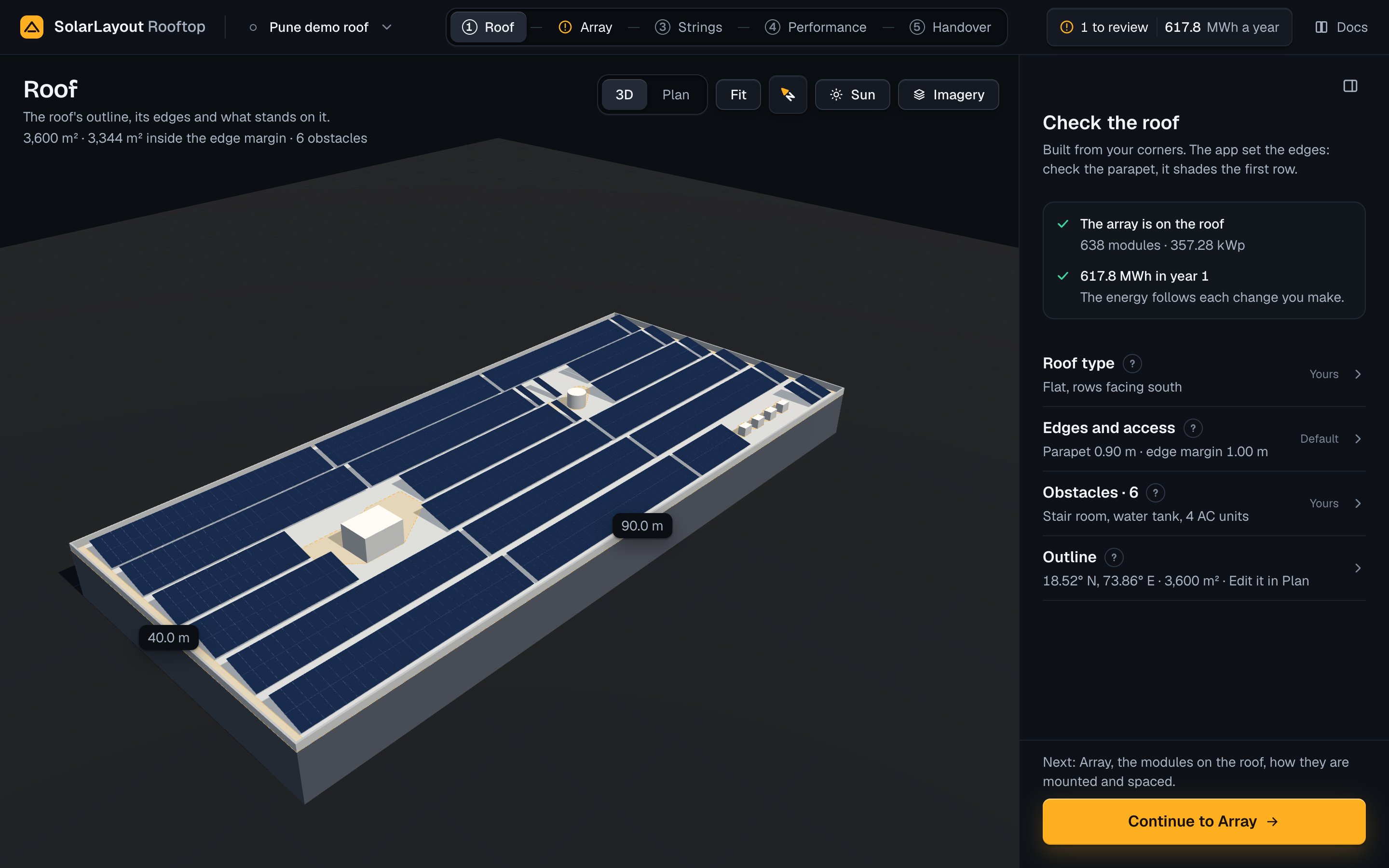
From a roof to a design
A design goes through five steps, in this order: Roof, Array, Strings, Performance and Handover. They stand in the top bar (on a phone, in a tab bar at the foot), each with a mark that says whether it is done, needs you, or is still to do. See The five steps for the screen itself.
Roof
The roof's outline, its edges and what stands on it.
The Roof step starts on the map. Search an address, or paste coordinates or a maps link, and the map moves to the building. Outline the roof by its corners, as a rectangle, or from the building's detected outline. Add the obstacles with their heights: a box such as a stair room, a tank, a wall, a tree, or a building beside the roof. Choose the roof type, then press Build this roof. See Find the roof.
If you have measured the roof, type its length and width, or its corners, by hand. If you have a drawing, open it as a KMZ, KML or DXF file.
The roof then opens in 3D with the array on it. Check the outline, the roof type and the edges: the parapet height, the edge margin (setback) kept free of modules, the walkways and the clearance around obstacles. The roof type is one of three:
- Flat, rows facing south (north south of the equator): tilted rows, the usual for a flat roof.
- Flat, rows facing east and west: low rows back to back, more modules, less from each.
- Sloped: the modules follow the roof pitch.
See Roof.
Array
The modules on the roof, how they are mounted and spaced.
Choose the module from the app's library, or read your own module file (PAN). Set the tilt, the orientation (portrait or landscape) and how many modules stand in each row's height. The app spaces the rows so that they do not shade each other in the shade-free hours of the design day, and keeps modules out of the areas the parapet and the obstacles shade in those hours. See Array.
On Roof, Array and Strings, the Sun button turns on the Sun view: the shadows at any hour, and the shade on each module over the year. See The Sun view.
Strings
How the modules are wired to the inverter.
Choose the inverter from the app's library, or read your own inverter file (OND). The system voltage, the highest DC voltage of the system, starts from your country: 600 V in the United States, its territories and Canada, 1000 V elsewhere. The app works out how many modules one string can hold at that voltage, then offers up to five options of modules per string and strings, each simulated over a year, the best first. Choose one, or add your own option. See Strings.
Performance
The energy the design makes in a year, and where it is lost.
The page leads with the energy to the grid in year 1 of the chosen option, with the Likely (P50) and Conservative (P90) figures, the system size, the yield in kWh/kWp and the performance ratio (PR). Under them: the energy by month, over 25 years, where the energy goes from sunlight to the grid, and the assumptions you can change. The weather is a typical year from PVGIS, 2023 as measured by NASA POWER, or your own CSV file. See Performance.
Handover
The files for the client, the installer and the utility.
| File | Format | For |
|---|---|---|
| Design report | The client | |
| Single-line diagram | PNG | The utility |
| Bill of materials | CSV | The installer |
| Cable schedule | CSV | The installer |
| CAD layout | DXF | The installer |
| Project file | RTD | You |
| Hourly data | CSV | You |
| Google Earth model | KMZ | You |
Download each file on its own, or all of them in one zip with Download all. See Handover.
On a tablet or a computer, Present on Performance and Handover plays the design as a tour on the whole screen, for a meeting with a client. See Present.
What you need
One of these, to start a design:
| You have | Start with | See |
|---|---|---|
| An address, coordinates or a maps link | The search on Home, then the outline on the map | Find the building |
| The roof's measurements | Enter the roof by hand: its length and width, or its corners in metres | Enter the roof by hand |
| A drawing of the roof | Import a drawing: a KMZ, KML or DXF file | Import a drawing |
| A project file from the app | Open a project file (.rtd) | Open a project file |
Optional:
- A module file (PAN) and an inverter file (OND) of your own, when the equipment is not in the app's libraries. A design starts with the app's module and inverter. See Equipment files.
- A CSV of the site's weather, when you have one. A design starts with the typical year from PVGIS.
The size of the roof. The app designs one roof at a time, up to 30,000 m² (about 3 MWp). For a larger site, outline each building as its own design.
A browser that can draw in 3D and can keep data on this device, and a connection to the internet: the app's server lays out the roof and runs the energy. See What the browser needs.
To look around before you start your own, open the demo: a finished design on a 90 × 40 m roof in Pune. See Try the demo.