Present
The open design as a tour on the whole screen, for a client, in six scenes from the place to the energy, with the controls and keys that run it.
Present shows the open design as a tour on the whole screen, for a client. SolarLayout Rooftop draws the 3D scene of the Studio without the app's bars, and plays six scenes in a loop: the place, the roof, the array, the sun over the day, the strings and the energy.
The tour reads the results the app already holds and asks nothing more of the server. It is a view of the design that is open; to present another design, open it first.
Start the tour
Present, with a play icon, stands on a tablet and a desktop at the head of Performance, beside Continue to Handover, and on Handover, before Download all.
Open Performance or Handover
Open the design to present, then the Performance or the Handover step.
Press Present
The app asks the browser for its full screen, where the browser allows it, and the tour begins with the first scene.
Move the pointer or touch the screen
The controls show at the foot. They hide again 3 s after the last move while the tour plays.
The tour starts once the layout, the day's sun and a chosen option are there. Until then the line at the foot says why it waits: "Updating energy" while a run is on its way, or the reason no option can be made, such as "Choose a system voltage to size the strings".
The six scenes
A loop takes 40 s, then the first scene comes again.
| # | Scene | Time | On the stage | The panel: figure · label |
|---|---|---|---|---|
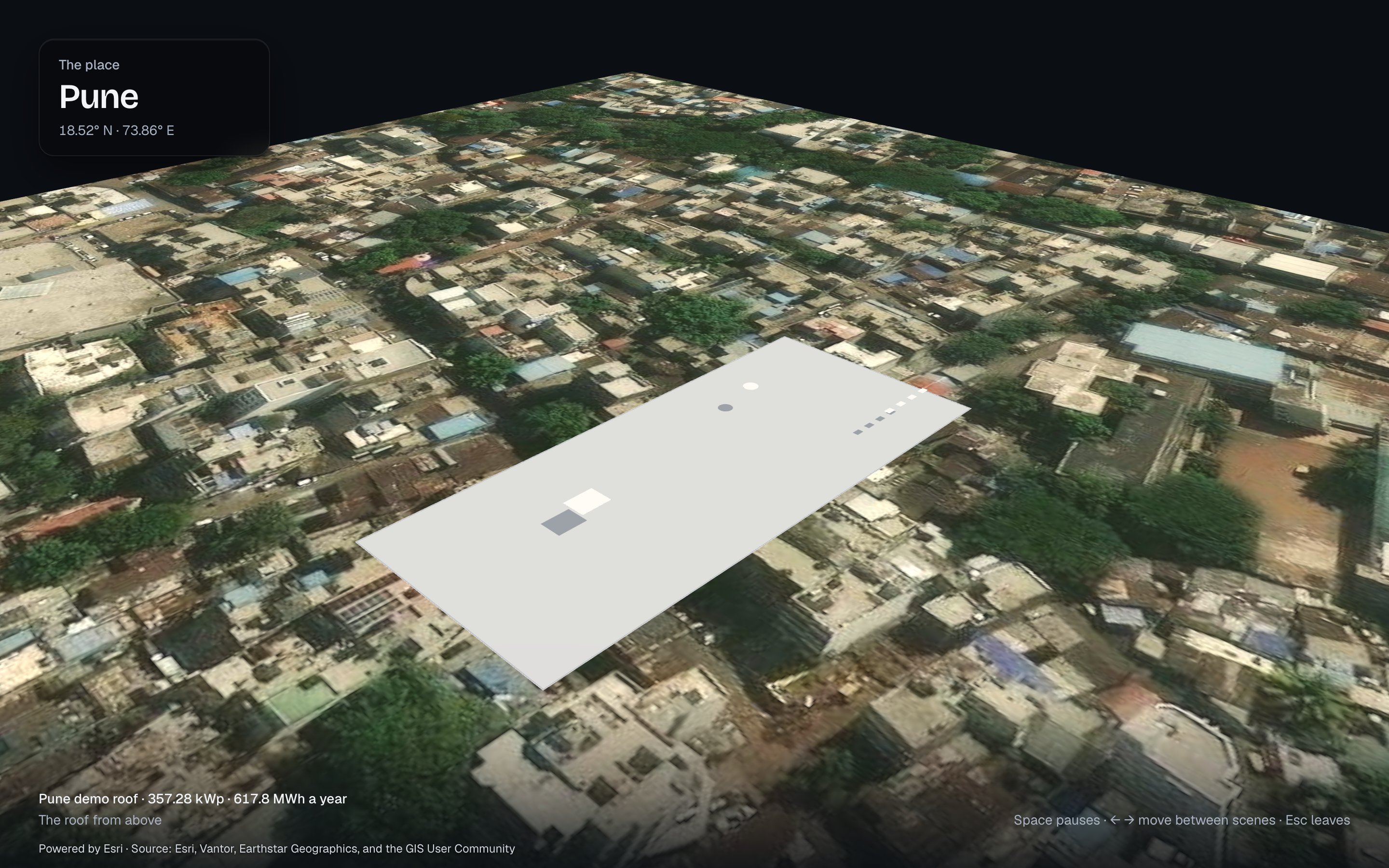
| 1 | The place | 4 s | The camera moves from the plan to 3D over the satellite imagery; nothing of the building yet | The place's name · its latitude and longitude, e.g. "Pune" · "18.52° N · 73.86° E" |
| 2 | The roof | 4 s | The building rises in the first half, the obstacles in the second | The roof's area · "Roof area" with the obstacles' count, e.g. "3,600 m²" · "Roof area · 6 obstacles" |
| 3 | The array | 6 s | The modules fill the roof over the scene | The module positions · "Module positions" with the rows, e.g. "790" · "Module positions · 6 rows" |
| 4 | The sun · <day> | 12 s | The hour runs from after sunrise to before sunset, the sun moving along its arc with the shadows | The solar time · "Solar time · sun <x>° high", or "Solar time" while the sun is down |
| 5 | The strings | 4 s | The modules coloured by MPPT | The DC capacity · the strings and their modules, e.g. "348.00 kWp" · "24 strings of 25 modules" |
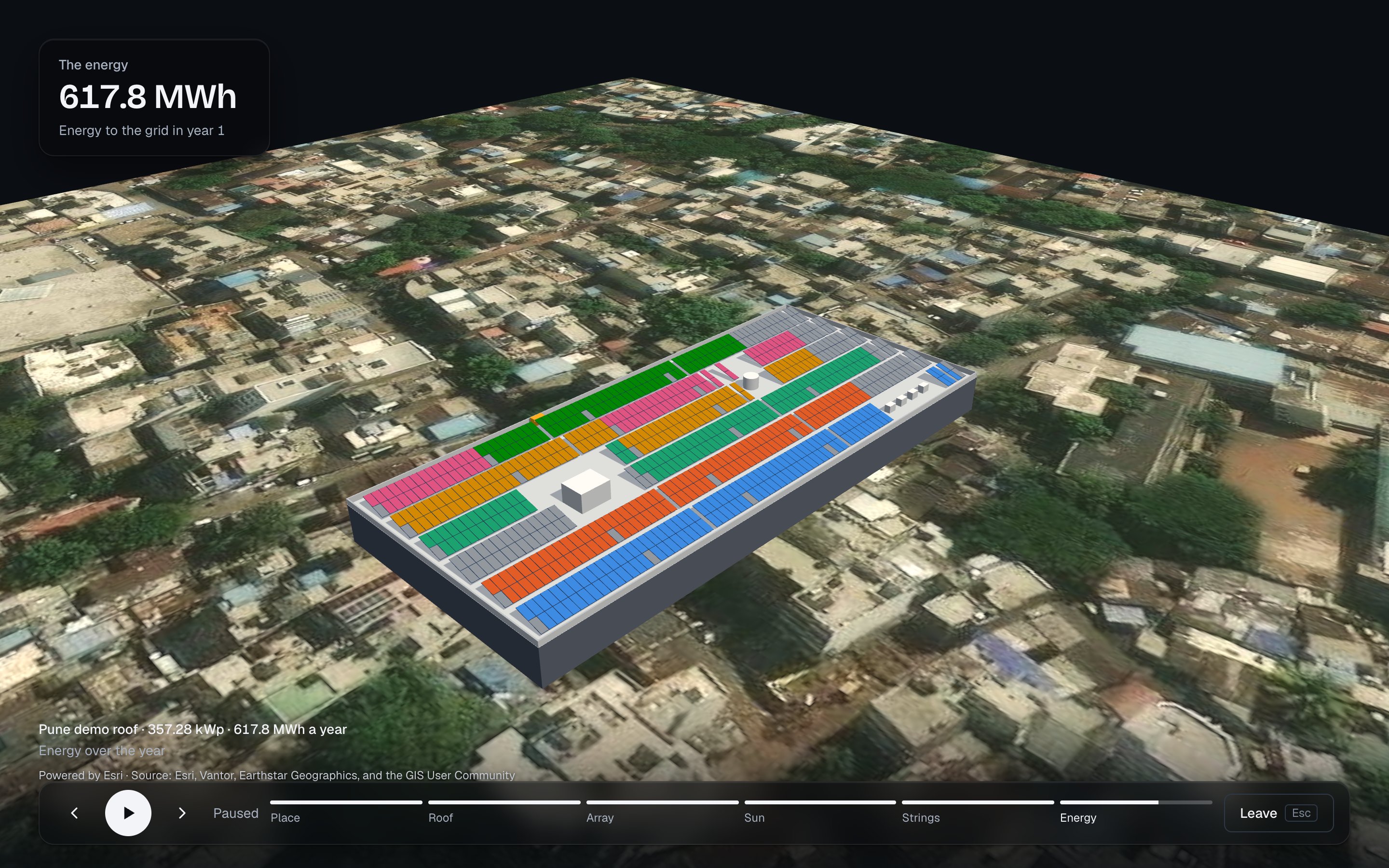
| 6 | The energy | 10 s | Still coloured by MPPT; the energy counts up over the first 6 s, then holds | The energy of year 1 · "Energy to the grid in year 1", e.g. "586.4 MWh" |
The examples are the demo's. Scene 1 takes the place's name the search gave when you found the building by its address or name. A design placed by coordinates, a maps link or your location has no place's name, and the scene shows its coordinates with "Latitude · longitude".
Scene 4's day is the Sun view's day, the design day unless you changed it in the Sun view; the demo's is 21 December. The hour runs from the first quarter-hour after sunrise to the last before sunset, or over the whole day where the sun does not set or rise.
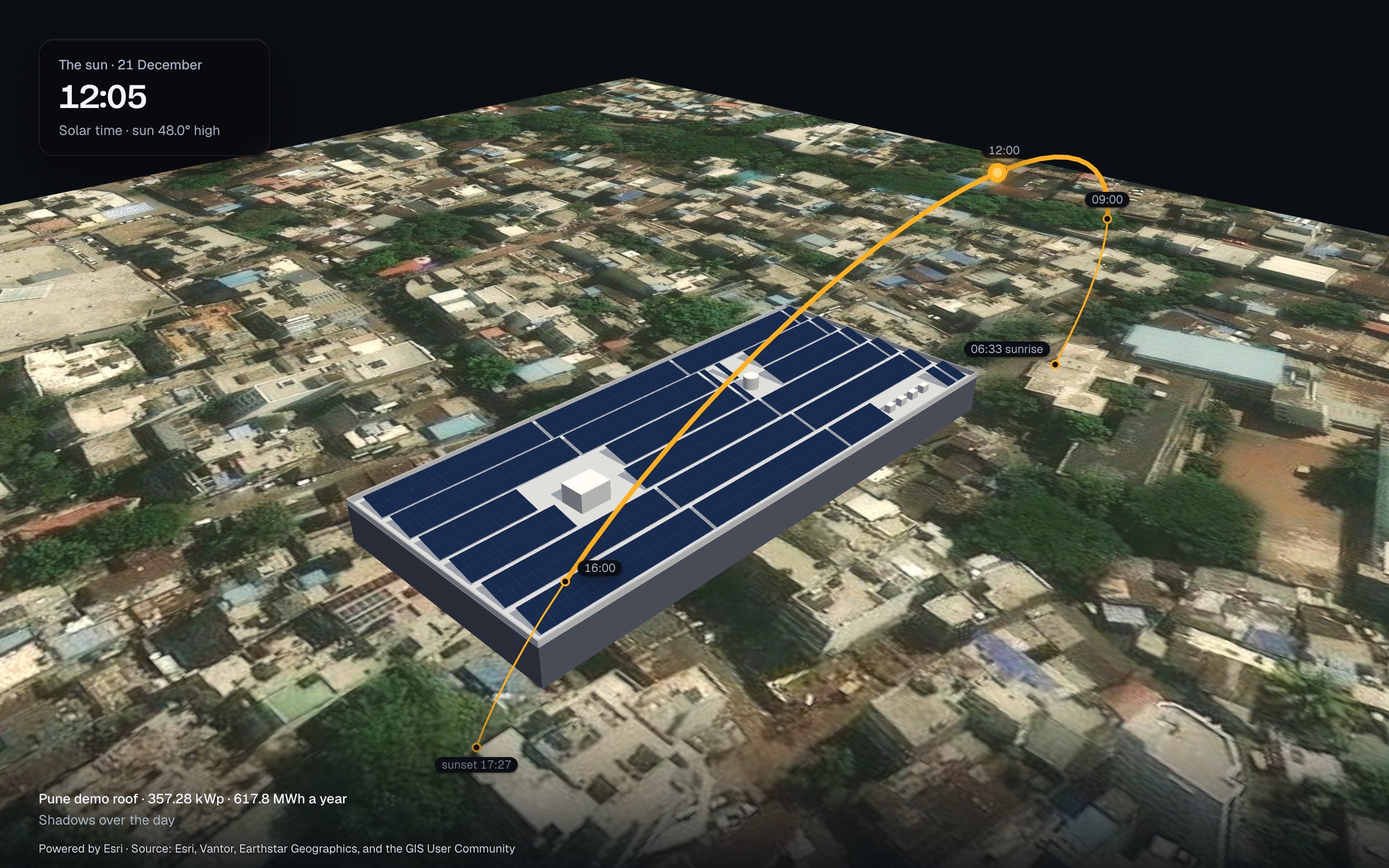
Each scene's panel, dim and blurred, stands at the stage's top left, with the scene's name, its one figure and the figure's label, and fades in with its scene. A scene whose facts are not there shows no panel.
At the foot's left stand the design's name, its DC capacity and its energy, "<name> · <kWp> kWp · <MWh> MWh a year", and under them the scene's noun:
| Scene | Noun at the foot |
|---|---|
| The place | The roof from above |
| The roof | The roof in 3D |
| The array | The array |
| The sun | Shadows over the day |
| The strings | The strings |
| The energy | Energy over the year |
While the satellite imagery is the ground, its attribution stands under the words. Screen readers hear a list of what is on the roof: the modules shown and their rows, the ground, the sun's day, time and height, and the strings.
The controls
The bar at the foot holds, from the left:
| Control | What it does |
|---|---|
| Scene before | Goes to the start of the scene before. Before the first, it goes to the last |
| Pause / Play | Holds the tour at the moment it is at, or plays it on. "Paused" shows while it is held |
| Scene after | Goes to the start of the scene after. After the last, it goes to the first of the next loop |
| The track | Six segments: the scenes done full, the current one filling as it plays, the rest empty. Press one to go to the start of its scene. On a tablet and a desktop each carries its short name: Place, Roof, Array, Sun, Strings, Energy |
| Leave | Leaves the tour. On a desktop it carries an "Esc" key cap |
A move of the pointer, a press, a touch, a key of the tour or Tab shows the bar; Tab also puts the focus on its first control. While the tour plays the bar hides 3 s after the last of these. It stays while the tour is paused or while the focus is in it. A touch or a click on the stage shows the bar and does not leave the tour.
A scene chosen while the tour is paused, with Scene before, Scene after or the track, is shown from its start and stands there until you press Play.
| Key | What it does |
|---|---|
| Space | Pauses or plays |
| ← | The scene before |
| → | The scene after |
| Esc | Leaves the tour |
Any other key, and any key held with Alt, Ctrl or ⌘, does nothing. On a desktop, during the first loop and while the bar is hidden, a line at the foot's right says "Space pauses · ← → move between scenes · Esc leaves".
Leave the tour
Press Leave or Esc. Leaving the browser's full screen leaves the tour too. The tour stops and gives back the hour and the camera it found, and the app opens the Studio at the step last opened there.
Reduced motion
When the device's setting to reduce motion is on, each scene is a still, held for its time and changed with a fade:
- The camera cuts and never moves: the first scene in plan, the others in 3D.
- The building, the obstacles and the modules stand whole from the start of their scenes.
- The sun's scene stands at the hour the Studio holds, under the sun's arc.
- The energy shows its final figure without counting up.
When 3D cannot be drawn
Where the browser cannot draw 3D, the plan of the roof, north up, stands in for the scene with "This browser cannot draw the roof in 3D."; where the browser stops drawing it, "The browser stopped drawing the roof in 3D." The sun's marks and the imagery's attribution go. The tour, its panels, the words at the foot and the controls go on. What the browser needs is on Getting started.
Handover
The design's files for the client, the utility and the installer, what each one holds and how it is made, and the project file that carries the design.
Your designs and the project file
Home and its design cards, the designs kept on this device, a design's menu, and the project file that carries a design to another device.