Roof
Check the roof built on Find, then set its type, its edges and access, its obstacles and its outline on the Roof step.
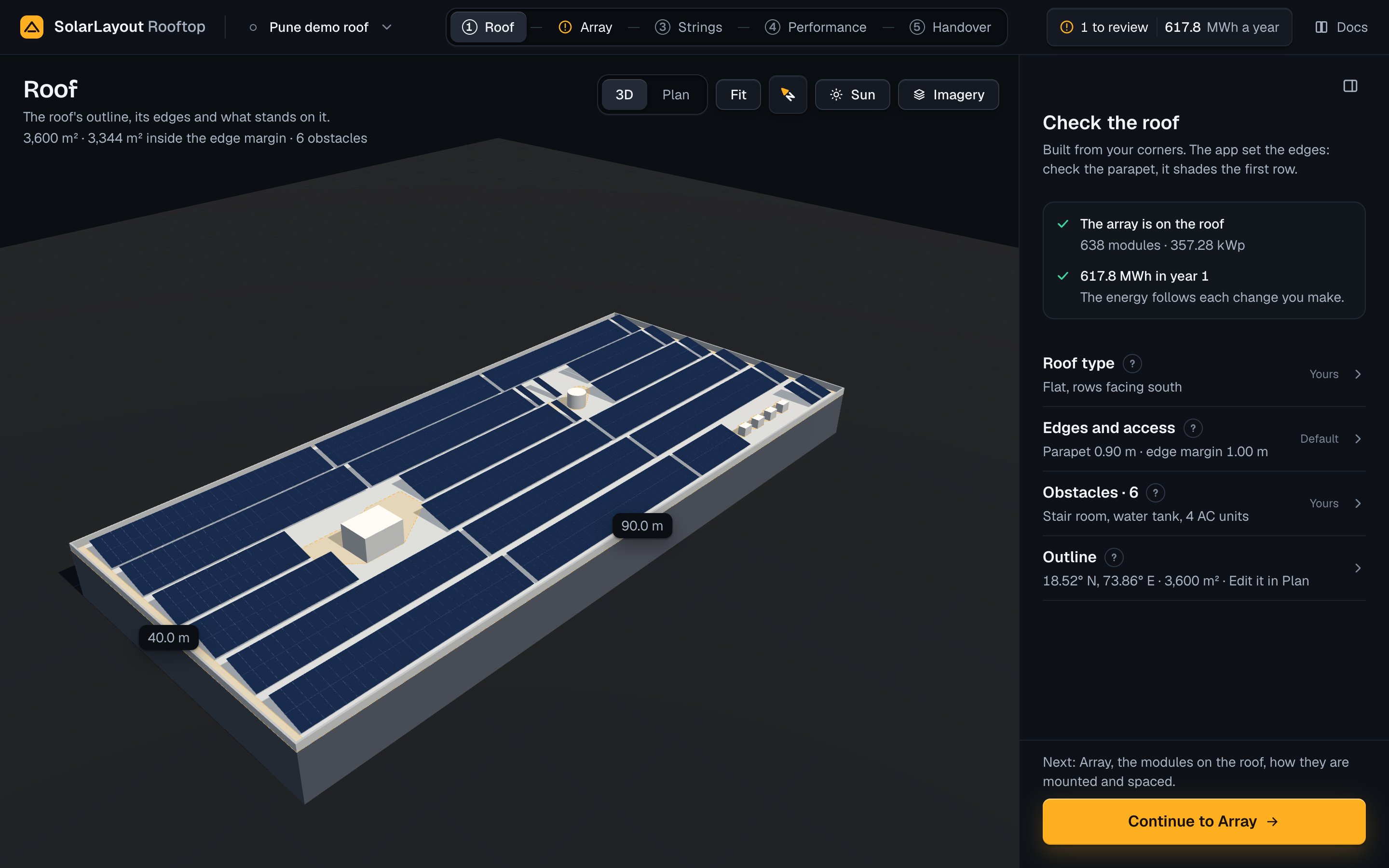
Roof is the first of the five steps in SolarLayout Rooftop. Its first part is Find, where you outline the roof on the map. After Build this roof the app opens the Roof step with the array already laid on the roof, and you check what was built: the parapet, the strips kept free of modules, what stands on the roof and where its corners are.
The step's work column holds four sections, top to bottom: Roof type, Edges and access, Obstacles and Outline. Each is a summary row that opens; none is open the first time. The work column explains rows, fields and the primary button. A change to any value on this step lays the roof out again, then runs the design. The roof albedo is the exception: it is set in Performance and runs the design alone.
Check the roof
The step's head says Check the roof, and under it:
Built from your outline. The app set the edges: check the parapet, it shades the first row.
That is a roof outlined on the map. A roof read from a KMZ or DXF drawing says "Built from your file", and a roof entered by hand, such as the demo, "Built from your corners".
On the design's first open, while no other step of it has been opened on this device, a status of two lines stands under the head:
| Line | What it says |
|---|---|
| 1 | A tick, The array is on the roof, then <n> modules · <kWp> kWp once the run has an option (<n> positions before that) |
| 2, while the run works | A ring, Computing the energy, "Shading the modules over the year. A few seconds." |
| 2, when it is done | A tick, <MWh> MWh in year 1, "The energy follows each change you make." |
Energy is in MWh to one decimal, DC capacity in kWp to two decimals. On the demo the status reads 600 modules, 348.00 kWp and 586.4 MWh in year 1. When the run fails or finds no option, line 1 stands alone, and the result in the top bar says what went wrong.
Work through the roof before going on:
Measure the parapet
Open Edges and access and type the Parapet height measured on site. Its shadow keeps part of the roof free of modules and costs energy over the year. If the roof has no parapet, type 0.
Check the roof type
Open Roof type. Find asked for it; change it here if the roof is pitched, or to compare east-west units with tilted rows.
Check the obstacles and their heights
Open Obstacles. Each obstacle needs its height above the roof surface, measured on site: the imagery cannot give one. Add any not drawn on Find.
Compare the edges with the site
The stage labels each roof edge with its length. Where a corner is off, edit it in Plan from Outline.
Go on to Array
Press Continue to Array at the column's foot. Until Array has been opened once for this design, the line above it reads "Next: Array, the modules on the roof, how they are mounted and spaced." (not on a phone).
The roof on the stage
On a computer the stage's title is Roof, and the line under it gives the
roof's area, the area inside the edge margin and the obstacles, as
<area> m² · <area> m² inside the edge margin · <n> obstacles. On the demo:
3,600 m² · 3,344 m² inside the edge margin · 6 obstacles.
On the Roof step each edge carries its length, <n.n> m, at its middle. Of two
parallel edges of the same length, only one is labelled (the one further
south and west). The kept-clear areas, where a shadow keeps modules out, are
drawn on each step outside the Sun view.
The view controls
The view controls stand at the stage's top right.
| Control | What it does |
|---|---|
| 3D / Plan | 3D looks at the roof in perspective from the south-west, above it. Plan looks straight down, north up; it pans and zooms but does not turn. Plan is where the outline's corners are edited |
| Fit | Frames the roof again, as the 3D view from the south-west. Pressed in Plan, it leaves Plan |
| North control | Its needle turns with the view. Press it to turn the view north-up, at the same distance and height |
| Sun | Turns on the Sun view on the step in hand: shadows at any hour, and the shade on each module over the year. See The Sun view |
| Imagery | Shows the satellite imagery as the ground; press again for the plain grid. Each load starts on the grid, and the choice is not part of the design. The imagery's credit stands at the stage's bottom left while it is drawn |
| Show panel | On a computer, while the work column is hidden. Hide panel at the column's top right, or ⌘ \ or Ctrl \, hides it; the step's primary then floats at the stage's foot |
On a phone the controls are 3D, Plan, Sun and Imagery; Fit and the north control are on a tablet or a computer. On touch, in 3D one finger orbits and two pan and pinch; in Plan one finger pans. An edit never moves the camera.
If the browser cannot draw 3D, a flat plan, north up, stands in with "This browser cannot draw the roof in 3D.", and the view controls are not shown.
Selecting on the roof
Press the roof, an obstacle or a kept-clear area to select it; a callout names it. A press is a pointer that moves 4 px or less, so an orbit that ends on something selects nothing. A press on the ground clears the selection, and so does Escape (outside a field or a dialog). On a computer, selecting something shows a hidden work column again.
| Selected | Callout |
|---|---|
| The roof | Roof · selected, then <a> × <b> m · <area> m² for a rectangle, <n> corners · <area> m² otherwise |
| An obstacle | <name> · selected, its size and height, and "Drag to move it." (box, tank, tree) or "Move it by its points in the list." (wall, building) |
| A kept-clear area | Kept clear · <n> positions, then "<cause> shades this area between <start> and <end>", the shade-free hours. See How the layout is placed |
Outline
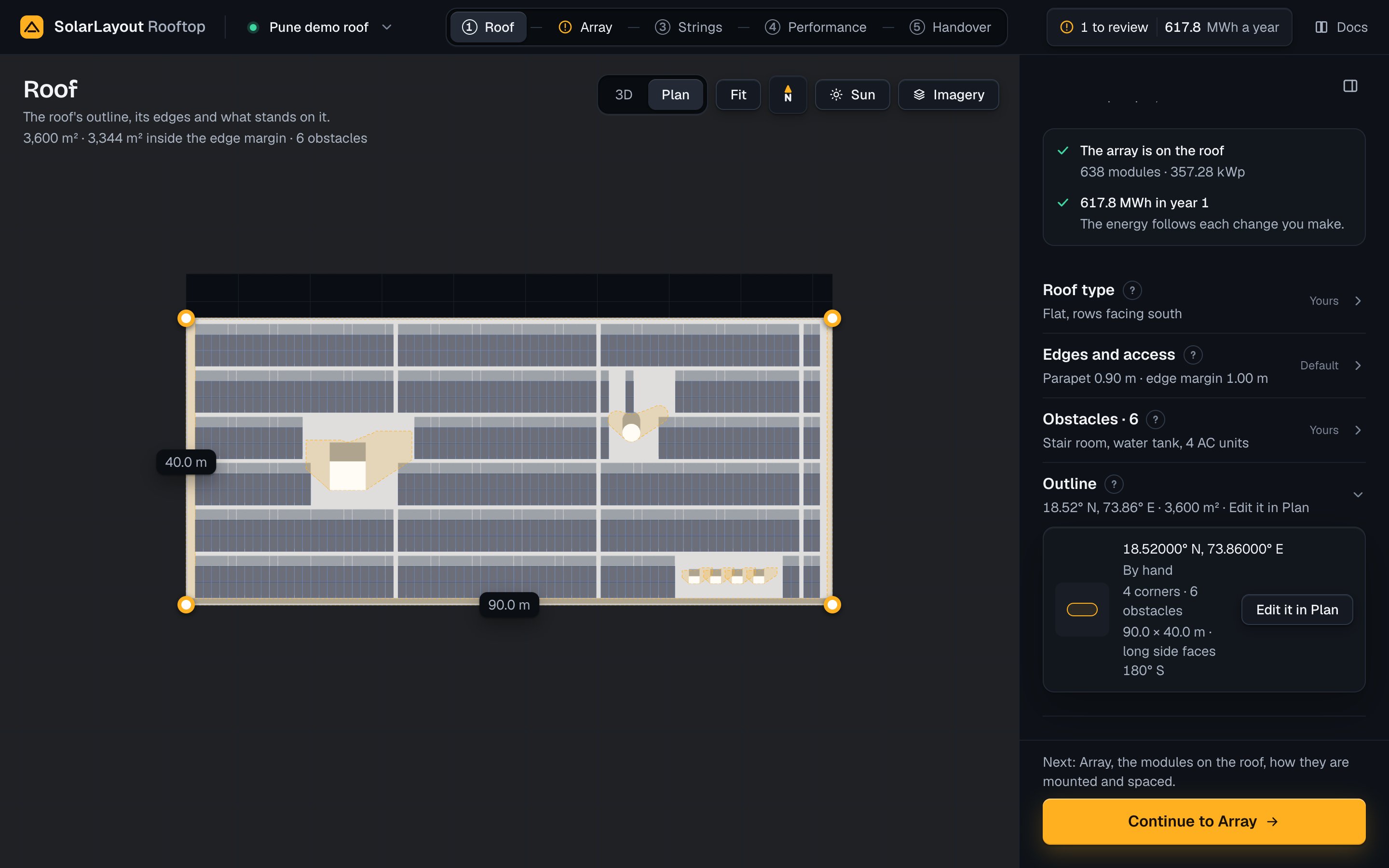
Outline is the last section. Closed, it reads the roof's latitude and
longitude to two decimals, its area and Edit it in Plan. On the demo:
18.52° N, 73.86° E · 3,600 m² · Edit it in Plan. It carries no who-set-it
word.
Open, its card says:
| Line | What it says |
|---|---|
| Place | Latitude and longitude to five decimals, with N, S, E or W |
| How it was made | Outlined on satellite, By hand or From a file |
| Corners and obstacles | <n> corners · <n> obstacles (no obstacle part when there are none) |
| Size and facing | A rectangle (4 corners, right angles within 1°) as <long> × <short> m, any other outline as <area> m²; then long side faces <deg>° <compass>, the outward side of the longest edge nearer the equator |
| File | The drawing's file name, for a roof read from a KMZ or DXF |
To move a corner:
Press Edit it in Plan
The stage turns to Plan and selects the roof, and each corner of the roof is a handle. Pressing the roof in Plan on the Roof step selects it too.
Drag the corner
While it moves, a label gives the lengths of the two edges it joins, as
<a> m · <b> m.
Let go
The corner snaps to the nearest 0.1 m. The move is one edit: the app lays the roof out again and runs the design. ⌘ Z or Ctrl Z undoes it.
An outline that would cross itself, or close to under 1 m², is refused with "The outline cannot cross itself. The roof stays as it was."
A roof covers at most 30,000 m², about 3 MWp. To design another roof, choose New design in the project menu, which opens Find.
Roof type
Roof type is the first section. Find asked for the type, so its word is always Yours. Three buttons set it: Tilted rows, East-west and Sloped. The section's closed row gives the long name.
| Button | Long name | What the app lays out |
|---|---|---|
| Tilted rows | Flat, rows facing south (north south of the equator) | Rows of tables at the array's Tilt, facing the array's direction. The rows are spaced to keep clear of each other's shade in the shade-free hours, unless a row spacing is typed. A walkway crosses the rows after a set number of modules |
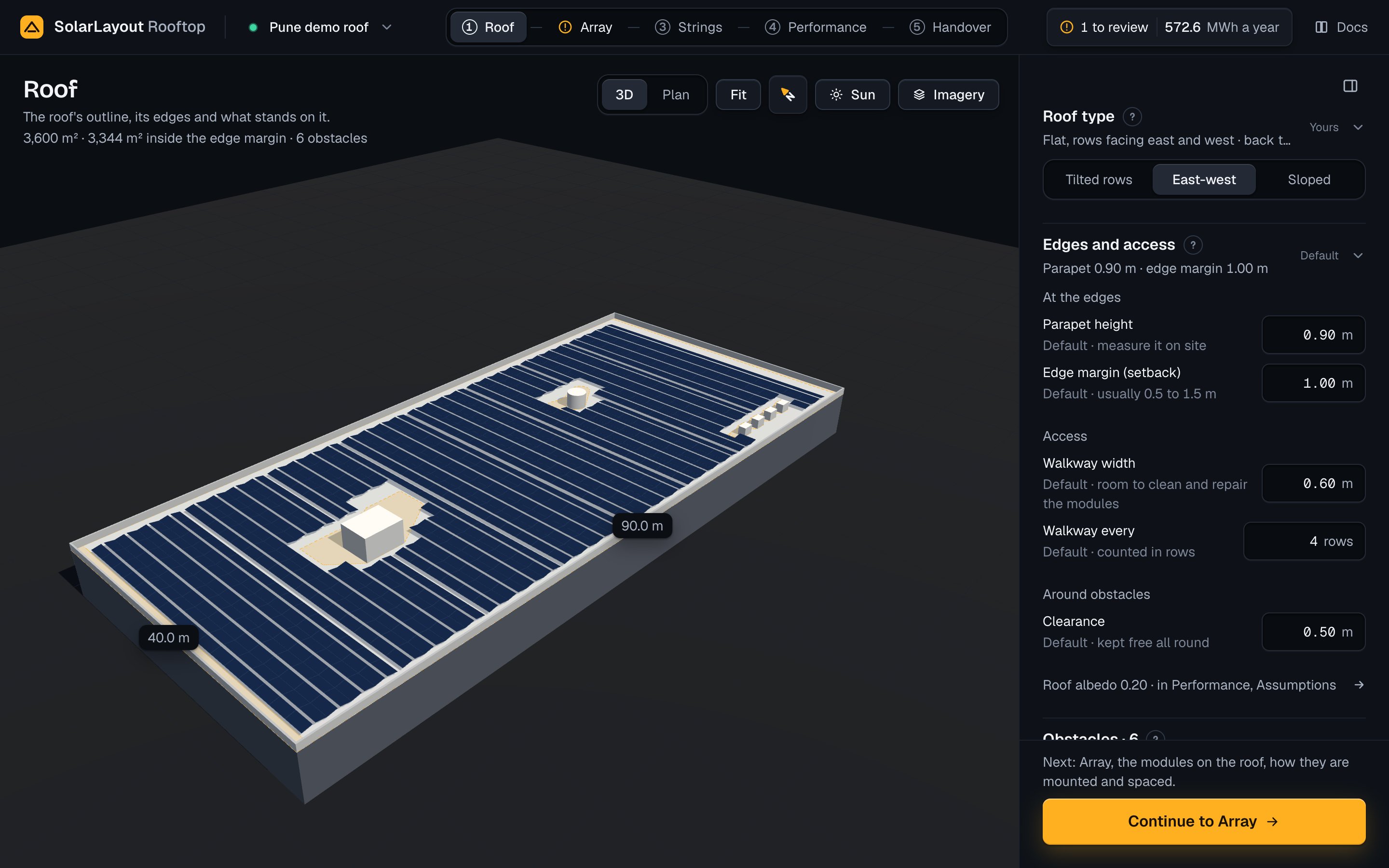
| East-west | Flat, rows facing east and west · back to back, low tilt | Units of two sides back to back at the East-west tilt, one side turned east and the other west of the array's direction, one module a side. A gap between units only where the shade-free hours need one. A walkway after a set number of units |
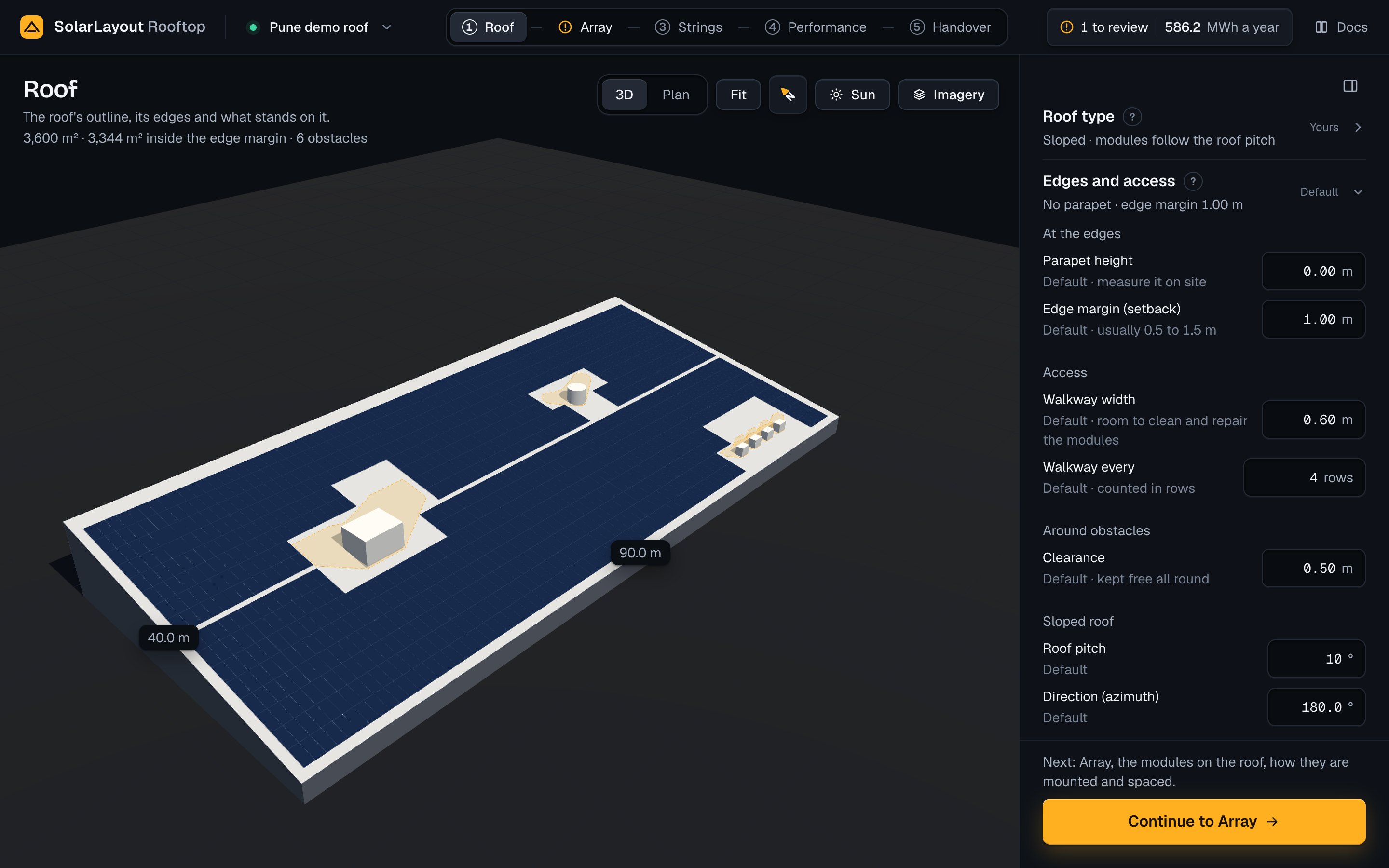
| Sloped | Sloped · modules follow the roof pitch | Modules flush on the roof at its Roof pitch, facing its Direction (azimuth), both set in Edges and access. Rows follow each other with the module gap alone, no gap for shade. The modules' lower edge is 0.1 m above the roof |
Choose Sloped for a pitched roof. The app then sets the parapet to 0, and the roof pitch to 10° if it was 0: type the real pitch and direction. Choosing Tilted rows or East-west changes the type alone. Choose East-west to compare more modules at a low tilt with the energy of tilted rows.
The type also sets the defaults of two temperatures and the rear gain:
| Default | Tilted rows | East-west | Sloped |
|---|---|---|---|
| Heat loss factor (Uc), in Performance | 29 | 20 | 15 |
| Cell rise for sizing the strings, °C | 25 | 25 | 35 |
| Rear gain of a bifacial module | Yes | Yes | None |
Mounting shows the fields of each type.
Edges and access
Edges and access sets where modules may not go: the strip at the edges,
the walkways and the space around obstacles. Closed, it reads
Parapet <h> m · edge margin <s> m, or No parapet · edge margin <s> m. On
the demo: Parapet 0.90 m · edge margin 1.00 m, Default.
The fields stand in groups: At the edges, Access, Around obstacles, and on a sloped roof Sloped roof.
| Field | Default | Range | What it does |
|---|---|---|---|
| Parapet height (At the edges) | 0.90 m; 0 on a sloped roof. Hint "Default · measure it on site" | 0–5 m | A wall 0.2 m thick along the inside of each edge. It casts shadows like an obstacle: the area they cross in the shade-free hours is kept clear, and its shade counts in the energy. 0: no parapet |
| Edge margin (setback) (At the edges) | 1.00 m. Hint "Default · usually 0.5 to 1.5 m" | 0–10 m | The roof is shrunk inward by it, sharp corners kept. If that splits the roof, the largest piece is used. The fire code may set it |
| Walkway width (Access) | 0.60 m. Hint "Default · room to clean and repair the modules" | 0–3 m | The width of the path |
| Walkway every (Access), Tilted rows | 24 modules. Hint "Default · counted in modules along a row" | 0–500 modules | After that many modules along each row, an aisle of the walkway's width crosses the rows. 0: none |
| Walkway every (Access), East-west and Sloped | 4 rows. Hint "Default · counted in rows" | 0–500 rows | After that many rows (sloped) or units (east-west), the walkway's width is added. 0: none |
| Clearance (Around obstacles) | 0.50 m. Hint "Default · kept free all round" | 0–5 m | Each obstacle's footprint grows by it, rounded at the corners. No module stands in it |
| Roof pitch (Sloped roof) | 10° | 0–60°, whole degrees | The slope of the roof, and the modules' tilt |
| Direction (azimuth) (Sloped roof) | 180° | 0–359.9° | The way the slope faces, clockwise from north. The modules face it |
Metres take two decimals. Under the fields, a line reads
Roof albedo 0.20 · in Performance, Assumptions with an arrow. Roof albedo is
how much light the roof reflects. The line opens Performance; set
the albedo under Assumptions.
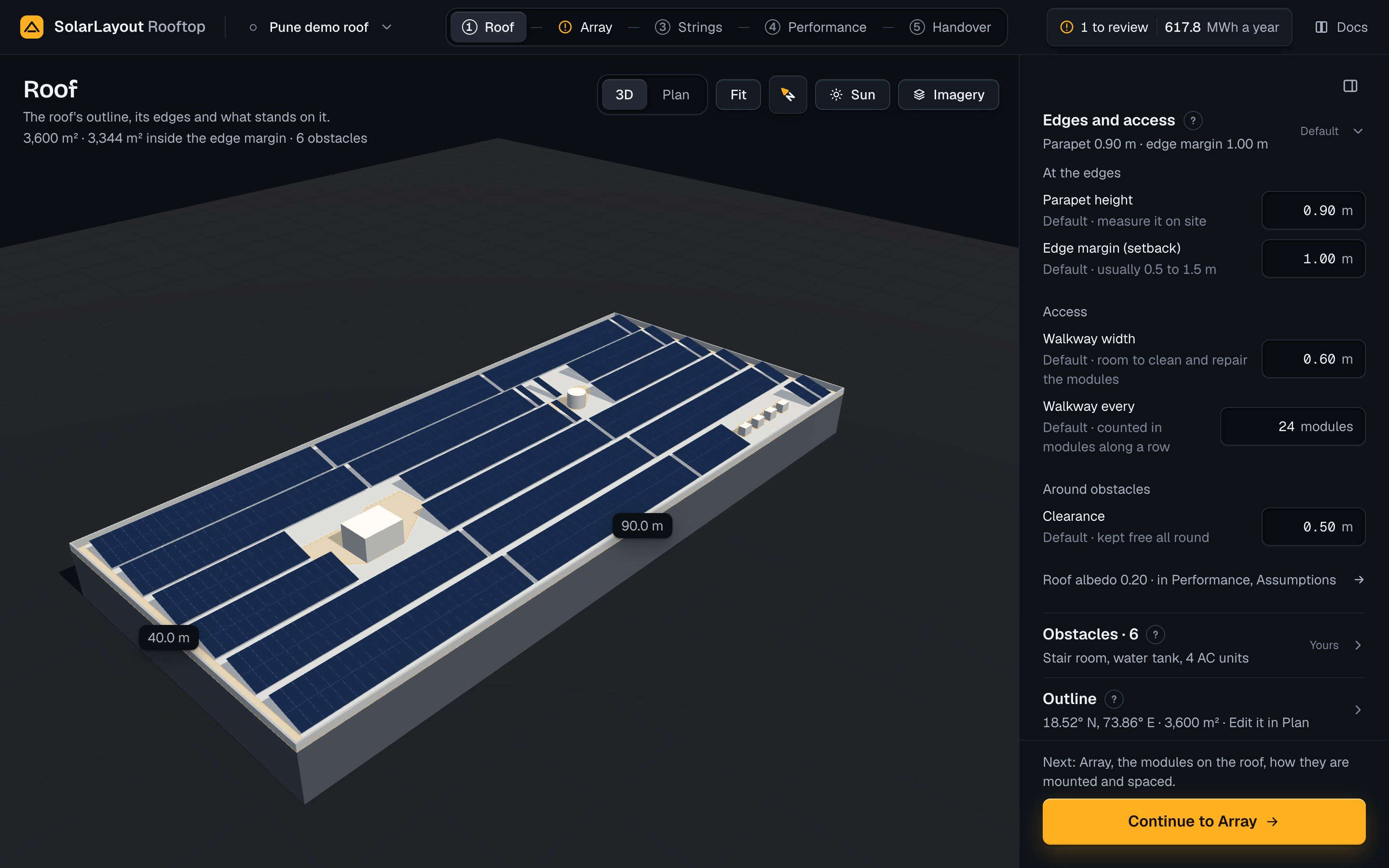
The hint under each field says who set it. Change a value and the hint reads
Yours · default <value> <unit> with Reset, which gives the app's value
back as one edit; the section's word turns to Yours.
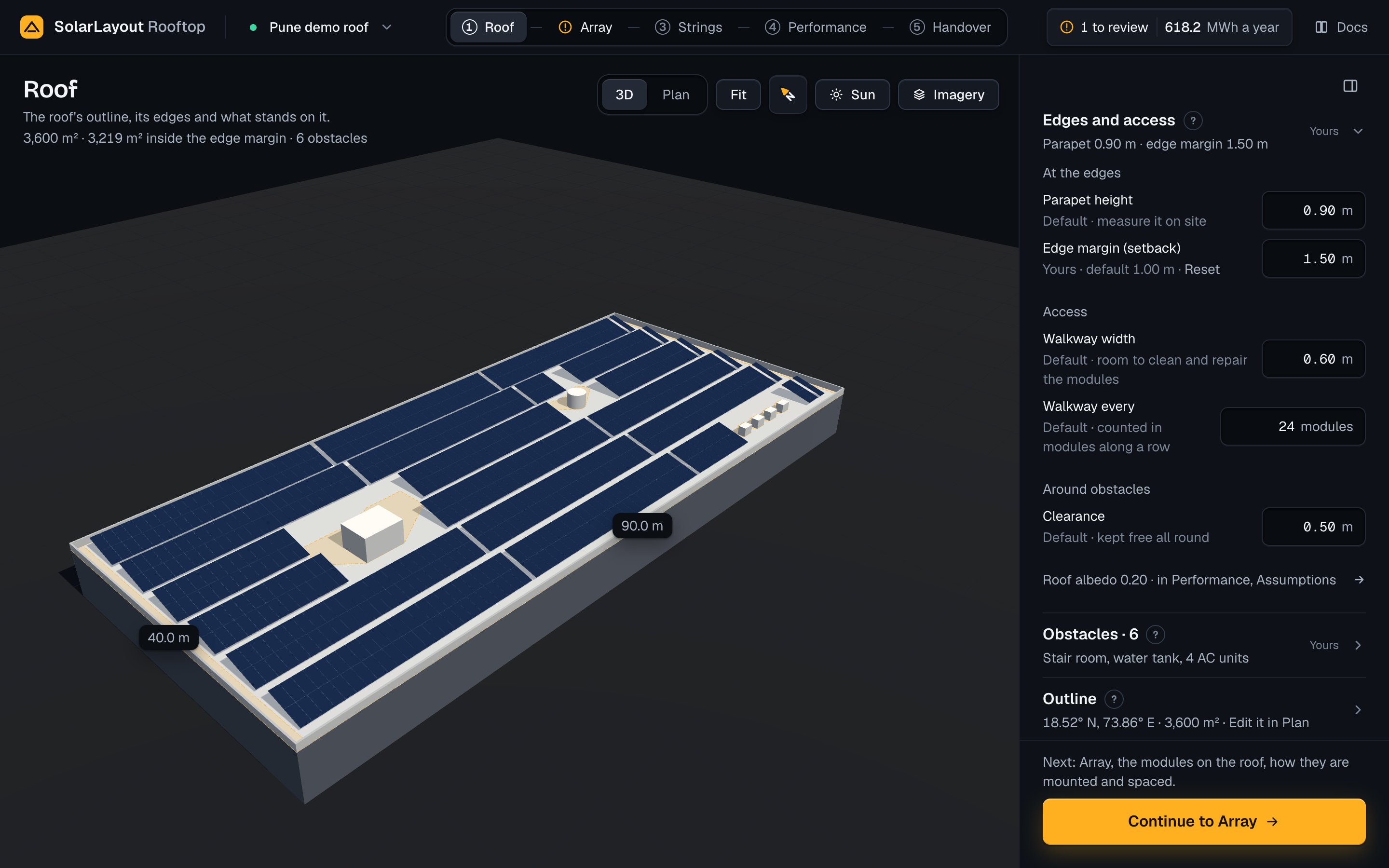
Change these when the site has no parapet, when its code asks for a wider margin, or when the roof needs a walkway more often.
Obstacles
An obstacle is anything on the roof that takes room and casts shade: a box such as a stair room or a plant room, a tank, a wall, a tree, or a building beside the roof. Each one counts three times:
- No module stands on it or within its Clearance.
- The area its shadow crosses in the shade-free hours of the design day is kept free of modules, unless Allow shaded positions is on in Spacing.
- Its shadow counts, hour by hour over the year, in the shade of each module it falls on.
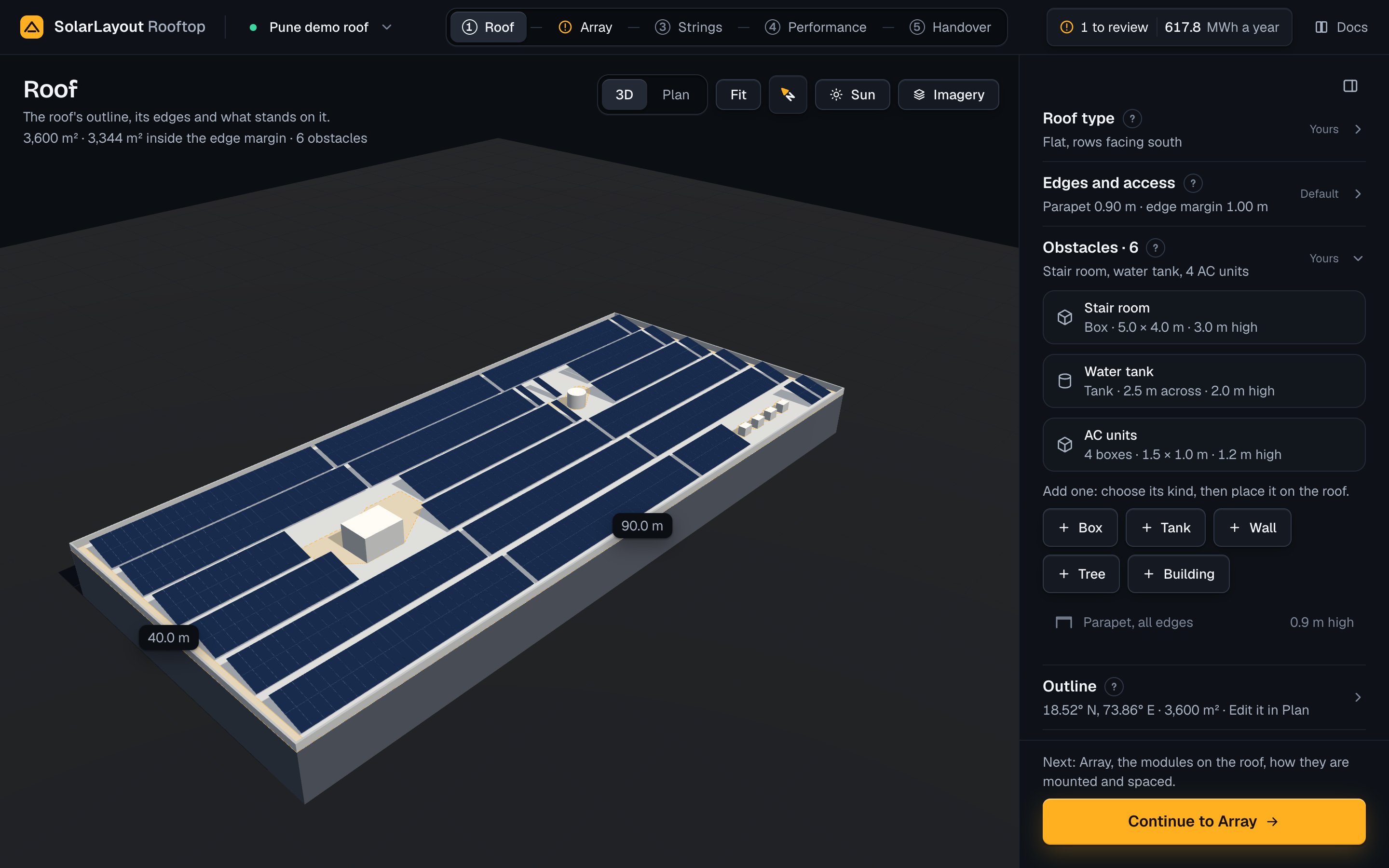
The section reads Obstacles · <n>. Closed, it lists the names in
order, those of one group counted once: Stair room, water tank, 4 AC units
on the demo, None on the roof with none. Its word is Yours once there is
one.
Open, each obstacle has a row: its kind's icon, its name and
<Kind> · <size> · <h> m high. Obstacles of one kind, size and height drawn
together share one row (AC units, 4 boxes · 1.5 × 1.0 m · 1.2 m high) until
one of them is selected. Press a row to select it. While the parapet is over
0, the list ends with Parapet, all edges and its height, set in Edges and
access.
Add an obstacle
Obstacles drawn on Find are already here; see Add the obstacles. To add one on the Roof step:
Choose its kind
Under "Add one: choose its kind, then place it on the roof.", press Box,
Tank, Wall, Tree or Building. A draft named <Kind> <n> stands
at the roof's centre, with no height.
Place it
Press the roof where it stands. The draft moves there.
Type its height
The draft's card opens with the focus in Height above the roof. Type the height above the roof surface, never above the ground.
Add it
Press Add the box (or tank, wall, tree, building), or Enter. The obstacle is added and selected. Add does nothing while there is no height; Cancel drops the draft.
Its fields
A selected obstacle's card has its name (type to rename it), its kind, a bin to remove it, and its fields. By kind, in the card's order:
| Kind | Fields |
|---|---|
| Box | Length, Width, Height above the roof, Rotation, East, North |
| Tank | Diameter, Height above the roof, East, North |
| Tree | Crown diameter, Height above the roof, Crown starts at, East, North |
| Wall | Height above the roof, Thickness, its points |
| Building | Height above the roof, its points |
| Field | Default | Range | What it does |
|---|---|---|---|
| Length, Width | 2 m each | 0.1–500 m | The box's sides |
| Diameter | 2 m | 0.1–100 m | The tank's diameter |
| Crown diameter | 4 m | 0.1–100 m | The tree's crown. The tree's footprint and its kept-clear space are the whole crown |
| Height above the roof | None: type it | 0.05–200 m | Its top, above the roof surface |
| Crown starts at | 2 m | 0–100 m | The trunk, 0.3 m across, casts shade up to here; the crown casts it from here to the height |
| Thickness | 0.2 m | 0.05–5 m | The wall's thickness |
| Rotation | 0° | −180 to 180°, whole degrees | The box's turn, counter-clockwise |
| East, North | Where it was placed | −5,000 to 5,000 m | Its position, in metres east and north |
A wall's and a building's points are a table, Point, East, North, with Add a point and a bin on each point: "Type each point in metres east and north of the roof's centre, in order." A wall keeps at least 2 points, a building 3. A draft wall is 6 m long, east to west; a draft building 10 × 10 m, from 3 to 13 m east of the centre.
A building beside the roof takes room on it only where it, with its clearance, overlaps the roof. Its shade counts all the same.
Move or resize it on the roof
Select a box, a tank or a tree and drag it. A label gives
East <x> m · North <y> m; the move snaps to 0.1 m and stays inside the
roof's bounding box, and the drop is one edit. Walls and buildings move by
their points in the list.
A selected box has handles: one at each top corner resizes it with the opposite corner held; a turn handle on a stem off its north edge turns it, snapping to a right angle within 3°; a height handle on a stem up from its middle sets its height. Sizes snap to 0.1 m. A tank or a tree has one handle at the east of its edge, which sets its diameter.
Heights to review
A drawing may give no height for some obstacles. A note at the top of the
column then says "The file has no height for these obstacles. The app uses
1.0 m.", with <n> to review and Review, which selects the first. Its row
carries a note mark, "Height to review", and its card says "Not in the file.
Enter the real height." with Next. A typed height takes the obstacle off
the list. Import a drawing covers how
heights are read from a file.
When something goes wrong
| What you see | What it means | What to do |
|---|---|---|
| "The outline cannot cross itself. The roof stays as it was." | A corner was dragged so that the outline crosses itself, or closes to under 1 m² | Drag the corner along the roof's edge, in order around it |
| "This outline covers <area> m². SolarLayout designs one roof at a time, up to 30,000 m² (about 3 MWp). For a larger site, outline each building as its own design." | The roof is over the limit | Outline each building as a design of its own |
| "The roof outline crosses itself. Give the corners in order around the roof." | The layout cannot use the outline | Edit the corners in Plan, in order around the roof |
| "The roof outline encloses no area. Give at least three corners that are not on one line." | The outline has no area | Give the roof at least 3 corners not on one line |
| Energy not computed, "The roof has no room for a module inside the edge margin and clear of shade. Check the outline, the edge margin and the obstacles.", Open Roof | No module fits | Lower the edge margin or the clearance, check obstacle heights, or turn on Allow shaded positions in Spacing |
| Layout not updated, the cause, Try again | A layout failed; the last positions stay on the stage | Press Try again |
| "The file has no height for these obstacles. The app uses 1.0 m." | An imported drawing gave no height | Press Review and type each real height |
| "The highest is <max> <unit>." or "The lowest is <min> <unit>." | A typed value was out of range; the field is set to the end of its range | Type a value inside the range |
| "This browser cannot draw the roof in 3D." | The browser cannot draw 3D; a flat plan stands in | Use another browser for the 3D view |
More cases are in Troubleshooting.