The five steps
The screen of SolarLayout Rooftop: the five steps and their marks, the top bar, the result, the notes, the work column, the help and saving.
A design in SolarLayout Rooftop goes through five steps: Roof, Array, Strings, Performance and Handover. Roof, Array and Strings share the Studio: the roof in 3D on the stage, and the step's work column beside it. Performance and Handover are pages of their own. All five share one design, one top bar, the notes to review and the result.
Home, Find and Present stand outside the steps. Home is where designs start and are kept; Find, the map, is the first part of the Roof step for a new roof; Present is a tour of the design on the whole screen.
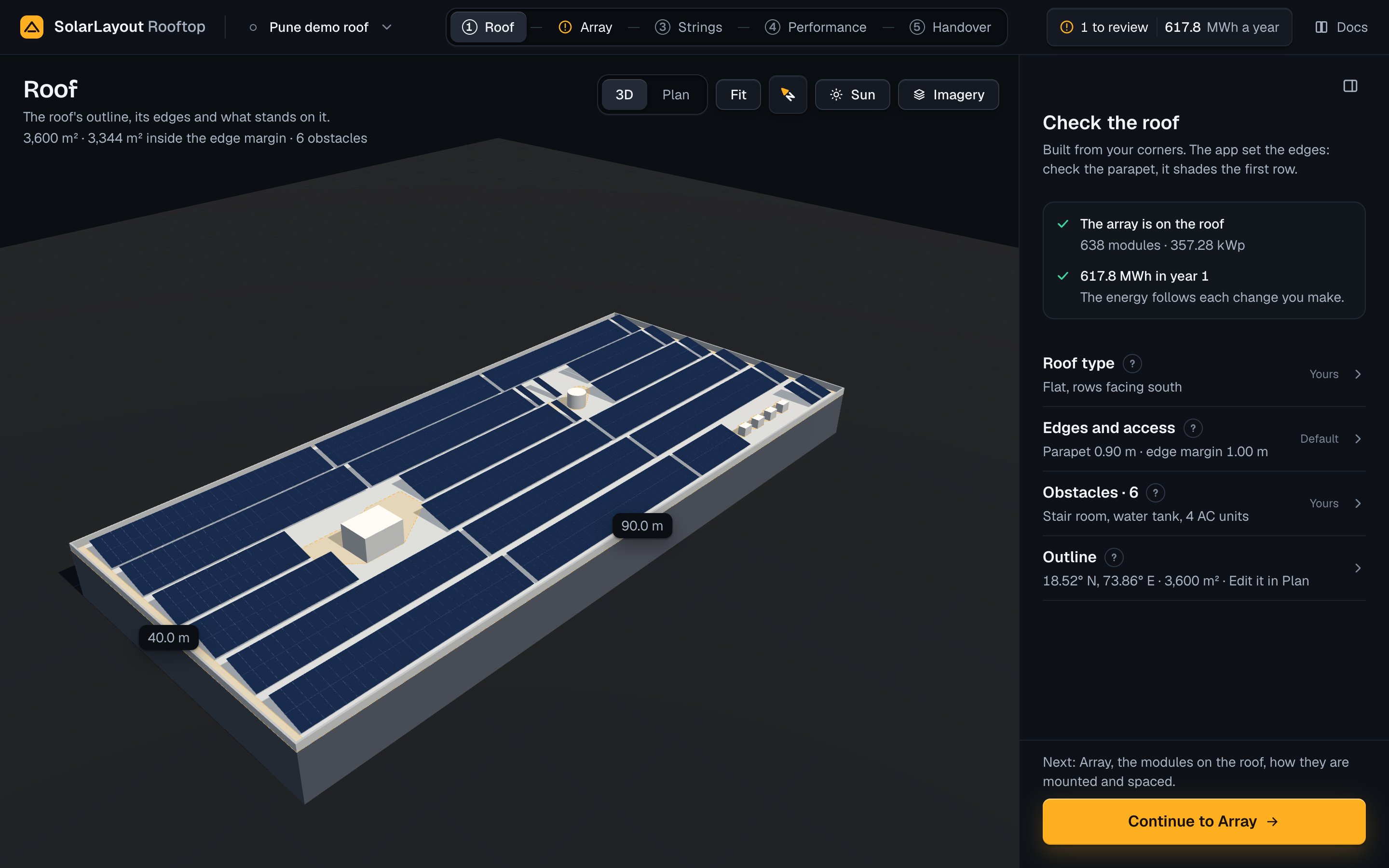
The steps and their marks
| Step | What it is | Where | Its primary |
|---|---|---|---|
| Roof | The roof's outline, its edges and what stands on it. | Find for a new roof, then the Studio | Continue to Array |
| Array | The modules on the roof, how they are mounted and spaced. | The Studio | Continue to Strings |
| Strings | How the modules are wired to the inverter. | The Studio | Continue to Performance |
| Performance | The energy the design makes in a year, and where it is lost. | Its own page | Continue to Handover |
| Handover | The files for the client, the installer and the utility. | Its own page | Download all |
Press a step to go to it, in any order. Sun is not a step: the Sun button on the stage turns on the Sun view on Roof, Array or Strings. See The Sun view.
Each step carries a mark:
| Mark | Means |
|---|---|
| A tick | Done: you have gone past the step for this design on this device, and nothing in it waits for you. It is not a check that the step is complete |
| The note mark (an exclamation) | Needs you: a note to review leads to this step, or, on Strings, no string length fits |
| Its number in a circle, 1 to 5 | To do |
A note leads to the step where it is put right: a note on the module or on the layout to Array, a note on the weather to Performance, and a chosen option outside its DC/AC target to Strings. The DC/AC ratio is the modules' DC capacity over the inverters' AC capacity.
On a computer, rest the pointer on a step, or move the keyboard's focus to it, to see its line from the table.
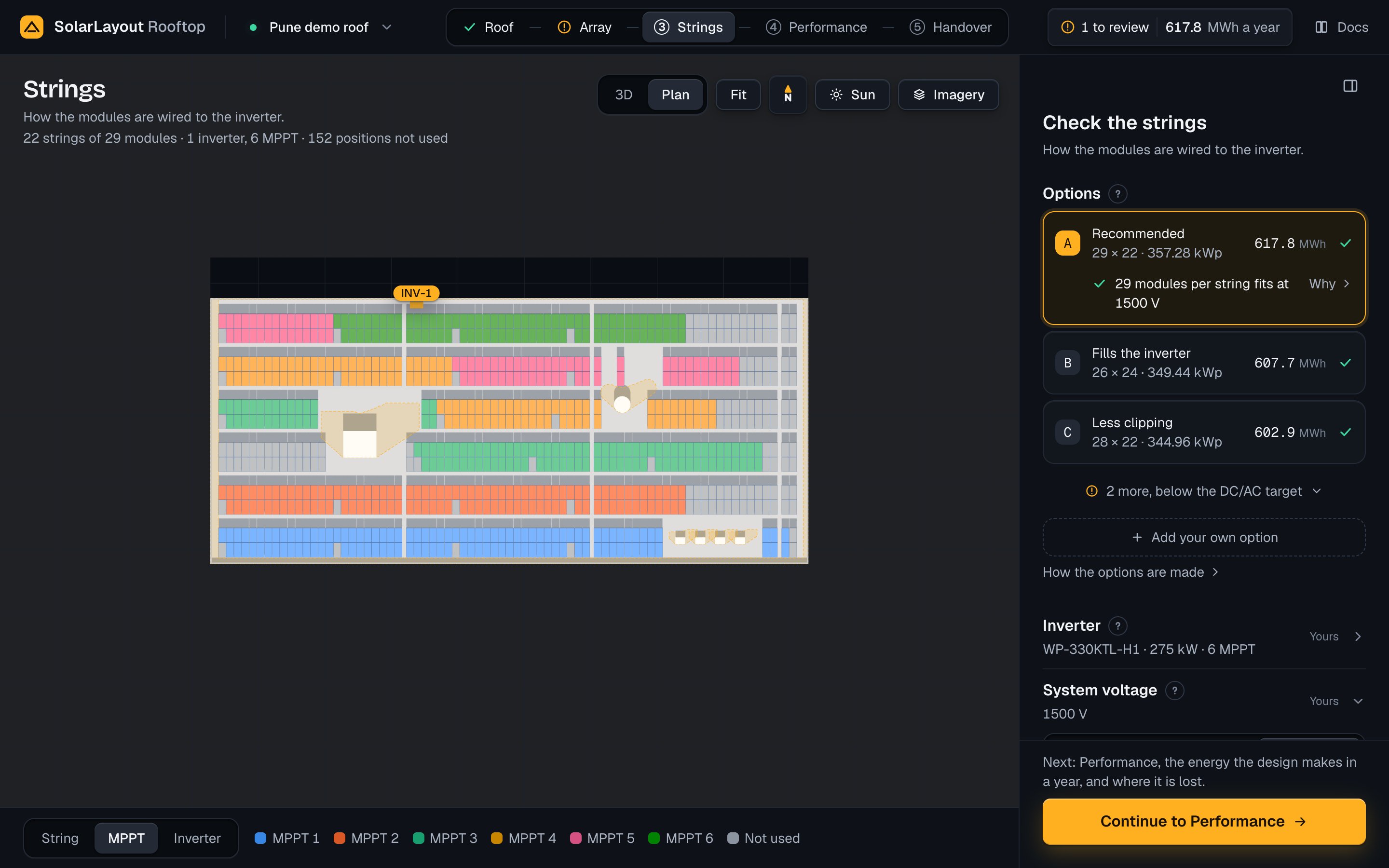
On Find, before the roof is built, Roof is the step in hand and the four after it are grey and cannot be pressed: a screen reader hears "after the roof is built". They open with the design that Build this roof makes. See Find the roof.
The primary and "Next:"
Each step has one primary button, named for the step that follows. In the Studio it stands at the foot of the work column. Under it, until you have opened the next step once for this design, a line says what that step is:
- "Next: Array, the modules on the roof, how they are mounted and spaced."
- "Next: Strings, how the modules are wired to the inverter."
- "Next: Performance, the energy the design makes in a year, and where it is lost."
On Strings, when no string length fits at the system voltage and a higher one fits, the primary becomes Use 1000 V (or the voltage that fits), with "Check first that the site's code allows it." under it. See When no string length fits.
The top bar
| Item | Desktop | Tablet | Phone |
|---|---|---|---|
| The logo, a link to Home | The mark and "SolarLayout Rooftop" | The mark | The mark |
| The design's name, with its saved mark | Yes | Yes | Yes |
| The five steps | Yes | Yes | A tab bar at the foot of the screen |
| The result | Yes | A row under the Studio's stage | Yes |
| Docs | Yes, in a new tab | In the project menu | In the project menu |
The saved mark stands before the design's name: see Saving. Press the name to open the project menu: a menu on desktop, a sheet from the bottom on a phone or a tablet.
Present is not in the top bar. It is on Performance and Handover, on a tablet or a computer. See Present.
Find has a top bar of its own: the mark, New design, the five steps with Roof in hand, and Docs on desktop. It has no result and no saved mark: the design does not exist until the roof is built.
The project menu
| Row | What it does |
|---|---|
| This design | The name and its saved state. The pencil, Rename, turns the name into a field: Enter or leaving it keeps the name, Escape gives the old one back. A name is needed, at most 200 characters |
| On this device | The other designs kept here, the last edited first, each with its energy and DC capacity once it has run. Press one to open it. With none, "No other designs" |
| New design · Find the roof | Opens Find for a new roof |
| Open a project file · .rtd | Opens a design from its project file |
| Import a drawing · KMZ, KML, DXF | Opens a drawing of the roof as a design |
| Download the project file · .rtd | Downloads the open design's project file |
| Home | Goes to Home |
| Docs | Opens these pages in a new tab |
See Your designs and the project file.
The result
The result, at the right of the top bar, is the energy of year 1 of the chosen option: "586.4 MWh a year" on desktop, the figure and "MWh" on a phone or a tablet. It follows each change.
| It shows | When |
|---|---|
| A ring and Computing the energy (the ring alone on a phone) | The first run of a design is on its way |
| The figure, dimmed, with a ring | A newer run is on its way. The last figure stands until it lands |
| The note mark and <n> to review before the figure | Notes wait for you. On a phone the figure is hidden then |
| The note mark and Energy not computed (No energy on a phone) | The run failed with nothing before it, or no option can be made |
| The note mark, the last figure dimmed and Showing the last result | A newer run failed. The figure is from before your last change |
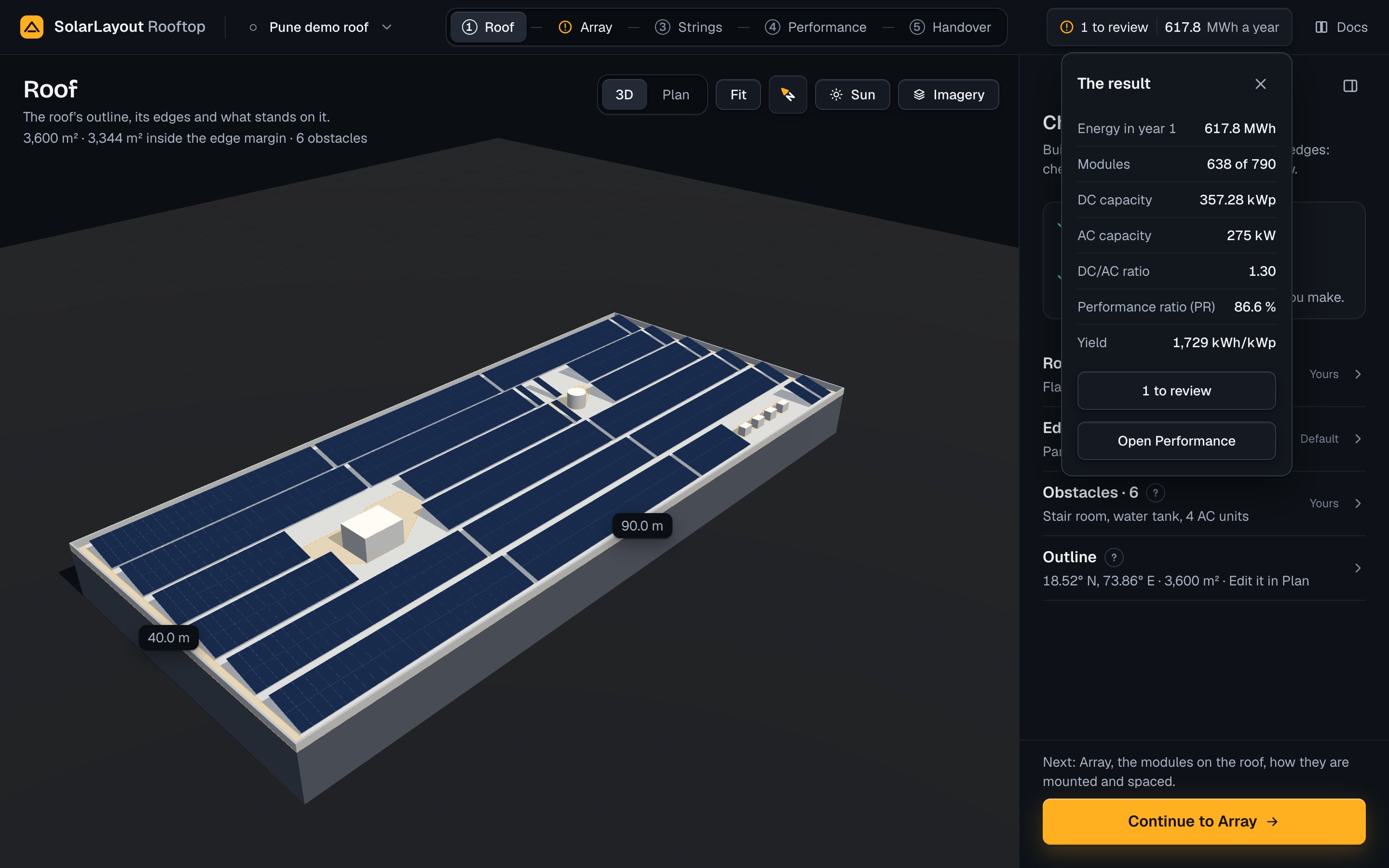
Press the result to open The result, a panel on desktop, a sheet from the bottom on a phone or a tablet. It lists seven figures of the chosen option:
| Figure | Unit |
|---|---|
| Energy in year 1 | MWh |
| Modules | Used, of the positions on the roof |
| DC capacity | kWp |
| AC capacity | kW |
| DC/AC ratio | — |
| Performance ratio (PR) | % |
| Yield | kWh/kWp |
The performance ratio (PR) is the energy delivered over what the modules would make at their rated output in the same sunlight. The yield is the energy of a year for each kWp of modules.
Under the figures: <n> to review, which opens the notes, when notes wait, and Open Performance.
When a run fails, the panel says what happened and what to do, with Try again and Details:
| Title | Cause | Remedy |
|---|---|---|
| Energy not computed, or Energy not updated | The server could not be reached. | Check your connection, then try again. |
| Energy not computed, or Energy not updated | The server did not answer. | Try again in a moment. |
| Energy not computed, or Energy not updated | The app could not finish this step. | Try again. |
"Not updated" means a result from before stands, and the cause adds that the result shown is from before the change. When no option can be made, because no module fits on the roof or no string fits, the panel gives the reason, with Open Roof or Open Strings to put it right. See Troubleshooting.
Notes to review
A note is a value or a state the app wants you to look at:
- a note of the module file, of the layout or of the weather;
- the chosen option, when its DC/AC ratio is outside its target;
- a run or a layout that failed;
- a design the browser refused to keep.
Open the list from the result's panel, <n> to review. A refused save also opens it from Not saved in the project menu. On a phone the list is a sheet from the bottom; on a tablet or a computer, a panel from the right. With nothing waiting it says Nothing to review, with a tick. Close it with Escape, its ×, or a press beside it.
Each note has its title, its reason, where it belongs, and one action:
| Where it belongs | Its action |
|---|---|
| Module · Array step | Open Array |
| Layout · Array step | Open Array |
| Weather · Performance | Open Performance |
| Option <letter> · Strings step | Open Strings |
| This design · on this device | Try again |
A value outside the usual range carries its field in the note. Its title names the value, such as "Voc coefficient outside the usual range" (Voc, the module's open-circuit voltage), and its reason "Usually <low> to <high> <unit> for this kind of module. Enter the datasheet's value." Type the datasheet's value in the field, or press Keep <value>. The list then starts with "Values outside the usual range. Each one says how to fix it."
A run or a layout that failed says so with its cause, whether the last result or the last positions still show, and Try again.
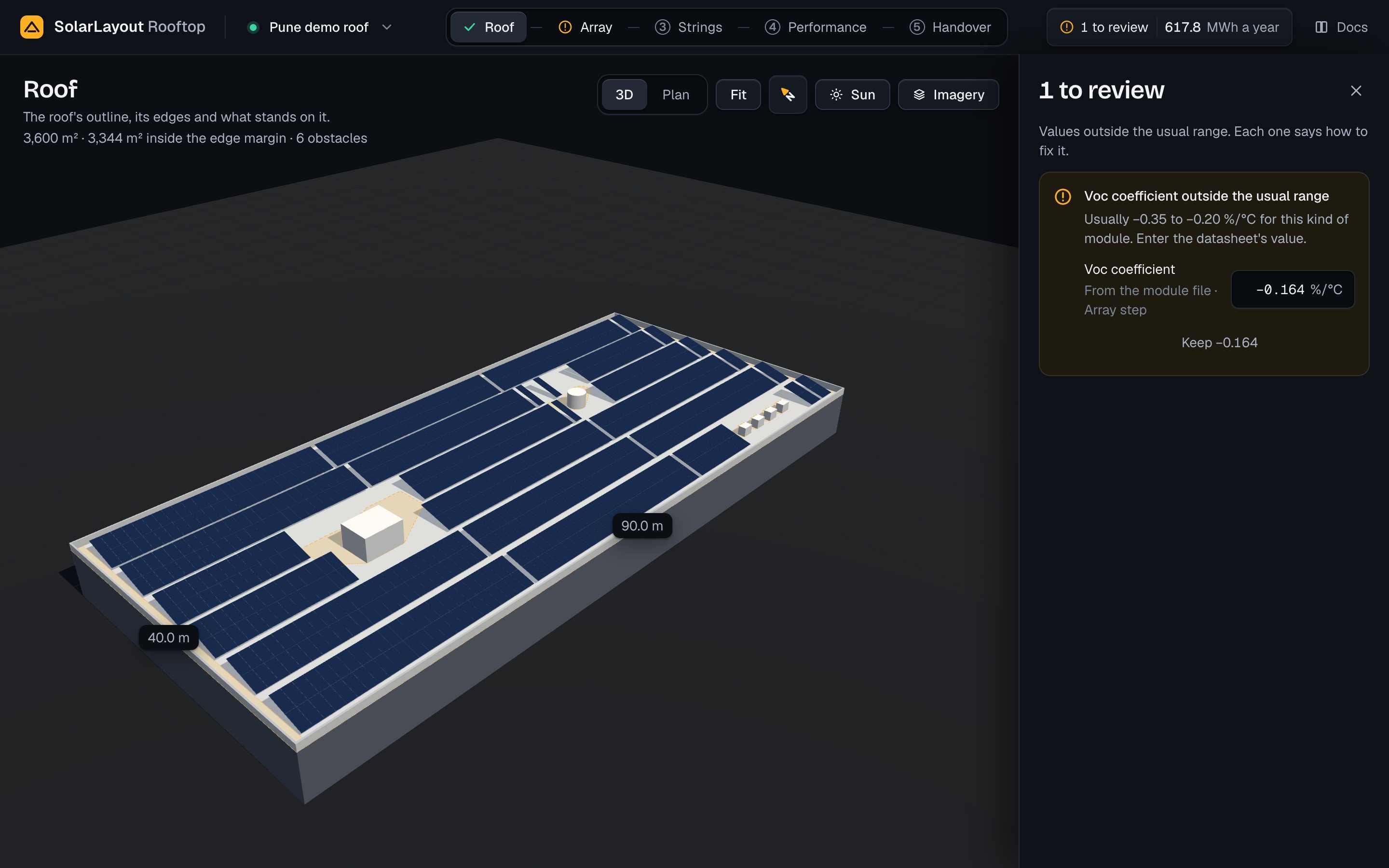
The note mark is an exclamation in amber, never a red cross.
The work column
On a computer the work column stands at the right of the stage, 384 px wide. It has three weights:
- The step's head: what to do, as an instruction, and a line under it: Check the roof on Roof, Choose the module on Array, Check the strings on Strings. Until you open another step of a design, the Roof step's head also says The array is on the roof, then the energy of year 1 once it is computed.
- The sections, each a row you press to open or close: its name with its ? for the help, its facts on one line, and at the right who set it. On Array, Module opens the first time; after that each section stays as you left it on this device.
- The fields inside an open section.
The primary stands at the column's foot, with its "Next:" line.
Who set a value
| Word | Means |
|---|---|
| Default | The app's value |
| From the weather | Taken from the site's weather, such as the lowest and highest temperatures |
| Set for <country> | Set for the country you are in, such as Set for India: the system voltage a design starts with |
| Yours | You set it |
A section says Yours when any of its fields is yours. Under a field you changed, the hint says "Yours · default <value>" with Reset, for example "Yours · default 0.90 m · Reset". Reset gives the app's value back, as one change that undo takes back too.
Fields
- A number you type is kept when you press Enter or leave the field. Escape gives it up; ↑ and ↓ step it. A value past the range is set to its end, and the field says "The highest is <max> <unit>." or "The lowest is <min> <unit>.".
- A slider changes what is shown as you drag it, and keeps the value when you let go.
- A stepper keeps the value at each press of its minus or its plus.
Hide panel
On a computer, in the Studio, the icon at the column's top right,
Hide panel, gives the stage the whole width. ⌘ \ or Ctrl \ does the same,
and brings the column back, from anywhere in the Studio except while you type in
a field, use a slider, a menu or a list, or a dialog is open.
While the column is hidden, Show panel stands beside the view controls at the stage's top right, the step's primary floats at the stage's foot with its "Next:" line, and the result stays in the top bar.
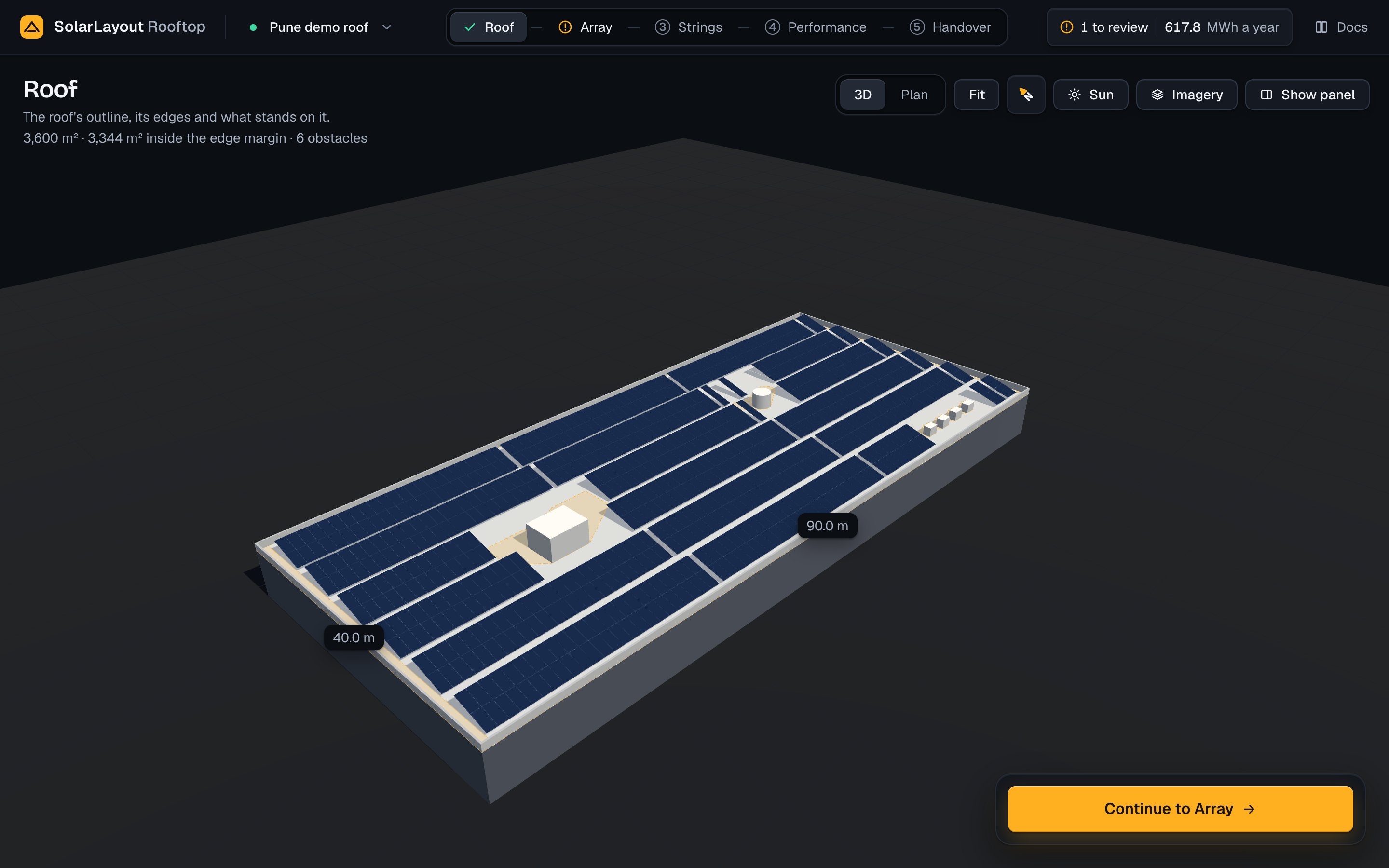
The column stays hidden on this device until you show it. It comes back by itself when a design opens for the first time, when the step in hand needs you, and when you select something on the roof. Find's column cannot be hidden.
On a phone or a tablet
| Tablet, 640 to 1100 px | Phone, under 640 px | |
|---|---|---|
| The steps | In the top bar | A tab bar at the foot: five icons with their names, the step in hand in the accent |
| The stage | Full width, 440 px high | The space the sheet leaves |
| The result | A row under the stage: the result at the left, the modules and the DC capacity at the right | In the top bar |
| The work column | Under the stage in two halves: the step's head at the left, its sections at the right | A sheet from the bottom with a grip |
| The primary | In a bar at the foot, the "Next:" line at its left | Pinned at the sheet's foot, without the "Next:" line |
| The view controls | 3D, Plan, Fit, north, Sun, Imagery | 3D, Plan, Sun, Imagery |
| Hide panel | No | No |
| Present | On Performance and Handover | Not shown |
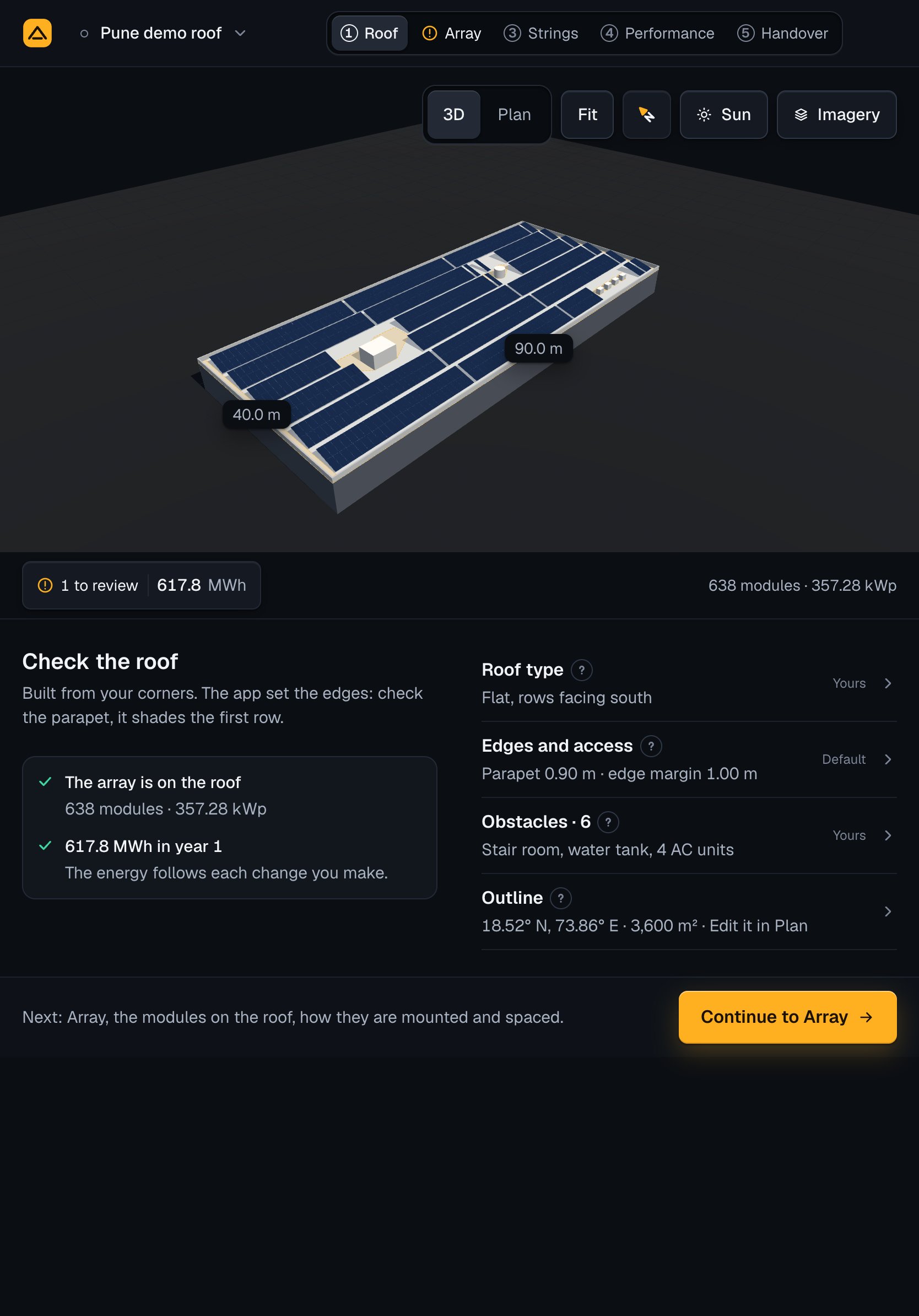
On a phone the work column is a sheet with three stops. It opens at half: the stage keeps 40 % of the screen's height. At its lowest stop it shows the grip, the step's instruction and the primary; at its highest a strip of the roof stays above it. Drag the grip, or press it to go one stop further. With a keyboard, ↑, ↓, Home, End, Enter and Space move it. The primary stays pinned at its foot at each stop.
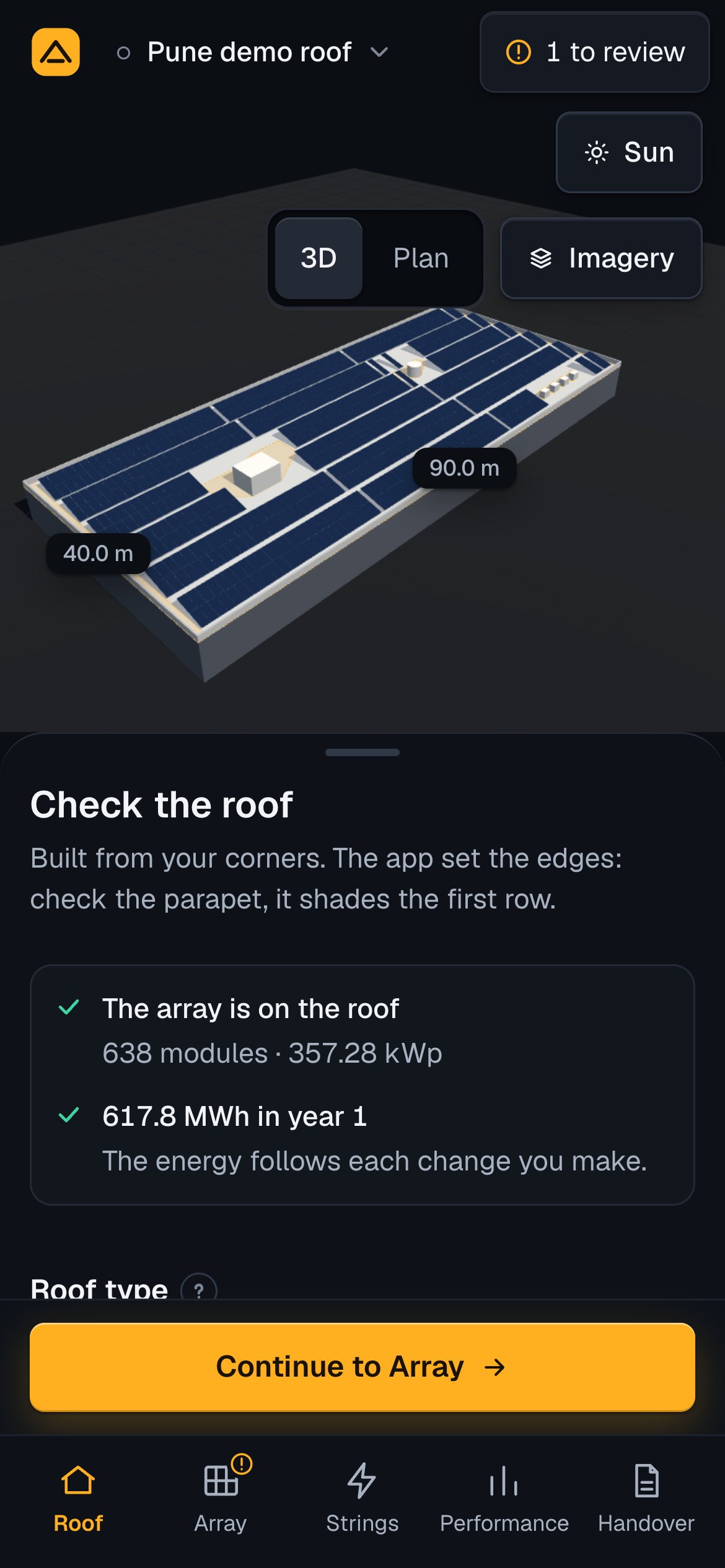
On a touch screen, Find's instructions and the help say Press where a computer's say Click. In 3D one finger turns the view and two fingers pan and pinch; in Plan one finger pans.
With the Sun view on, a tablet's or a phone's work column holds the Sun view's content in place of the step's head and sections; the primary stays.
Find on a tablet has the map on top, 440 px high, and the column as a sheet under it. On a phone the map takes what the sheet leaves, as in the Studio.
Help in the app
The help is on Find and in the Studio: on Roof, Array and Strings, and in the Sun view. Home, Performance, Handover and Present have none.
The ? disc stands beside a section's name, and beside Find's tools and sections. On a computer, rest the pointer on it, or move the keyboard's focus to it, to read the topic's summary and "Click for more". Press it to open the topic.
The help sheet opens from the right on a computer and a tablet, and from the bottom on a phone, with a grip. Its head says where it is, for example "Section · Array step" or "Tool · Find". Then:
- the topic's title and its summary;
- for a section that is one choice, its options, each with what it means, and the design's own choice marked: Your choice, or who set it, such as Set for India;
- the body. A section reads "What to set", "What it changes" and "When to change it"; a section that reads a result starts with "Reading it". A tool of Find gives numbered steps, for a mouse or for touch, with pictures and, for some, a short clip;
- Related: two or three topics, then "<section>, in the docs", which opens these pages in a new tab.
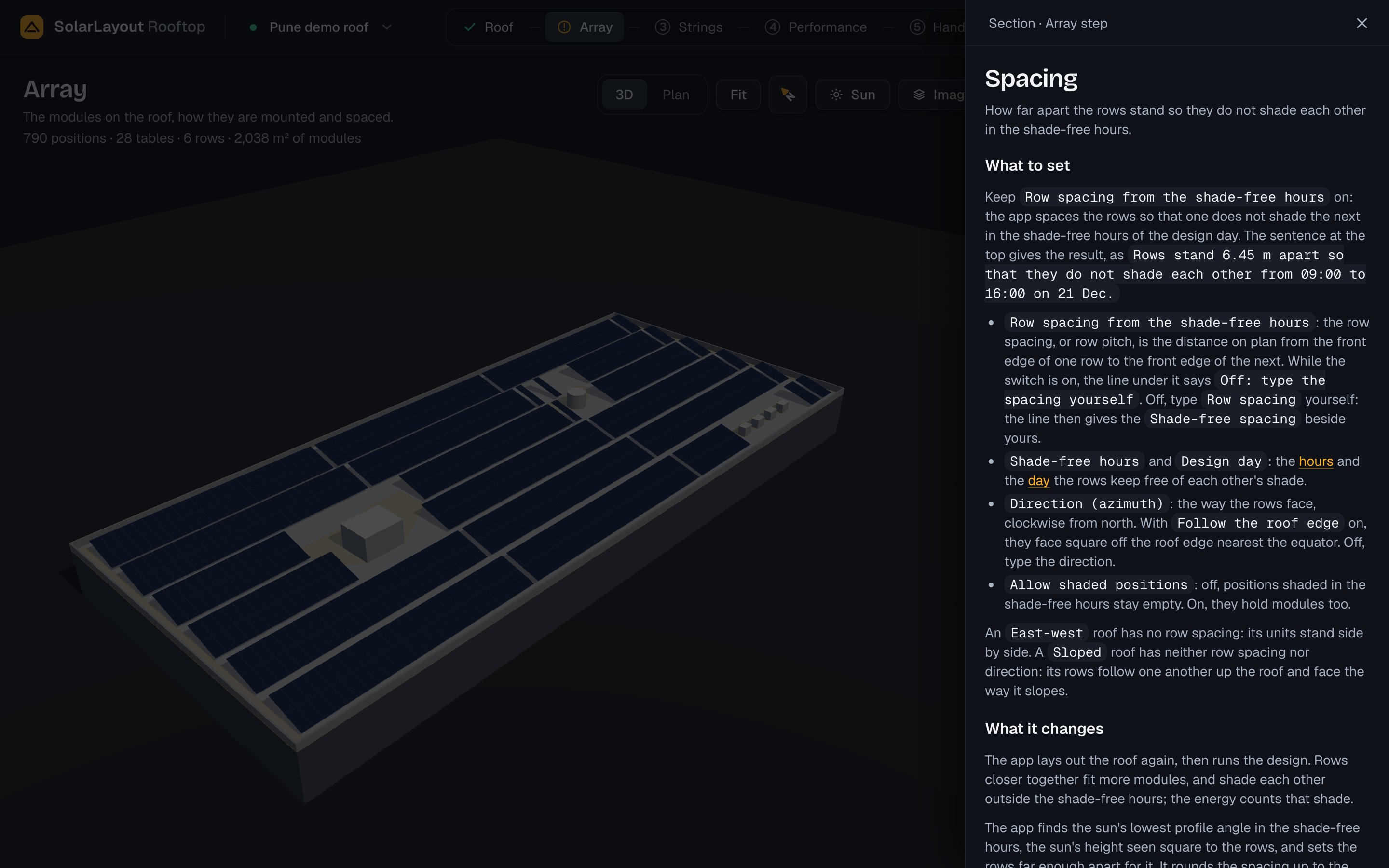
A topic's name inside another opens it in the sheet; Back returns. On touch, press a picture to open it larger and pinch to look closer. A clip loads only when you press its play button, then plays muted, in a loop; press it to pause. Close the sheet with Escape, its ×, or a press beside it.
The open topic is part of the page's address: copy the address to send a colleague the same topic. If the body does not load, the sheet says "This part of the help did not load. Check the connection and try again." with Try again.
The app's own words
Where you first meet one of the app's own words, one line says what it is:
| Word | Its line |
|---|---|
| Roof | The roof's outline, its edges and what stands on it. |
| Array | The modules on the roof, how they are mounted and spaced. |
| Strings | How the modules are wired to the inverter. |
| Performance | The energy the design makes in a year, and where it is lost. |
| Handover | The files for the client, the installer and the utility. |
| Sun | Shadows at any hour, and the shade on each module over the year. |
The line stands under the title the first time you meet the word on this device: for Roof, Array, Strings and the Sun view on a computer, under the stage's title; for Performance and Handover under the page's title, on each size. It stays until you reload the page. After that, a step's line is its tooltip in the top bar.
Saving
Free, no account needed. Your designs are kept on this device. A design on one device is not on another: its project file carries it across.
A design is saved by itself, 600 ms after your last change, and at once when you leave the page. The mark before the design's name says where it stands. On a computer, rest the pointer on it for its words; the project menu shows them under the name:
| Mark | Words | Means |
|---|---|---|
| A green dot | Saved on this device | The design as it stands is kept |
| A small ring | Saving | It is being written |
| A hollow dot | Not saved | Not kept: the demo, a design before its first change, or one deleted from Home while open |
| The note mark | Not saved | The browser refused to keep it. The note says why, with Try again; your next change tries again too |
The demo and a design not yet changed are kept from their first change. A change that another tab of the app blocks fails with "the app is open in another tab, which blocks the change": close the other tab.
Undo and redo
In the Studio, on Performance and on Handover, ⌘ Z or Ctrl Z undoes your last change; ⌘ ⇧ Z, Ctrl ⇧ Z or Ctrl Y redoes it. A rename is a change too. The app keeps 50 changes, and opening another design starts afresh. A key pressed in a field belongs to the field. Find has its own Undo for the outline.
Toasts
A short message, a toast, stands at the bottom centre of the screen, one at a time. A toast of something done has a tick and leaves after 5 s; a note stays until you close it. When a change takes away the stringing you chose, the toast says "Your stringing no longer fits. Option <letter> is used." with Undo, which takes the change back, and Choose another, which opens Strings.
While a file of Handover is on its way, the browser asks before you leave the page.
See On this device for the designs on this device and the project file.