Your first rooftop design
A walkthrough from an address on Home to the files of Handover, on a real flat roof, through the five steps.
This walkthrough takes one real roof from its address to the files you hand over. You find the building on the map, outline its roof, add what stands on it, and build it. SolarLayout Rooftop then lays out the modules, wires them into strings and works out the energy of a year. You check each step and download the files.
The roof here is a flat roof with a box, a tank and a wall on it. The figures of yours differ with the roof you choose.
Before you start
Open Rooftop at rooftop.solarlayout.app in a browser that draws 3D (WebGL). The map and the 3D roof both need it. See What the browser needs.
Free, no account needed. Your designs are kept on this device. A design kept in this browser is not on another device: the project file you download at the end carries it across.
Have to hand:
- The building's address, or its coordinates or a maps link.
- The height of the parapet, the low wall at the roof's edge, if it has one. Measure it on site: it shades the first row.
- The heights above the roof of what stands on it: a stair room, a tank, a wall.
- Optional: the module file (PAN) and the inverter file (OND) of the equipment you plan to use. Without them, choose from the app's library.
Find the building
On Home, type the building's address in Address or coordinates, then press Find the roof (or Enter). Up to 5 places are listed under the field, each with its kind. Choose the right one.
Find opens with the satellite map close over the place and the column headed Outline the roof, with Corners in hand.
Check:
- The building under the map's middle is the one you want, its roof's edges clear. Zoom in and Zoom out stand at the map's bottom right on a tablet or a computer; on a phone, pinch the map.
- A place found by its address names the design. The design takes the place's whole label as its name, and the part before the first comma as its place's name: "Pune" of "Pune, Maharashtra, India".
Coordinates or a maps link pasted in the field are read back at once as one row marked Coordinates, and taken as they are. A design found this way is named "Untitled roof". More on the search in Find the building.
Outline the roof by its corners
Click each corner of the roof, in turn round its edge (press it, on a phone or a tablet). Each edge shows its length in metres. A corner close to a right angle with the edge before it snaps square while Square the corners is on, as it is at first.
Click the first corner again, or press Enter, to close the outline. A roof needs at least 3 corners. The column's head becomes Add the obstacles, with a line that gives the roof's area and its corners: "The roof is outlined: <area> m², <n> corners."
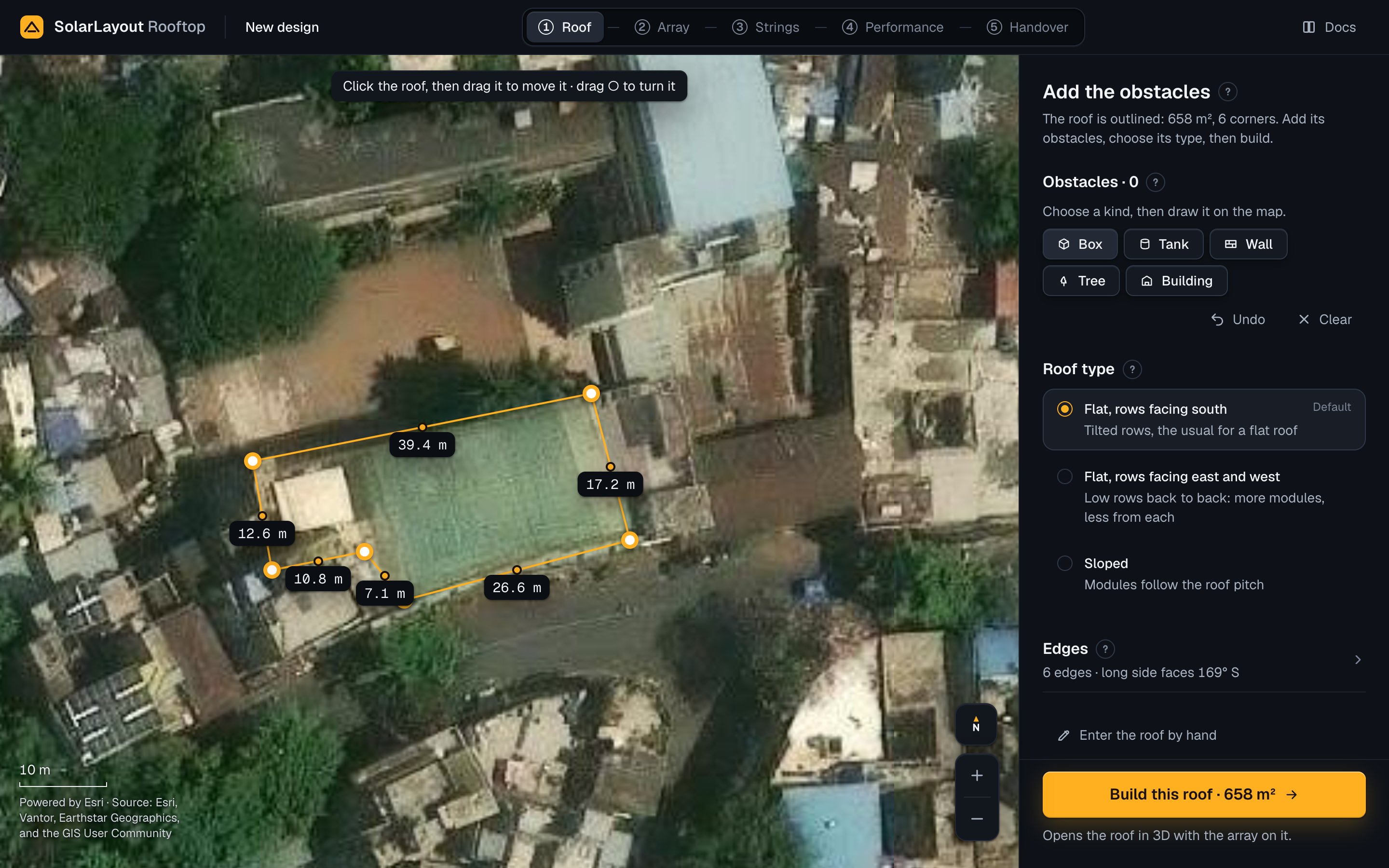
Check:
- Each corner sits on the roof's edge. Drag a corner onto it. Click the dot in the middle of an edge to add a corner there.
- The lengths match what you measured. Open Edges in the column and type a measured length to correct an edge.
Undo in the column takes back one step: a corner, a drag, a length. Clear takes off the corners and the obstacles. See Outline the roof for the rectangle and for Detect building.
Add an obstacle
Once the outline is closed, the column shows Obstacles with the kinds Box, Tank, Wall, Tree and Building, and Box in hand. A stair room is a box.
- Drag from one corner of the stair room to the opposite corner.
- In the card beside it, type its Height above the roof, in metres. The height is above the roof's surface, not the ground.
- Press Add, or Enter.
The obstacle is listed as "Box 1", with its size and height under the name. Add the others the same way: drag a tank or a tree from its middle to its edge; click each point of a wall, then the last point again.
Check:
- Each obstacle's footprint covers what stands on the roof.
- Its height is right: modules keep clear of an obstacle and of the shadow it casts in the shade-free hours of the design day, and its shade counts in the energy. Heights cannot be changed on Find; change one on the Roof step after the roof is built.
See Add the obstacles for moving, turning and removing them.
Choose the roof type
Roof type under the obstacles asks how the modules sit. North of the equator:
- Flat, rows facing south, "Tilted rows, the usual for a flat roof": the default. South of the equator it reads Flat, rows facing north.
- Flat, rows facing east and west, "Low rows back to back: more modules, less from each".
- Sloped, "Modules follow the roof pitch". The roof is built with no parapet and a roof pitch of 10°: set its real pitch and the direction it faces on the Roof step.
For this roof, keep Flat, rows facing south. On the Roof step the same three are the buttons Tilted rows, East-west and Sloped. See Roof type.
The column holds the obstacles, the roof type and the edges, and the button Build this roof · <area> m² at its foot.
Nothing on Find is saved. Leaving Find or reloading the page loses the outline and its obstacles: the design exists only once the roof is built.
Build the roof
Press Build this roof · <area> m². Under it the button says what it does: "Opens the roof in 3D with the array on it." While it works it reads Building the roof.
The app opens the new design on the Roof step, the roof in 3D with the modules on it.
Check:
- The area on the button is the roof's. The app designs one roof at a time, up to 30,000 m².
- If the app refuses the outline, its reason stands above the button, and the outline stays to correct. An outline that crosses itself is refused: move the corners so that no two edges cross. The messages are in Troubleshooting.
Check the roof
The column's head is Check the roof, with the line "Built from your outline. The app set the edges: check the parapet, it shades the first row." Under it the status of the first open says what the app has done: The array is on the roof, with the modules and the kWp, then Computing the energy with "Shading the modules over the year. A few seconds.", then the energy of year 1 with "The energy follows each change you make."
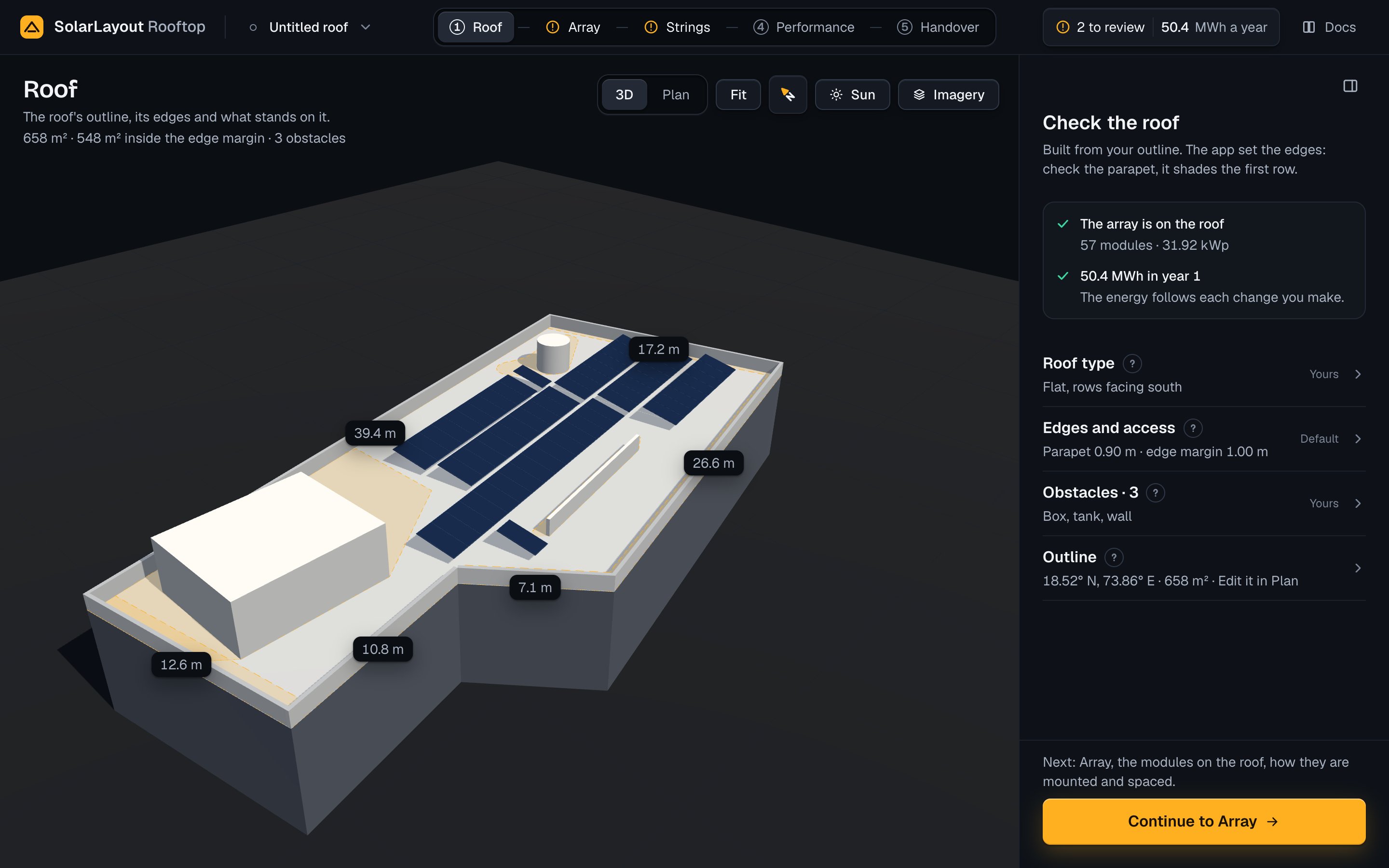
The result stands at the top bar's right: the energy of year 1, "<x> MWh a year" on a computer. Press it for the summary of the design. See The result.
Check, in the column's sections:
- Edges and access: the Parapet height is the app's 0.90 m until you type yours. Type the height you measured; 0 is no parapet. The Edge margin (setback), the strip kept free at the edge, is 1.00 m; set it to what the site's rules need.
- Obstacles: each one with its height. Press one to change its height, its size or its name.
- Outline: the place and the area. Edit it in Plan turns the stage to Plan with the roof's corners as handles, to drag one.
Each change lays the roof out again and runs the design, and the design is saved on this device: the mark before its name in the top bar is a green dot, "Saved on this device". See Roof.
Choose the module
Press Continue to Array at the column's foot. The line over it says where it goes: "Next: Array, the modules on the roof, how they are mounted and spaced."
The head is Choose the module. The Module section opens with the module's card: its model, its maker, its power and its size. A new design starts with the app's own module, BiN-08-580 by Waaree (580 Wp).
- Press Change. The window Choose a module lists the library's modules, by power.
- Type the maker, the model or the power in the search, then click the row.
- Press Use this module. Or drop your own module file (PAN) on the strip under the list (on a phone, press Choose your own module file (PAN)).
Check:
- Mounting: the tilt (15° at first), the orientation (portrait or landscape) and how many modules stand up each row.
- Spacing: the sentence at its top gives the row spacing and the hours it keeps free of shade, "Rows stand <p> m apart so that they do not shade each other from 09:00 to 16:00 on 21 Dec." The hours are solar time, and 21 Dec is the design day north of the equator, the day of the longest shadows.
Each change lays the roof out again. See Array.
Check the system voltage and choose an option
Press Continue to Strings ("Next: Strings, how the modules are wired to the inverter."). The head is Check the strings, and the stage turns to Plan, the strings coloured on the roof.
- In System voltage, check the voltage. It is set for your country: 600 V in the United States, its territories and Canada, 1000 V elsewhere, marked "Set for <country>". Press 600 V, 1000 V or 1500 V for the one the site's code allows.
- In Inverter, press Change to choose the inverter you plan to use, from the library or your own inverter file (OND). The strings are sized for it.
- In Options, read the cards, the best first. Each gives its letter, why it is there, the modules per string and the strings, the kWp and the energy of year 1. Press a card to choose it.
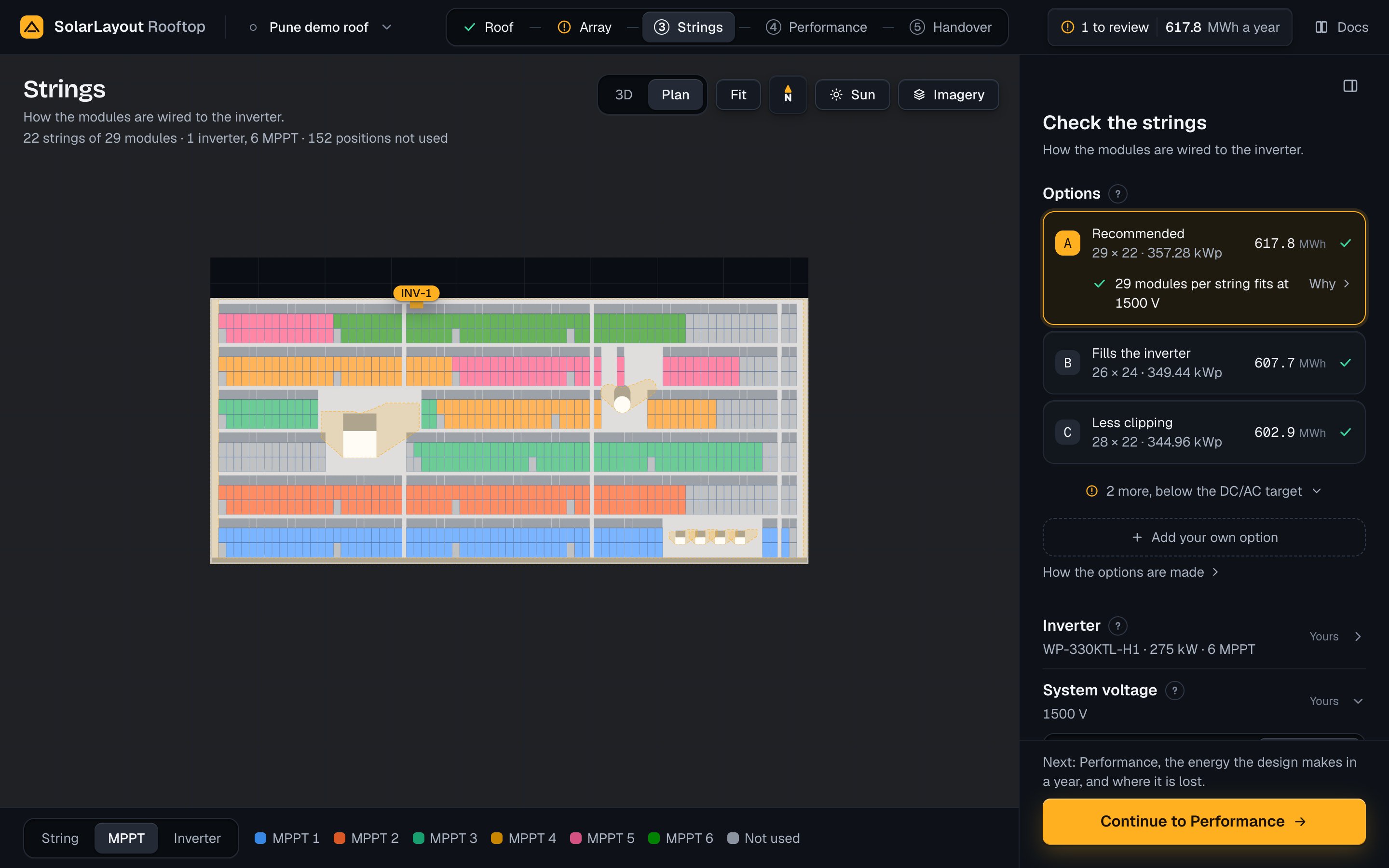
Check:
- The chosen card's mark. A tick means its DC/AC ratio, the modules' DC power against the inverter's AC power, is in the target of 1.10 to 1.30. An exclamation mark means it is outside the target, or an MPPT's current is over its limit or the limit is not known.
- Under the chosen card: "<n> modules per string fits at <V> V". Press Why to see the coldest and the hottest hours that set the lengths.
If no string length fits at the voltage set, the head says so. When a higher voltage fits, the button at the foot offers it, Use <V> V: check first that the site's code allows it. See When no string length fits.
Read the energy
Press Continue to Performance ("Next: Performance, the energy the design makes in a year, and where it is lost."). Performance shows the chosen option's Energy to the grid in year 1 in MWh, with Likely (P50) and Conservative (P90), "9 years in 10 at least".
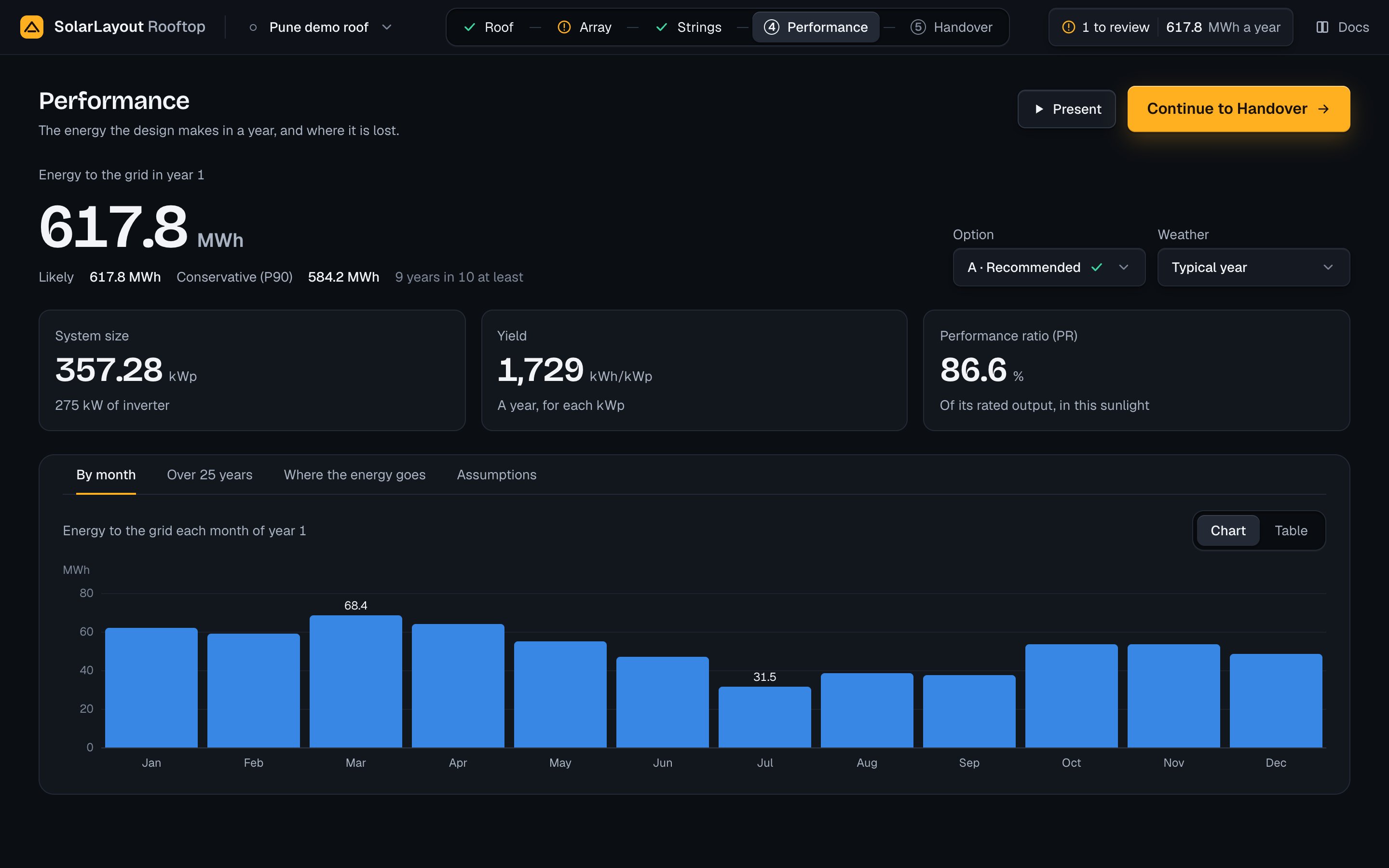
Check:
- Option and Weather beside the energy. The weather is Typical year, "From PVGIS, with the site's horizon", unless you choose 2023, measured or Your file.
- The three figures: System size, Yield and Performance ratio (PR).
- The four tabs: By month, Over 25 years, Where the energy goes and Assumptions. Set the roof albedo, the ageing and the uncertainty in Assumptions.
There is no button to run: each change runs the design again. See Performance.
Look over the files
Press Continue to Handover. Handover lists the files, grouped by who they are for:
| Group | Files |
|---|---|
| For the client | Design report |
| For the utility | Single-line diagram |
| For the installer | Bill of materials, Cable schedule, CAD layout |
| For you | Project file, Hourly data, Google Earth model |
On a computer the Design report's pages stand beside the list. Press a row to see its file; its own button downloads it alone.
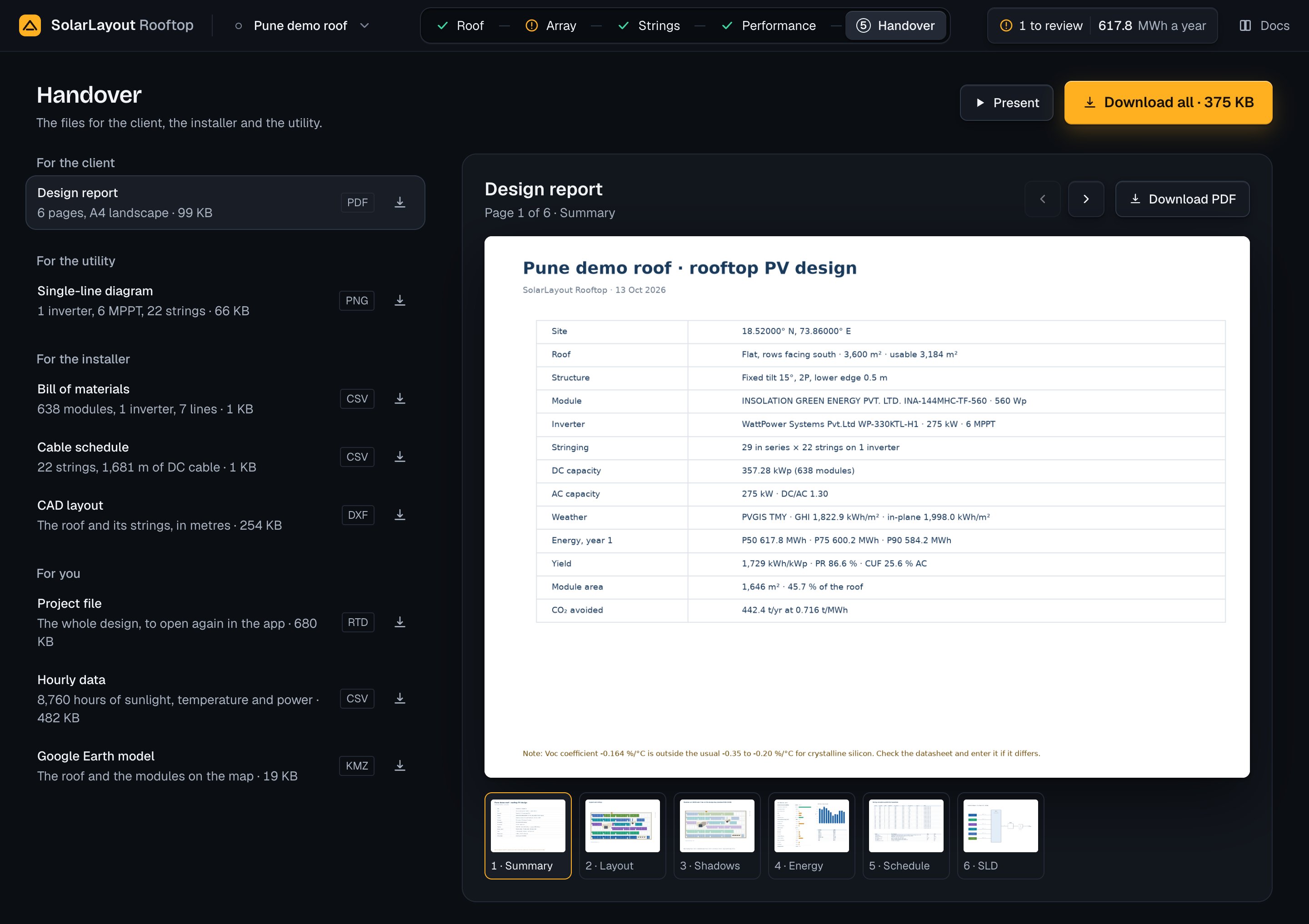
Check:
- Each row's line: the report's pages, the single-line diagram's inverters and strings, the bill of materials' modules, with each file's size.
- The report's first page, the summary: the roof, the module, the inverter, the stringing and the energy are this design's. See Handover.
Download all the files
Press Download all · <size>: at the head's right on a computer, pinned at the list's foot on a tablet or a phone. The browser saves one zip, named after the design, that holds the seven files of the option and the project file.
Check:
- The browser shows its download. While a file is on its way, the browser asks before the page is left.
- Keep the project file (.rtd). It is the whole design in one file: open it on another device, or later in another browser, to go on with the design. See Download all.
The five steps
The steps' marks, the top bar, the result and the notes to review
Find the roof
The search, the outline tools, the obstacles and a roof by hand
Strings
The options, the inverter, the system voltage and the MPPT loading
Your designs and the project file
Designs on this device, and opening a project file elsewhere
Getting started
Open SolarLayout Rooftop in a browser, add it to the home screen, try the demo, and know where your designs are kept and what the browser needs.
The five steps
The screen of SolarLayout Rooftop: the five steps and their marks, the top bar, the result, the notes, the work column, the help and saving.