Getting started
Open SolarLayout Rooftop in a browser, add it to the home screen, try the demo, and know where your designs are kept and what the browser needs.
SolarLayout Rooftop runs in the browser, on a phone, a tablet or a computer. There is nothing to set up: open its address and start a design, or open the demo to look around first.
Free, no account needed. Your designs are kept on this device. A design on one device is not on another: the project file carries it across.
Open Rooftop
Open rooftop.solarlayout.app in the browser. Home opens: the title Rooftop PV design, the line "Outline a roof on the map. The app lays out the modules, the shade, the strings and the energy of a year.", and under it the search, the largest thing on the page.
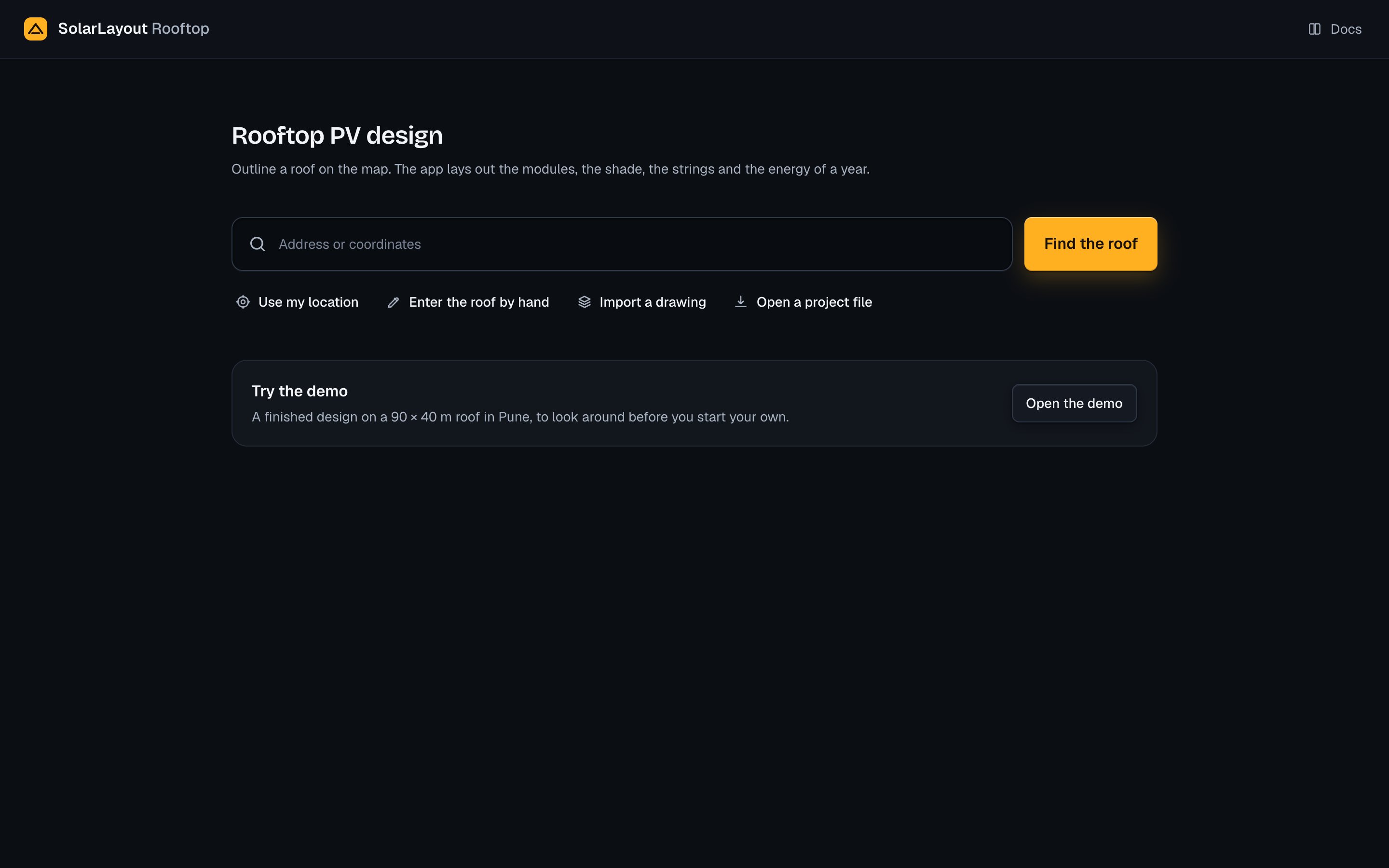
The search is a field, Address or coordinates, with Find the roof beside it. Under the search stand the other ways to start a design:
| Way in | What it does | See |
|---|---|---|
| Find the roof | Searches the address typed, or reads the coordinates or the maps link typed, and opens the map at the place. With nothing typed it opens the map at its first step | Find the building |
| Use my location | Opens the map where this device is, when you are at the building. The browser must allow the app your location | Find the roof |
| Enter the roof by hand | Opens the roof's place and shape as fields, with no map | Enter the roof by hand |
| Import a drawing | Opens a KMZ, KML or DXF drawing of the roof as a design | Import a drawing |
| Open a project file | Opens a design downloaded from the app as one file (.rtd) | Open a project file |
Docs at the top right of Home opens these pages in a new tab, on each size.
Start from an address
Type the address
Type an address or a place in Address or coordinates. Coordinates in decimals, latitude first, or a link from a maps site work too.
Search for it
Press Find the roof, or Enter. The app lists up to 5 places it found, each with its kind. Coordinates and a maps link need no search: the list reads them back as one row, Coordinates.
Choose the place
Press the place. The map opens on it, close enough to outline the roof, and the column says Outline the roof.
A place found by its address or its name names the design. The design takes the place's whole label, such as "Pune, Maharashtra, India", and the part before the first comma, "Pune", is its place name, which Present shows. Coordinates, a maps link and Use my location give no name: the design is called "Untitled roof" until you rename it.
On a phone, Find the roof stands under the field, as wide as it.
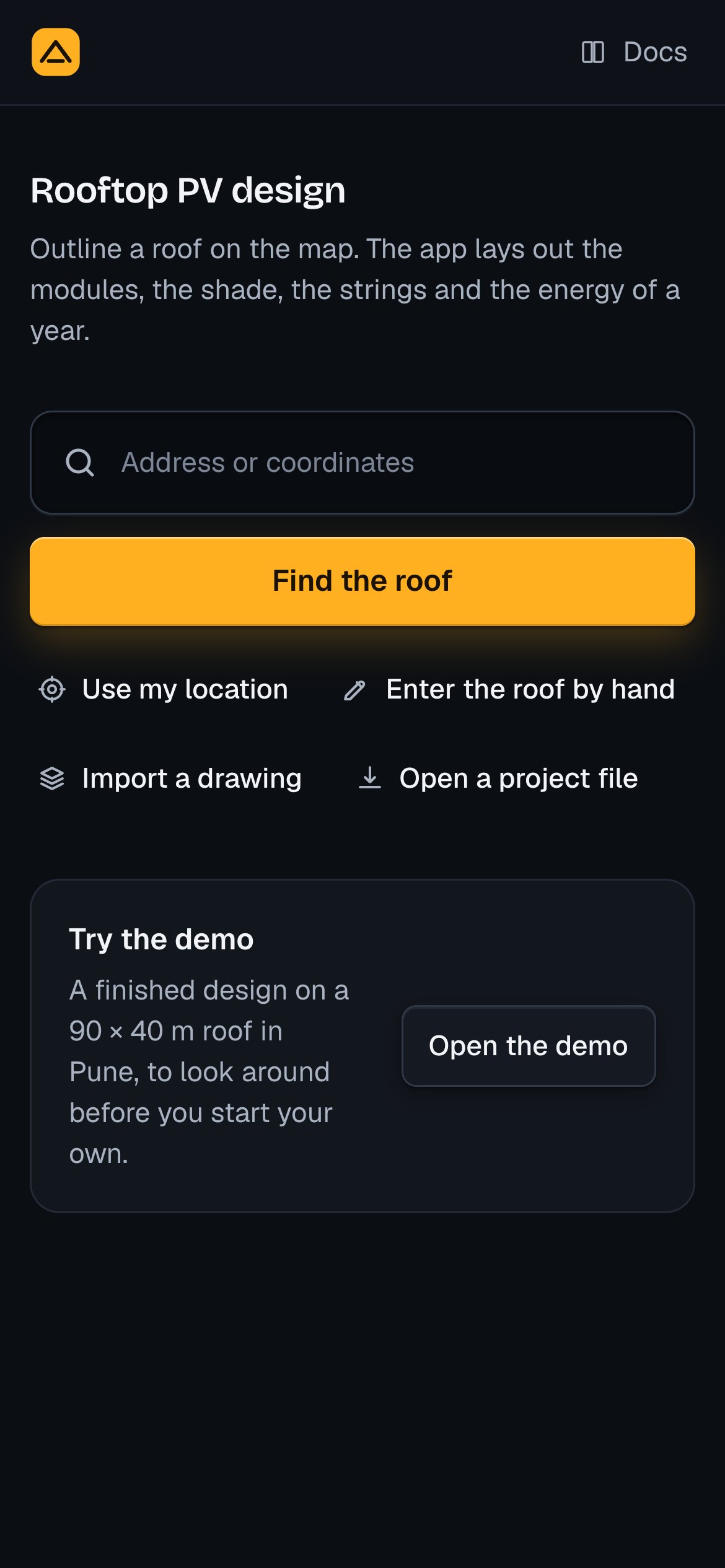
Home is laid out for three sizes: a phone under 640 px wide, a tablet from 640 to 1100 px, and a computer from 1101 px. So is each screen of the app. See On a phone or a tablet.
Add it to the home screen
Rooftop can stand on the home screen of a phone or a tablet like an app. Its icon is named Rooftop, and it opens without the browser's bars, on the whole screen, clear of the clock, the notch and the home bar.
The app does not ask to be added. Use the browser's own command for it: in Safari on an iPhone or an iPad, press Share, then Add to Home Screen. Other browsers have the command in their menu.
Try the demo
The last card on Home is Try the demo: "A finished design on a 90 × 40 m roof in Pune, to look around before you start your own." Press Open the demo. It opens in the Studio, on the Roof step at first, and runs.
| Item | The demo |
|---|---|
| Name | Pune demo roof, place name Pune |
| Place | 18.52° N, 73.86° E |
| Roof | Flat, rows facing south: a 90 × 40 m rectangle, its long side facing south |
| Obstacles | A stair room (5 × 4 m, 3 m high), a water tank (2.5 m across, 2 m high), and four AC units (1.5 × 1 m, 1.2 m high) |
| Array | Two modules in each row's height; the rest at the app's defaults |
| Module | BiN-08-580 by Waaree, 580 Wp |
| Inverter | WP-330KTL-H1, 275 kW, 6 MPPT |
| Weather | A typical year from PVGIS, carried with the demo |
| System voltage | 1500 V, set as your choice |
The first time it opens, the Roof step says The array is on the roof with "600 modules · 348.00 kWp", then 586.4 MWh in year 1 with "The energy follows each change you make."
Change anything in the demo to see what it does. The demo is not kept on the device until its first change; from then on it is a design like any other, under Your designs · on this device on Home. The Studio, Performance and Handover, opened with no design remembered on this device, open the demo.
Where your designs are kept
Free, no account needed. Your designs are kept on this device: in this browser, on this phone, tablet or computer. Nothing is kept on a server.
- Saved by itself. A design is saved 600 ms after your last change, after an undo or a redo, and at once when you leave the page or close the tab. There is no Save button.
- The saved mark. Beside the design's name in the top bar a mark says the state: a green dot, Saved on this device; a small ring, Saving; a hollow dot, Not saved, for the demo or a design before its first change, and for one deleted from Home while it is open. A note mark with Not saved means the browser refused to keep the design: see Notes to review.
- The results are not kept. A design opened again runs again: the layout, the shade, the options and the energy are worked out afresh.
- After a reload, the design that was open opens again.
- On another device or in another browser your designs are not there. To move one, download its project file on the first device and open it on the second.
A design is kept in this browser only. To keep a copy anywhere else, or to send it to a colleague, download its project file: Download the project file in the menu under the design's name. See Your designs and the project file.
What leaves the device
The design is kept on the device, but the app's server does the computing. Each change sends the design to it, and the server sends back the layout, the options and the energy. The server keeps no designs and has no accounts. It holds recent weather, shading results and report pages in its memory, never on disk, until it stops, and it logs one line per request: the address asked, the answer's status and the time taken, kept 30 days.
| Goes to | When | What |
|---|---|---|
| The app's server | Each change, the Sun view, each Handover file, opening a drawing or a project file | The design: its name, the roof and its obstacles with their latitude and longitude, the array, the losses, your own equipment and weather files, the system voltage |
| The map's imagery and address search (Esri) | Find's map; the Studio's ground while Imagery is on; words typed in a search | The area on the map; the words typed |
| Building outlines (Overture Maps) | Only while Detect building is the tool on Find | The area on the map |
| PVGIS, or NASA POWER (asked by the app's server) | When the weather of a site is loaded | The latitude and longitude |
| The browser's location | Only when you press Use my location | Read by the browser; the place goes with the design built there |
The app has no analytics and writes no cookies.
What the browser needs
The app asks three things of the browser:
To draw in 3D (WebGL). The roof, the Sun view and Present are drawn in 3D, and Find's map needs it too. Without it:
| Where | The app says | What happens |
|---|---|---|
| The Studio and Present | "This browser cannot draw the roof in 3D." | A plan of the roof, north up, stands in for the 3D view |
| The Studio and Present, when the browser stops drawing | "The browser stopped drawing the roof in 3D." | The same plan stands in |
| Find | "This browser cannot draw the map" / "Try another browser, or enter the roof by hand." | The column opens on Enter the roof by hand |
To keep data on this device. Designs are kept in the browser's own store. A browser that does not allow it cannot keep designs: the saved mark shows the note and Not saved, and the note says "The design could not be saved on this device: this browser cannot save designs." The app also remembers a few choices on the device, such as the steps you have opened and the work column hidden; a browser that refuses only forgets them.
A connection. The app's server lays out the roof and runs the energy. With no connection the result says "The server could not be reached." and "Check your connection, then try again.", with Try again. When a result came before, it stays on the screen, marked "Showing the last result", and the cause reads "The server could not be reached after your last change. The result shown is from before the change."
For a message the app shows and what to do, see Troubleshooting.