Find the roof
Find the building on the satellite map, outline its roof, add its obstacles and roof type, then build it. Or enter the roof by hand.
Find is the first part of the Roof step in SolarLayout Rooftop. You search for the building, outline its roof on the satellite map, add the obstacles that stand on it with their heights, choose the roof type, and press Build this roof. The app then makes the design and opens it in the Roof step, with the array laid out on the roof.
Find opens from Home's search (Find the roof), from Use my location and Enter the roof by hand under it, and from New design in the project menu. It is for a new roof: to change the outline of a design already built, edit it in the Roof step. Its top bar holds the mark (a link to Home), the words New design, the five steps with Roof in hand and, on a computer, Docs. Array, Strings, Performance and Handover are grey until the roof is built. See The five steps.
Nothing on Find is saved. The outline, its obstacles, the roof type and what you type by hand stay in the page only: leaving Find or reloading the page loses them. The design exists once Build this roof makes it. On a touch screen the app says "Press" where on a computer it says "Click"; these pages say click.
Find the building
The column opens on Find the roof: "Search for the building, then outline its roof on the map." Under the search stand Use my location ("When you are at the building") and Enter the roof by hand ("Type its length and width").
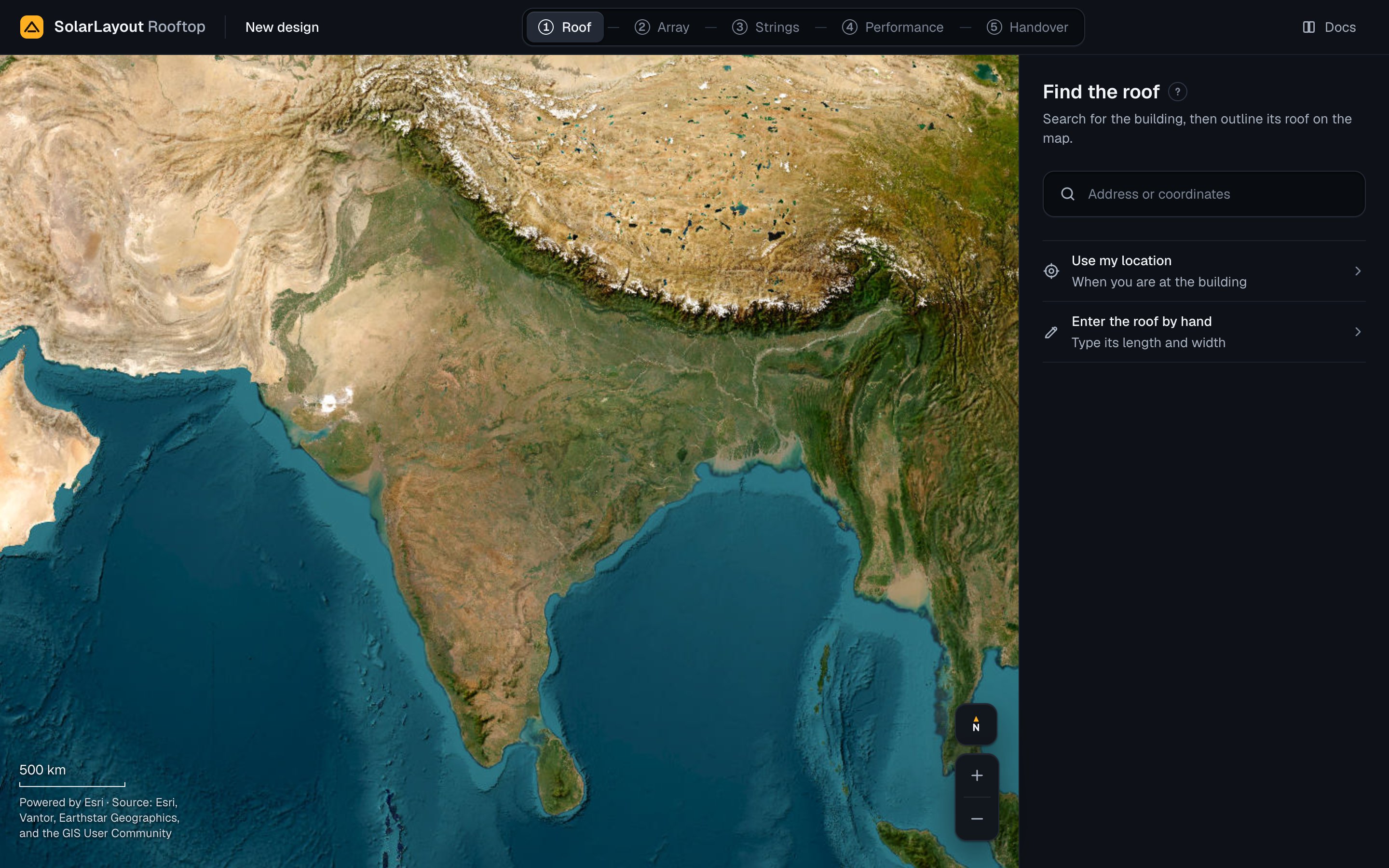
Type the address or the coordinates
Type in Address or coordinates, the first field of the column. While it is empty, its list shows Examples: an address, coordinates and a maps link. Press one to put it in the field.
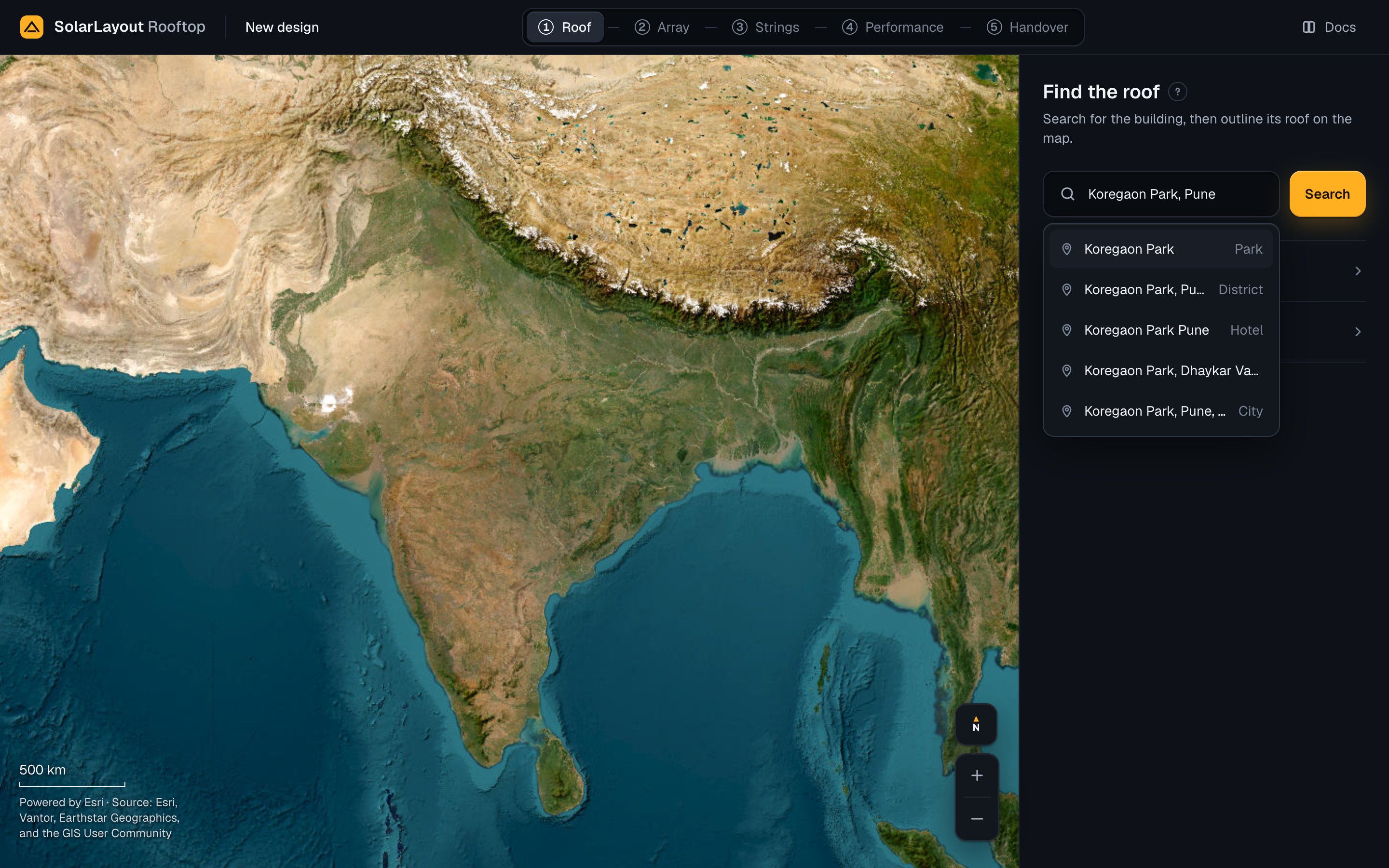
Search
Press Search or Enter. The list shows up to 5 places with their kinds (such as Park, District or City), those near
the map's centre first. Coordinates and maps links need no search: the list reads them back as you type, in one row
marked Coordinates, such as 18.53621° N, 73.89380° E.
Choose the place
Press it in the list, or move to it with ↓ and ↑ and press Enter. The map flies to it at roof zoom, about 0.3 m a pixel, and the column becomes Outline the roof.
| You type | For example | What the app does |
|---|---|---|
| An address or a place | Koregaon Park, Pune | Asks the address search, near the map's centre, for up to 5 places |
| Decimal coordinates, latitude first | 18.53621, 73.89380 | Reads them on this device. A comma, a semicolon or a space goes between; a minus means south or west. Two numbers with decimal commas, such as 12,914094 77,491989, are read with decimal points |
| Degrees, minutes and seconds | 18°32′10.4″N 73°53′37.7″E | Reads them on this device. N, S, E or W before or after each angle sets which is which; only the last part may have a fraction |
| A maps link | https://www.google.com/maps/@18.53621,73.89380,19z | Reads the place from a Google Maps, Apple Maps, Bing or OpenStreetMap link that starts with http:// or https:// |
| Whole numbers, alone or with only spaces between, such as a postcode | 411001 | Searches them as words |
Coordinates are never sent to the address search. When they cannot be read, a note under the field says why. When a
latitude over 90 fits as a longitude and no letters were given, the list offers the pair swapped, marked Swapped.
A pair whose numbers are both under 90 is read in the order typed: 73.89380, 18.53621 is latitude 73.89380.
Use my location takes the map to this device's location, waiting up to 15 seconds for it. A place found by its
address or its name names the design (its whole label) and gives its place name (the part before the first comma,
Koregaon Park of Koregaon Park, Pune). Coordinates, a link and Use my location give no place name, and the
design is named "Untitled roof"; rename it after Build in the project menu.
Outline the roof
The map is satellite imagery only, from Esri. On a tablet or a computer its buttons at the bottom right are North up, Zoom in and Zoom out; on a phone, pinch and turn it by hand. Three tools draw the outline: Corners, in hand at first, Rectangle and Detect building, with the count of corners, Undo and Clear under them.
By its corners
Click each corner of the roof
Go round the roof's edge, one corner after another; drag the map between corners. Each edge shows its length. While Square the corners is on, as it is at first, a corner within 3° of a right angle with the edge before it snaps square; otherwise one within 3° of parallel to an edge drawn snaps parallel.
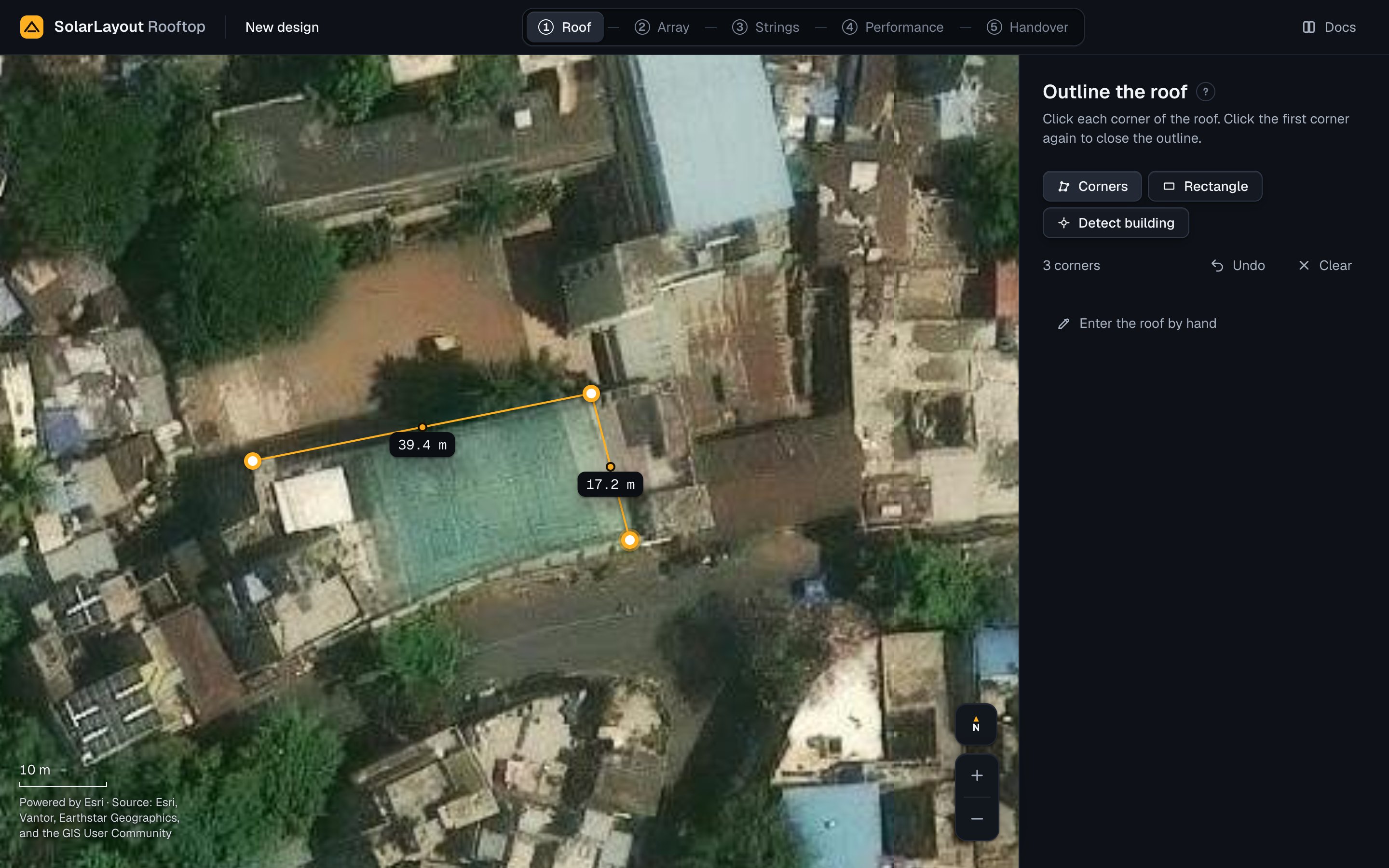
Click the first corner again
Or press Enter. The outline closes; a roof needs at least 3 corners. With Square the corners on, four corners all within 3° of right angles become an exact rectangle, the first edge kept as drawn.
Drag the corners onto the roof's edge
On a touch screen a loupe above your finger shows the corner close up. Click the dot in the middle of an edge to add a corner there. To take a corner off, click it and press Delete, while the roof keeps at least 3.
As a rectangle
Drag from one corner of the roof to the opposite one
Choose Rectangle first. It draws only while no corner is placed: if some are, press Clear. The rectangle stands square to north, and the outline closes when you let go.
Turn it by its round handle
Drag the handle above it round its middle until its edges lie on the building's; within 3° of north it snaps straight. Dragging one of its corners makes it an outline of corners, and the handle goes: to turn it then, pick the roof up.
From the building's footprint
Click inside the building
Choose Detect building: the footprints known from Overture Maps show faintly. Click inside the building. Its footprint becomes the roof's outline, closed, in place of any corners placed, and a note says "Footprint found · <n> corners · <area> m²", accurate to about 0.6 m. If it is the wrong building, press Undo in the note.
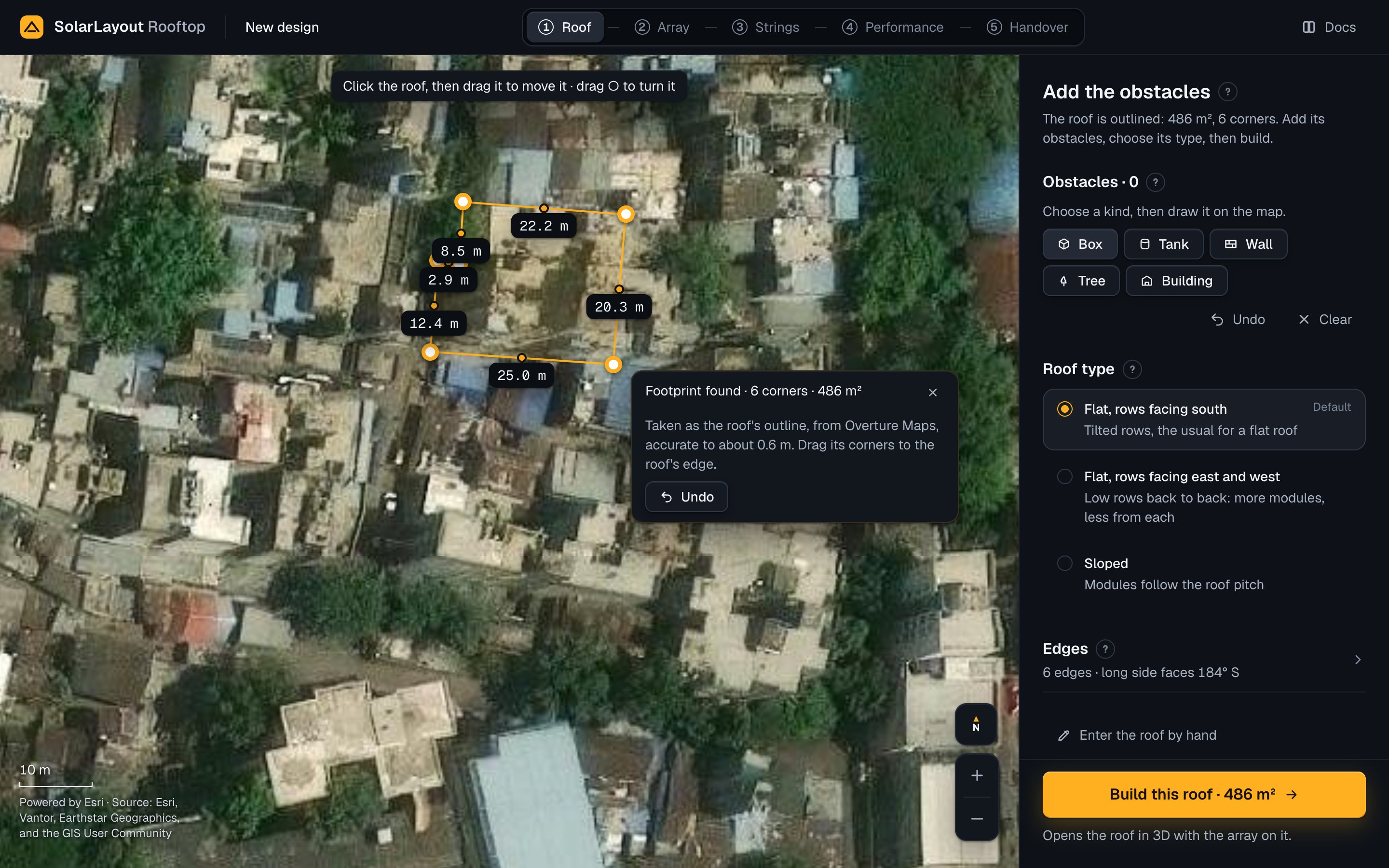
Drag the corners onto the roof
A footprint is close, not exact. Drag each corner onto the roof's edge you see, or type a measured length in Edges.
The closed outline
The column's head becomes Add the obstacles: "The roof is outlined: <area> m², <n> corners. Add its obstacles, choose its type, then build." The column holds Obstacles, Roof type, Edges and Enter the roof by hand, with Build this roof at its foot.
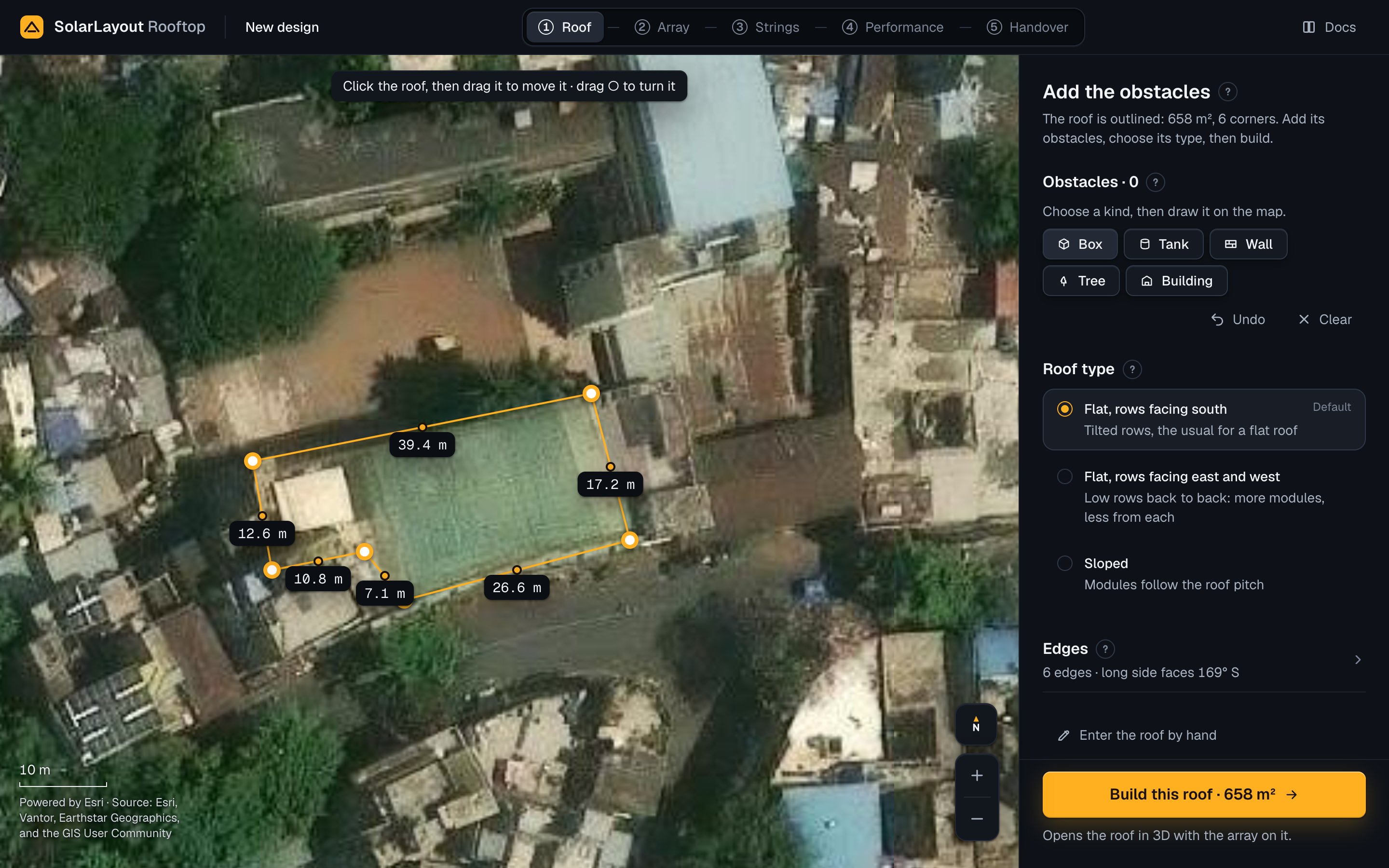
Edges
The Edges row shows the edges and where the long side faces, such as "4 edges · long side faces 180° S": the longest edge's side toward the equator (on an outline that is not a rectangle, the tilted rows can face another way). Press it to type a length measured on site or taken from a drawing: it is truer than one drawn on imagery that leans.
| Field | Default | Range | What it does |
|---|---|---|---|
| Each edge's length (m): North, North-east … on a rectangle (4 corners, each within 1° of a right angle), else Edge 1, Edge 2 … | As drawn | 0.1–2000, 1 decimal | Makes that edge the length typed: its ends move along it by the same amount, about its middle. On a rectangle with Square the corners on, the opposite edge follows |
| Square the corners · "Snaps to 90° when you are within 3°" | On | On or off | Snaps corners to right angles while you place and drag them, squares a near-rectangle on closing, keeps a rectangle one when an edge is typed. Off, a corner still snaps parallel to an edge drawn |
Undo, Clear and the keys
Undo takes back one step: a corner, a drag, a typed length, a footprint, a rectangle or its turn, an obstacle added, moved, turned, reshaped or removed, a move or turn of the roof, or a Clear. Clear takes off all corners and obstacles as one step. On a touch screen these two are the way back. With a keyboard, while the map has the keys: Enter closes the outline or ends a wall or a building. Esc takes back the last corner or point, or puts the picked-up roof down. Delete or Backspace removes the selected obstacle, else the selected corner while at least 4 remain. The arrow keys nudge the picked-up roof, else the selected obstacle or corner, 0.1 m (1 m with Shift). ⌘ Z or Ctrl Z undoes; ⇧ ⌘ Z or Shift Ctrl Z redoes (there is no Redo button).
Move or turn the roof
Once the outline is closed, the whole roof moves and turns, its obstacles with it: use it to set an outline onto the roof where the imagery shows it. A line at the top of the map says "Click the roof, then drag it to move it · drag ○ to turn it" until you first move or turn a roof on this device.
Click a clear spot inside the roof
Away from its corners and obstacles, with Box, Tank or Tree in hand (with Wall or Building a click places a point). The outline brightens and a round handle stands off the edge that faces nearest north.
Drag it into place
On a touch screen drag with one finger: two fingers move the map. A dashed outline shows where it stood, and a label how far it has moved, as "<x> m E · <y> m N". The arrow keys nudge it 0.1 m, 1 m with Shift.
Turn it by its round handle
The label gives the angle turned and where the long side faces. When the edge by the handle comes within 3° of facing north, east, south or west, the turn snaps square. To put the roof down, click outside it, choose another tool, or press Esc.
No obstacle can be drawn while the roof is picked up. Each move or turn is one Undo step; Build takes the roof where it stands.
Add the obstacles
An obstacle takes room from the modules and casts shade: a Box (anything rectangular, such as a stair room or a plant room), a Tank (anything round), a Wall (a line, straight or bent), a Tree, or a Building beside the roof whose shadow falls on it. Once the outline is closed, Obstacles · <n> offers the five, Box in hand. Choose a kind, then draw it on the map.
A card beside the shape then asks for Height above the roof (m): "Above the roof's surface, not the ground". Measure it on site; the imagery cannot give one. Type it and press Add or Enter: Add waits for a number, from 0.05 to 200 m. Cancel or Esc takes the shape off.
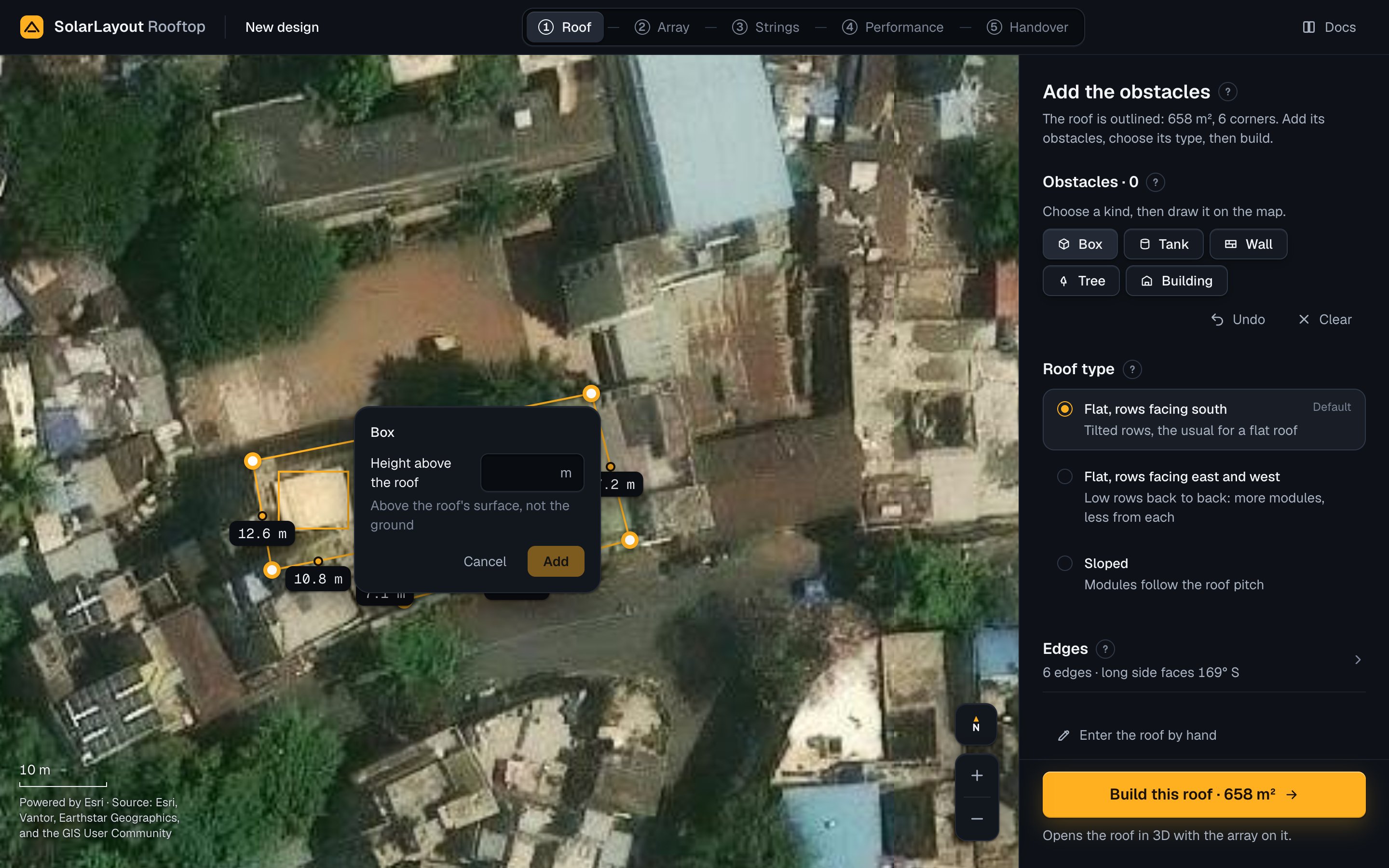
Box
Drag from one corner to the opposite one
The box stands square to north. Turn it after by its round handle until its edges lie on the stair room's.
Tank
Drag from its middle to its edge
The diameter is twice the drag.
Wall
Click each point, then the last one again
Click where it begins and at each turn of it; end on the last point, or press Enter. At least 2 points.
Tree
Drag from its middle to the edge of its crown
Modules keep clear of the whole crown.
Type the height of its top, then press Add
Its crown starts 2.0 m above the roof; set Crown starts at in the Roof step where it differs.
Building beside the roof
Click each corner, then the first one again
Go round the building, then close it on the first corner, or press Enter. At least 3 corners.
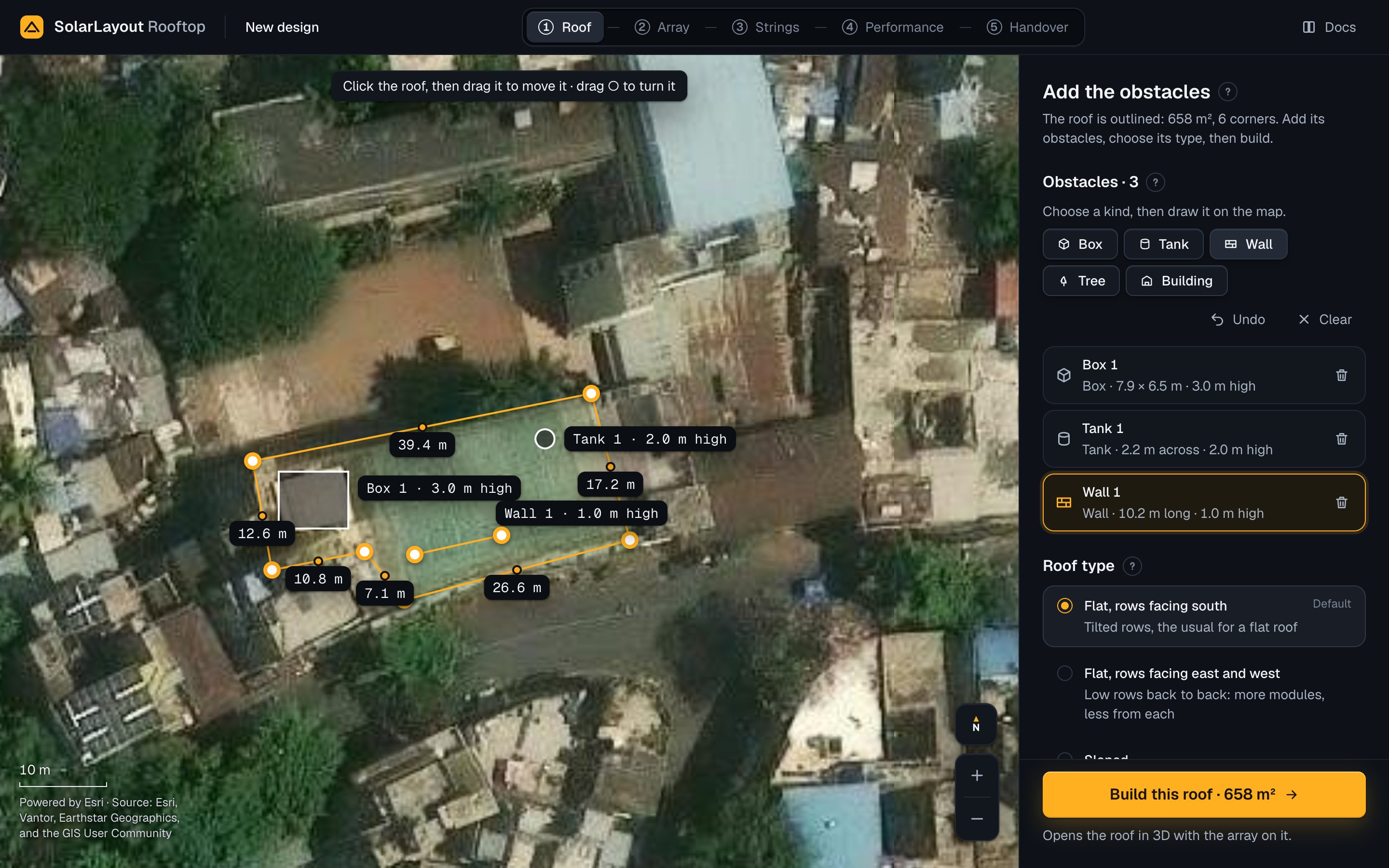
Each obstacle is listed as "<Kind> <n>" with its size and height, such as "Box · 5.0 × 4.0 m · 3.0 m high", and labelled on the map. Rename it and change its height in the Roof step. Select one by clicking it with Box, Tank or Tree in hand, or by pressing its row, then:
- Move it: drag from inside, or nudge with the arrow keys. One wholly on the roof slides along the edge it meets.
- Turn it by its round handle: a box or a building. A tank, a tree and a wall only move.
- Reshape it by a corner; a tank's or a tree's one handle sets its diameter. Zoom in on a small one to see them.
- Remove it: the bin of its row, or Delete.
Once built, no module stands on an obstacle or within its clearance; what its shadow covers in the shade-free hours of the design day is kept clear unless shaded positions are allowed, and its shade counts in the energy hour by hour. See Obstacles.
The roof type
Roof type shows once the outline is closed, and by hand. The default, marked Default, is Flat, rows facing south north of the equator and Flat, rows facing north south of it. Find does not remember the choice.
| On Find | On the Roof step | What the app lays out |
|---|---|---|
| Flat, rows facing south · "Tilted rows, the usual for a flat roof" | Tilted rows | Tilted rows facing the roof's edge nearest the equator, spaced so they do not shade each other in the shade-free hours. A walkway crosses the rows after 24 modules |
| Flat, rows facing east and west · "Low rows back to back: more modules, less from each" | East-west | Units back to back at a low tilt, one face east and one west, a gap between them only where the shade-free hours need one. A walkway after 4 units |
| Sloped · "Modules follow the roof pitch" | Sloped | Modules laid at the roof's pitch, facing the way it slopes, rows one after another with no gap for shade. A walkway after 4 rows |
Build gives a sloped roof no parapet and a roof pitch of 10°: type the real pitch and the slope's direction in the Roof step. The type also sets the defaults of the cell temperature the strings are sized with and of the modules' heat loss, and a sloped roof gets no rear gain from bifacial modules. See Roof type.
Build this roof
The button shows once the outline is closed, and by hand: "Build this roof · <area> m²", such as "Build this roof · 3,600 m²", over "Opens the roof in 3D with the array on it." By hand it is disabled until the place and the shape are complete. While it works it says "Building the roof".
The app checks that the outline does not cross itself and covers at most 30,000 m² (about 3 MWp), on Build and not before. It puts the design's place at the middle of the outline and sets the edges at their defaults: parapet 0.90 m (0 on a sloped roof), edge margin (setback) 1.00 m, walkways 0.60 m wide, clearance round obstacles 0.50 m. A refusal stands above the button, in the app's words, and the outline stays to correct.
The design opens in the Roof step, in place of the design open before: Check the roof, "Built from your outline. The app set the edges: check the parapet, it shades the first row." The app lays the array out ("The array is on the roof"), works out the energy, then gives the energy of year 1. See Check the roof.
Free, no account needed. Your designs are kept on this device. A design built on one device is not on another: to carry it across, download its project file and open it on the other. See Saving.
Enter the roof by hand
Enter the roof by hand when the map has no imagery of it, when its measurements are surer than the imagery, or when the map cannot be shown. Press Enter the roof by hand in the column or under Home's search. The head says "Type the roof's length and width. Add its obstacles in the Studio." From the map it takes the place the search found: the outline drawn and its obstacles go, and the roof by hand starts empty. From Home the place is empty.
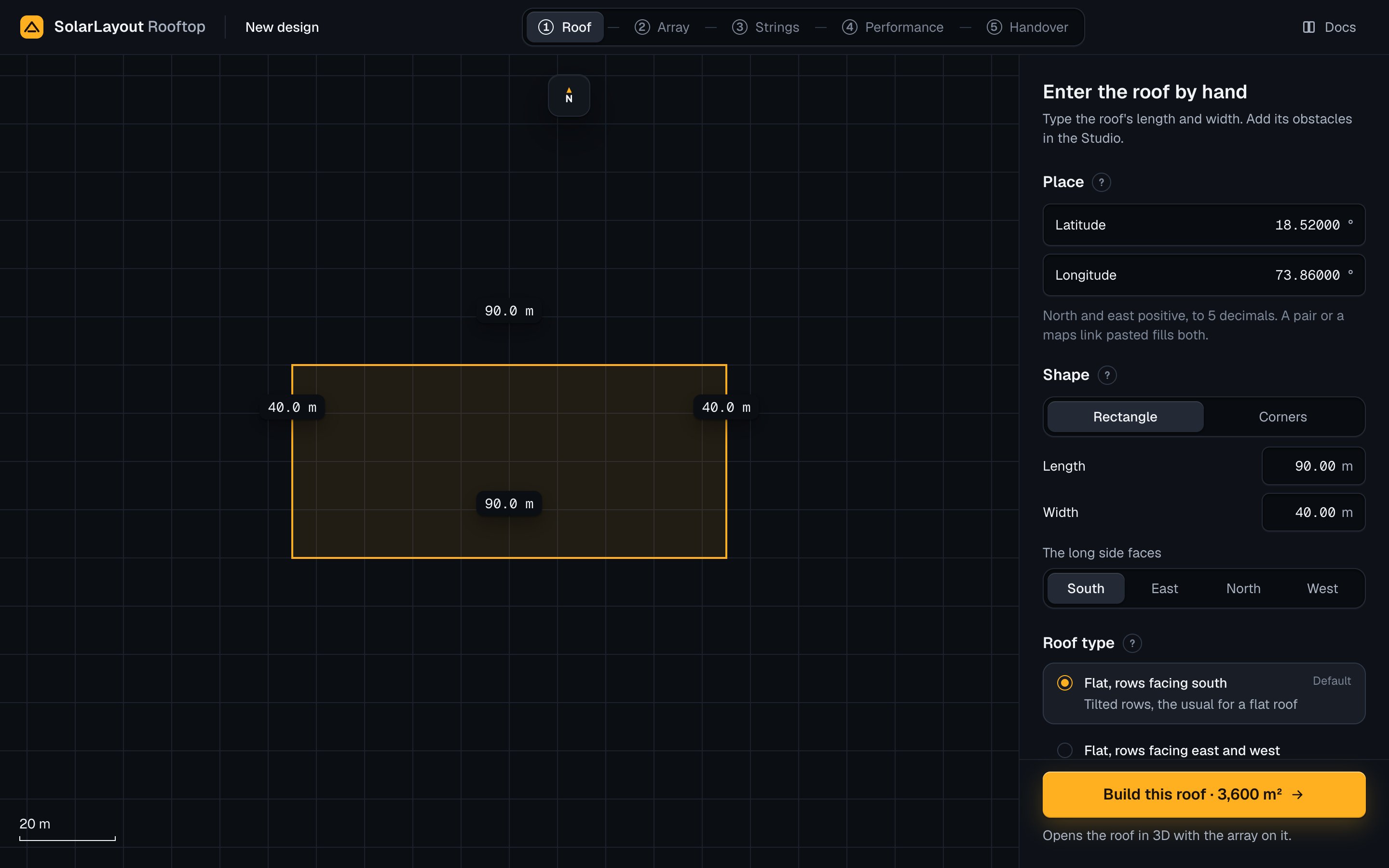
| Field | Default | Range | What it does |
|---|---|---|---|
| Latitude (°), in Place | The place found, else empty | −90 to 90, 5 decimals | Where the roof stands. North positive |
| Longitude (°), in Place | The place found, else empty | −180 to 180, 5 decimals | Where the roof stands. East positive |
| Shape | Rectangle | Rectangle or Corners | A rectangle by its sides, or any outline by its corners |
| Length (m) | Empty | 0.1–2000, 2 decimals | The longer of Length and Width is the long side, whichever field it is in |
| Width (m) | Empty | 0.1–2000, 2 decimals | The other side |
| The long side faces | South | South, East, North or West | The direction the long side looks. South and North give the same rectangle, as do East and West |
| Each corner's East and North (m) | No rows | −5000 to 5000, 2 decimals | Each corner east and north of the place, in order. Add a corner adds a row; its bin removes one. A row with a blank is left out; fewer than 3 complete rows draw nothing |
| Roof type | As on the map | The three types | See The roof type |
Paste coordinates or a maps link into either Place field: the app reads them as the search does and fills both. Choose Corners for an L, a notch or a corner cut off. Once the place and the shape are complete, the stage shows a plan of the roof, north up on a 10 m grid; until then it says "No roof yet". On Build the design's place becomes the middle of the outline, so corners not centred on the place move it. Add the obstacles in the Roof step. Draw on the map instead goes back to the map: a complete roof comes as a closed outline at the place.
Import a drawing
A drawing opens as a design without Find. Choose Import a drawing under Home's search or in the project menu ("KMZ, KML, DXF"), drop the file or press Choose a file, then press Open the roof.
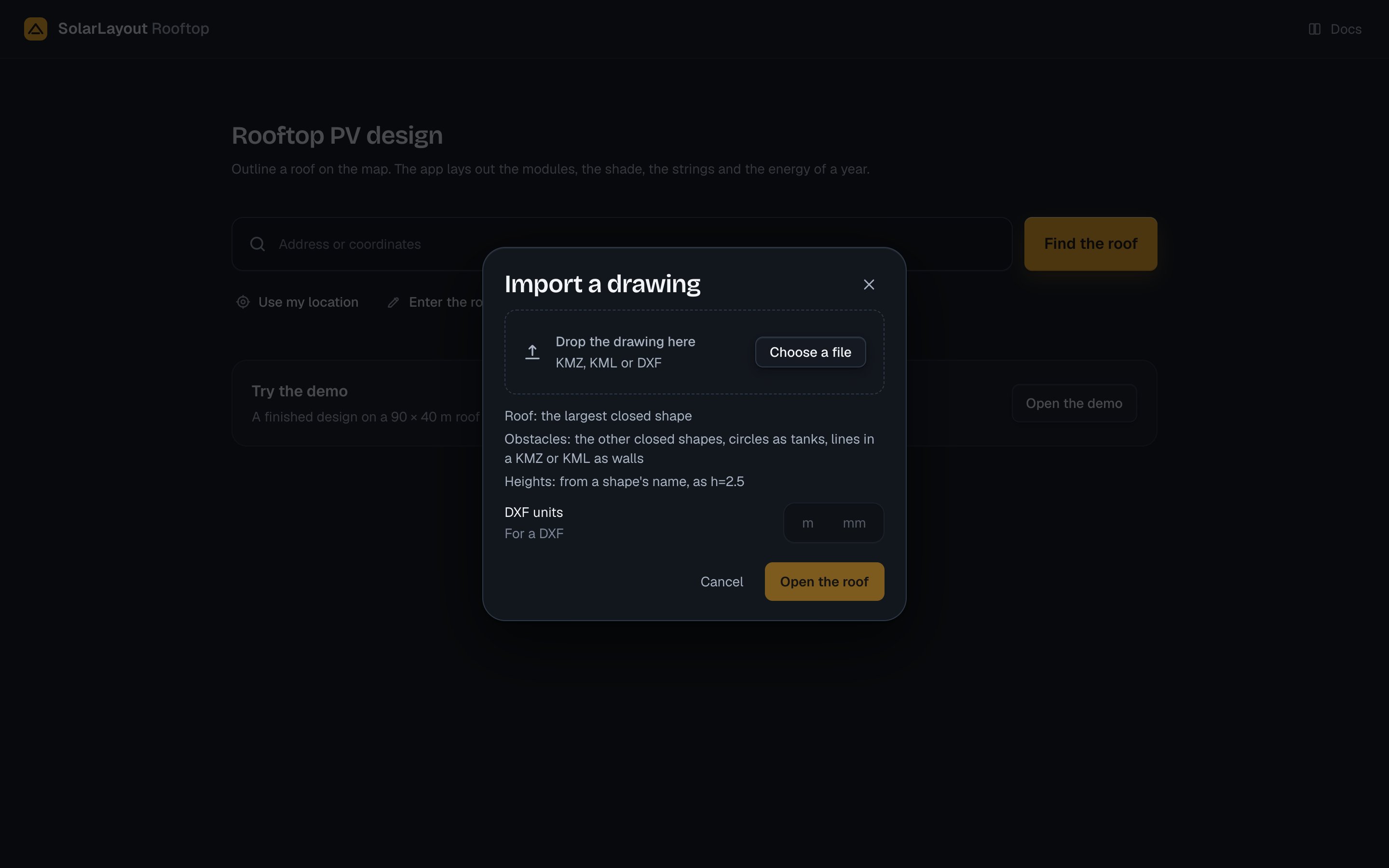
From a KMZ or KML (in a KMZ, the first KML inside, up to 20 MB) the app takes the placemarks' polygons and lines: the largest polygon is the roof, another a box when it makes a rectangle, else a building, and a line a wall. From a DXF, ASCII or binary, it takes the closed polylines and circles: the largest polyline is the roof, a circle a tank.
Heights come from a shape's name as h=2.5 or h:2.5, and in a KMZ or KML from a placemark's description too; a DXF
shape's name is its layer. A DXF also needs its DXF units (m or mm) and its Place ("Where is the
roof?"), by a search or its latitude and longitude. The design is named after the file, with the default roof type,
and opens in the Roof step. An obstacle with no height gets 1.0 m, listed there to review: "The file has no height for
these obstacles. The app uses 1.0 m." The app sends a drawing of about 4.7 MB at most.