The Sun view
The sun and its shadows on the roof at any hour, the shade map of the modules, the year's loss to shade by its cause, and how the app works it out.
The Sun view of SolarLayout Rooftop shows the sun on the roof: the path it takes on a day, the shadows it casts at any time of that day, and what shade costs the design over a year of the site's weather. It is a view of the stage, not a step. It is there on the Roof, Array and Strings steps, and what you choose in it changes only what is shown, never the design.
The day the rows are spaced for is the design day, set on the Array step in Design day. The Sun view opens on that day, at 12:00. The shade figures are not of the day shown: they cover each hour of the weather year.
Turn on the Sun view
Open a step of the Studio
Open the Roof, Array or Strings step.
Press Sun
Press Sun in the view controls at the stage's top right. The button stays pressed while the view is on.
Press Sun again to leave
Press Sun a second time to turn the view off.
The view stays on when you move from one step to another; only the Sun button turns it off. While it is on:
- The stage's title names the step and the view, for example Strings · Sun. On a desktop the line under it
gives the date, the day's name and the shade-free hours, as
21 December · winter solstice · shade-free from 09:00 to 16:00. - The scene's light follows the sun at the time shown, and the roof, the rows and the obstacles cast their shadows. The shadows fade out as the sun reaches the horizon.
- With Sun path on, the camera frames the dome of the sun's path over the roof.
- The kept-clear areas are not drawn, so they cannot be selected. The edges' lengths show only on the Roof step in Plan.
Turning the view off puts the time back to 12:00 on the design day and turns the shade map off. Outside the Sun view the steps draw the design day at noon, still.
Where the controls and the view's content stand depends on the size of the screen (On a phone or a tablet):
| Size | Where Sun is | Where the view's content stands |
|---|---|---|
| Desktop | In the row of view controls, before Imagery | A card on the stage at the left: Shade over the year, On the roof, Shade map (while it is on) and Day. The work column keeps the step's own sections |
| Tablet | In the row of view controls, before Imagery | The work column, in place of the step's head and sections. The step's primary stays at the foot |
| Phone | Alone at the stage's top right, the other view controls on a line under it | The sheet, in place of the step's head and sections: the timeline first, then Shade over the year, On the roof, Shade map (while it is on) and Day. The step's primary stays at the foot |
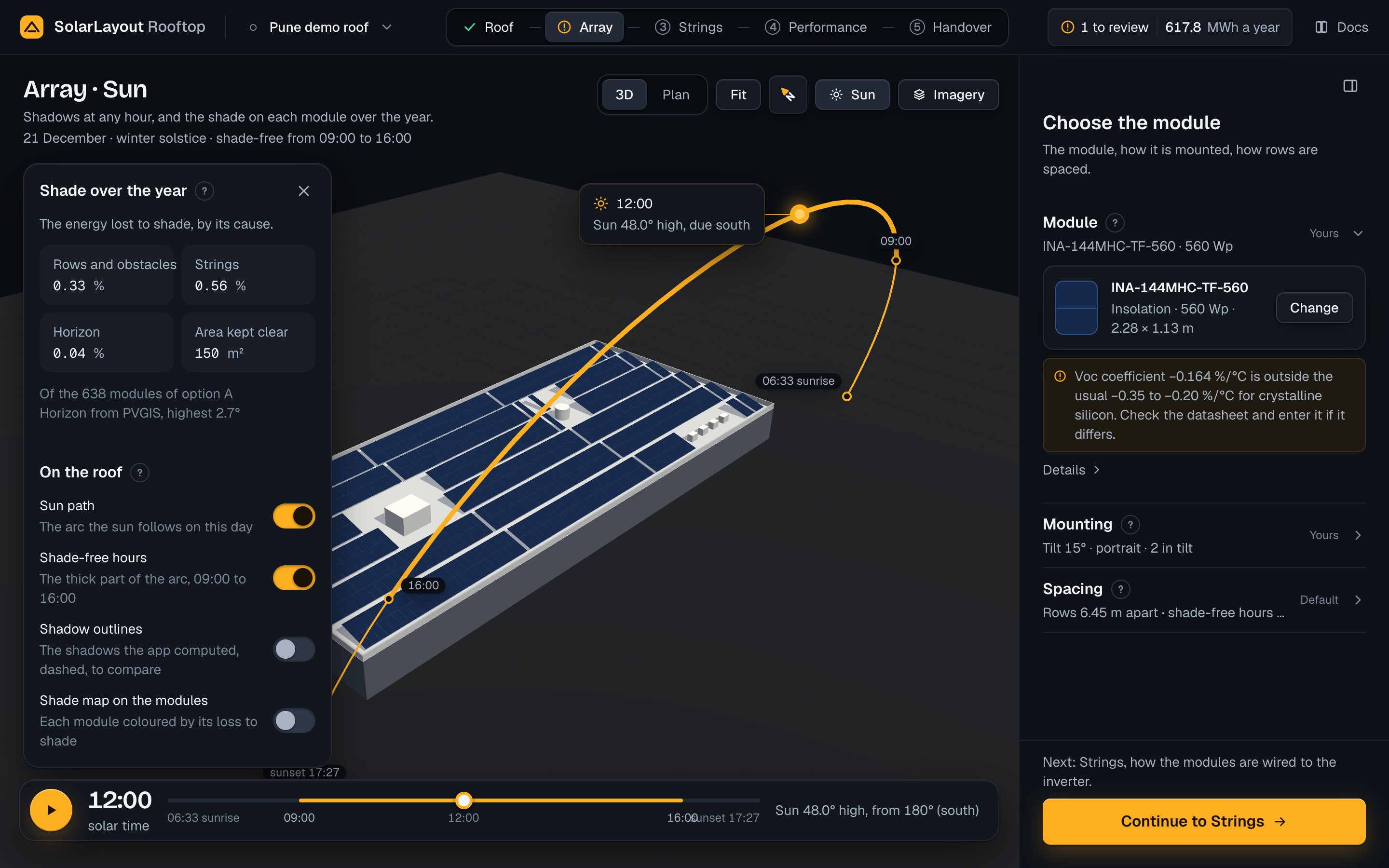
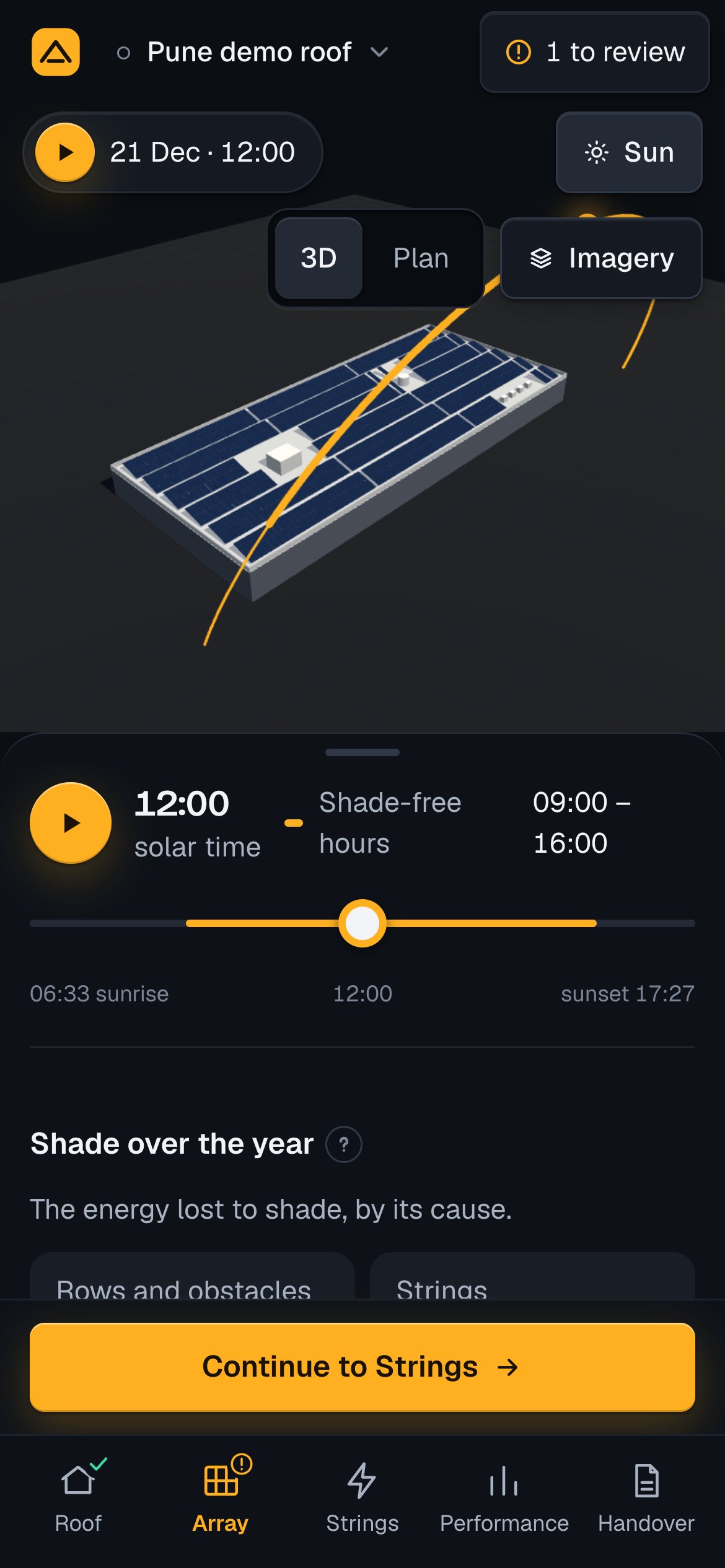
The Sun view, its day, its time and its switches belong to the view, not to the design. None of them is saved with the design, and none is kept when the page is reloaded.
The time and the day
The time
The Sun view's times are solar time: noon is when the sun stands highest. No clock and no time zone come
into it, and the timeline says solar time under the time.
On a desktop and a tablet the timeline stands across the stage's foot. It holds a round play button, the
time, and a track from sunrise to sunset, each taken inward to the quarter hour. The filled part of the
track is the shade-free hours. Its ticks mark sunrise, the start of the shade-free hours, 12:00, their end
and sunset, as 06:33 sunrise, 09:00, 12:00, 16:00 and sunset 17:27 on the demo's design day. On a
tablet, sunrise and sunset stand beside the track.
On a phone the time is a pill at the stage's top left, as 21 Dec · 12:00: press it to play or pause the
day. The timeline stands at the head of the sheet, with the shade-free hours at its right and ticks for
sunrise, noon and sunset only.
- Drag the handle along the track. It moves by the quarter hour.
- Play the day. Press the play button. The time moves on a quarter hour each quarter of a second and stops at the end of the day. Pressed at the end, play starts again from the start. With reduced motion set on the device, the time moves an hour a second. Any other change of the time stops it. The button is greyed out until the day's sun has come from the server.
- On a day the sun does not rise or does not set, the track runs from 00:00 to 24:00, and the line under
the time says
The sun stays below the horizon all dayorThe sun stays above the horizon all day.
The keys work only while the Sun view is on. They do nothing with ⌘, Ctrl or Alt held, or while a field, a dialog, a slider, a menu, a list or a combobox has the focus. A key stops play. The timeline's tooltip lists the first three pairs.
| Key | What it does |
|---|---|
, and . | An hour back or forward, held inside the day |
[ and ] | A day back or forward, round a year of 365 days (after day 365 comes day 1) |
← and →, on the timeline | A quarter hour back or forward |
| Page Up and Page Down, on the timeline | An hour back or forward |
The day
Day is the last section of the view's content. The ? beside it opens the help topic The sun at the time, with the day shown marked.
| Field | Default | Range | What it does |
|---|---|---|---|
| Day | The design day | 21 Dec, 21 Mar, 21 Jun, Any date | Sets the day of the sun, its path and the shadows the view shows |
| Day (with Any date) | The day shown | 1 to 31 | With the month, the day of the year. A day past the month's end is its last day |
| Month (with Any date) | The month shown | January to December | As above. On a phone the two stand one under the other |
The three days stand in the same order north and south of the equator. What follows the hemisphere is the line under them and the names of the days: 21 December is the winter solstice in the north and the summer solstice in the south, 21 June the reverse, and 21 March the equinox.
The line under Day names the design day:
Design day: 21 December, the winter solstice in this hemispherewhen the array keeps the app's design day, the winter solstice of the roof's side of the equator.Design day: <day month>, set in the Array stepwhen you set one on the Array step.Day <day of the year> · design day <day month>with Any date.
A day that is not one of the three keeps Any date selected. Choosing the design day's date ties the view to the design day: when the design day changes on the Array step, the view follows it. When the day changes, the time moves to the nearest quarter hour inside the new day's hours.
The sun at the time
On a desktop, the right end of the timeline says where the sun stands at the time shown: its height above the horizon, and the direction it comes from in degrees clockwise from north, with one of eight points of the compass. On the demo's design day:
| Time | The line at the timeline's right |
|---|---|
| 12:00 | Sun 48.0° high, from 180° (south) |
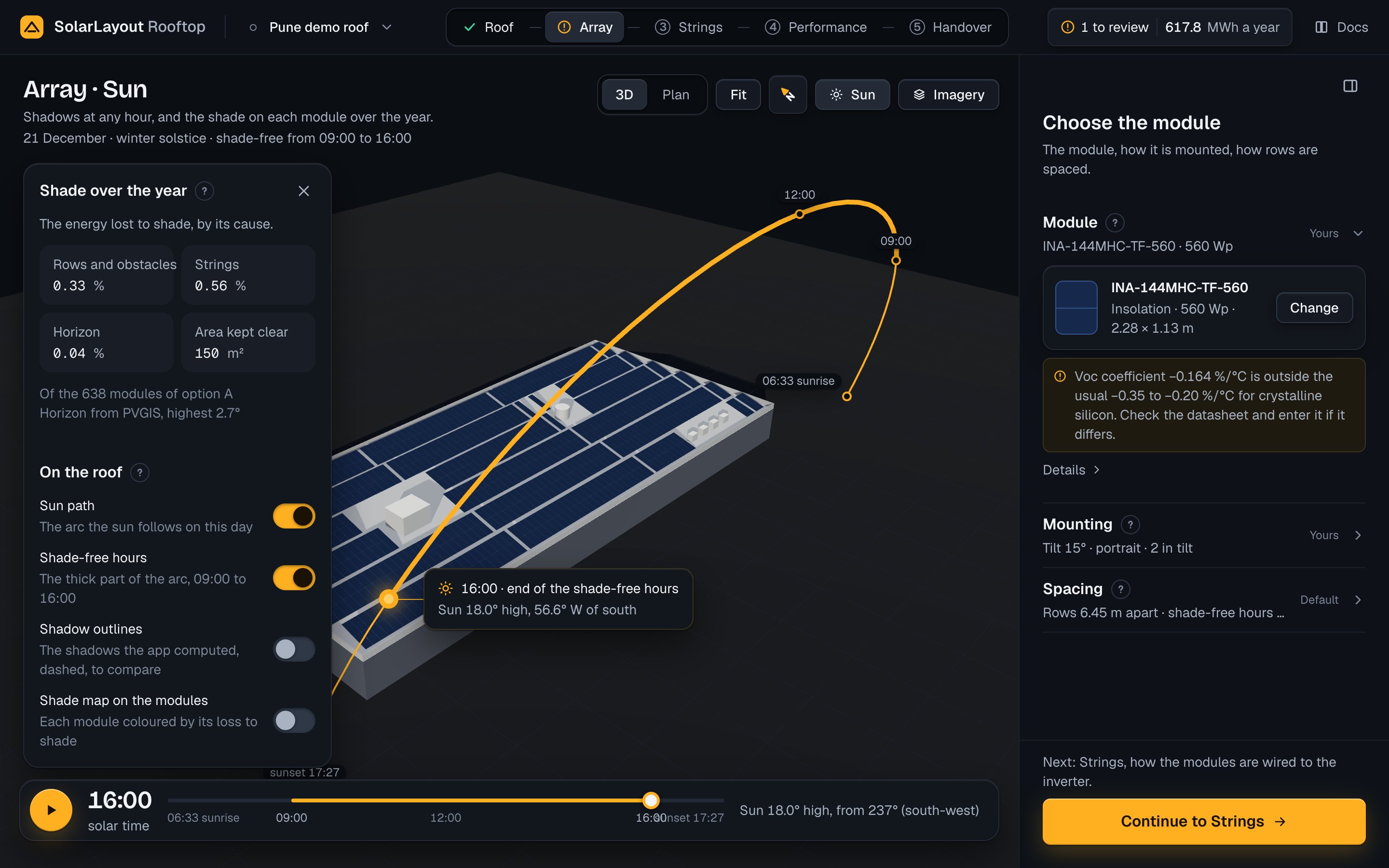
| 16:00 | Sun 18.0° high, from 237° (south-west) |
While the sun is below the horizon the line reads The sun is down. A tablet has no such line: the marker's
callout gives the same. A phone shows neither; a screen reader hears the date, the time, the sun's height
and its bearing.
On the stage, with Sun path on:
- The arc is the day's path of the sun, on a dome over the roof's centre, from the horizon at sunrise to the horizon at sunset. With Shade-free hours on, its part inside those hours is drawn thicker.
- The hour marks, on a desktop and a tablet, are rings with a chip at sunrise, the start of the shade-free hours, noon, their end and sunset. A phone shows none.
- The marker is a disc of the sun at the time shown. There is none while the sun is down.
- The marker's callout, on a desktop and a tablet, gives the time, with
· start of the shade-free hoursor· end of the shade-free hoursat those times, and the sun's height and its bearing from the nearer of south and north. At 16:00 on the demo it reads16:00 · end of the shade-free hoursandSun 18.0° high, 56.6° W of south. Due south, north, east and west readdue southand so on. Something selected on the roof takes the callout's place.
If the sun's path cannot be loaded, a chip on the stage says Sun path not updated, with the reason and
Try again. Escape closes it until the next failure. The light of the day before stays meanwhile.
On the roof
On the roof chooses what the Sun view draws. Its switches belong to the view: the layout, the strings and the energy stay as they are. Unless you are checking the shade, keep the first two on and the other two off.
| Field | Default | Range | What it does |
|---|---|---|---|
Sun path: The arc the sun follows on this day | On | On, off | Draws the arc, its marks and the marker, and frames the camera on the arc's dome |
Shade-free hours: The thick part of the arc, 09:00 to 16:00 | On | On, off. Greyed out while Sun path is off | Draws the part of the arc inside the shade-free hours thicker. Its line gives the hours |
Shadow outlines: The shadows the app computed, dashed, to compare | Off | On, off | Draws the shadows of the parapet and the obstacles on the roof, as the app computes them for the day and time shown, as dashed outlines over the shadows the view draws |
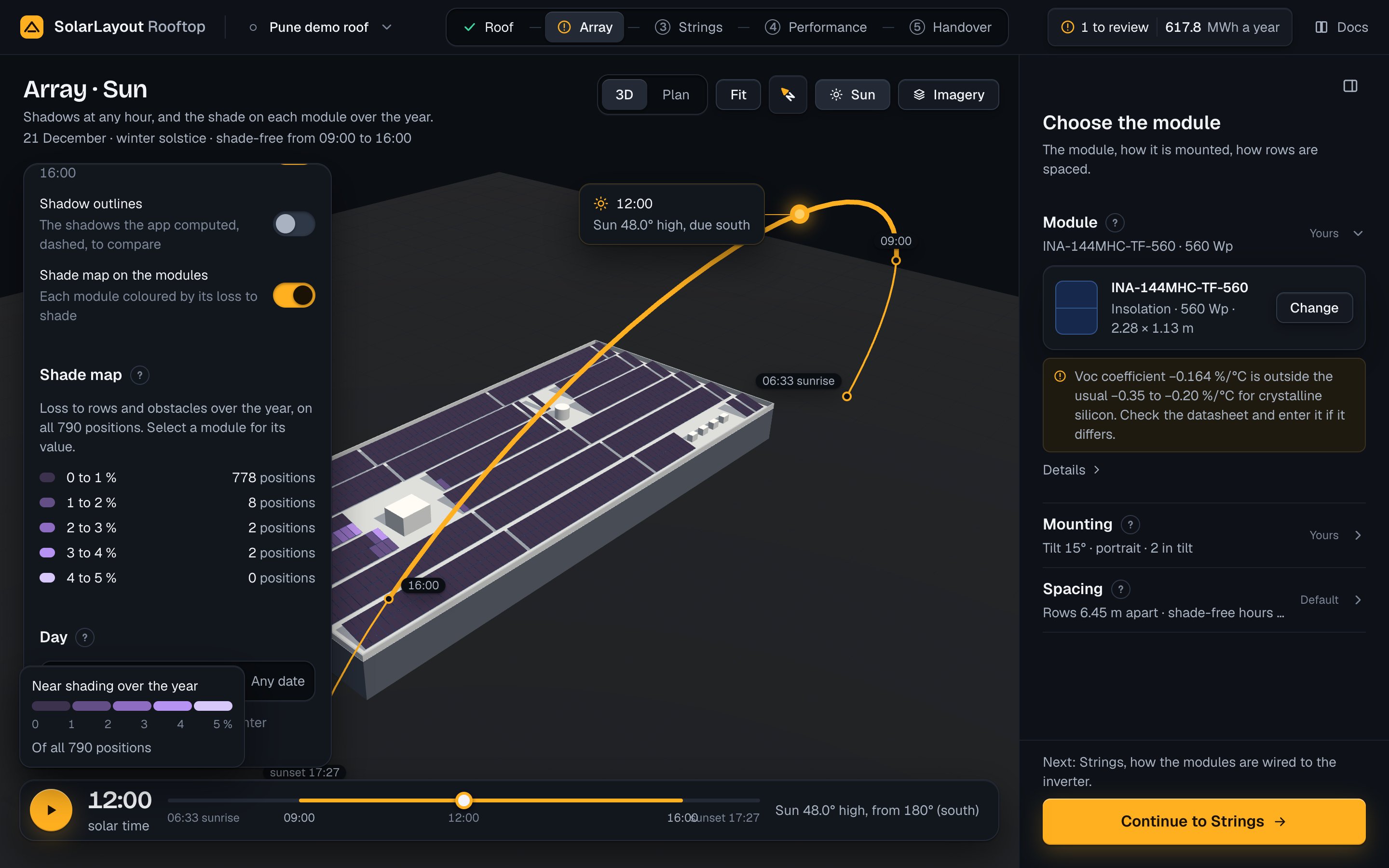
Shade map on the modules: Each module coloured by its loss to shade | Off | On, off | Colours each module by its near shading over the year, and adds the Shade map section and the legend on the stage |
The shade-free hours are set on the Array step, in Shade-free hours; a new design has 09:00 to 16:00.
Turn on Shadow outlines to check the view against the app's own geometry: where the dashed outlines and the drawn shadows agree, the view is true. The outlines come a moment after the time stops moving, and they show only while they are of the time on screen.
Shade map
Turn on Shade map on the modules in On the roof. Each position of the layout takes the colour of its near shading over the year, from the design's last run: the light that the rows in front, the parapet and the obstacles take from it, the sky they hide from it included. The horizon is not in the map, as it takes the same from each module. Each position is coloured, those the chosen option does not use included.
- The scale runs from 0 to the first of 1, 2, 5, 10, 20, 50 and 100 % that holds the largest loss, in five equal steps of one hue.
- The legend on the stage is titled
Near shading over the year, with five swatches, the marks from 0 to the top of the scale, andOf all <n> positionsat its foot. On a phone it shows only the two end marks and no foot. - The Shade map section, in the view's content, says
Loss to rows and obstacles over the year, on all <n> positions. Select a module for its value.(Tap a moduleon a tablet and a phone), then one row a step: its swatch, its range and how many positions fall in it. - One module. Select a module, or tap it, for its callout:
Position <n> · row <r>(unitin place ofrowon an east-west roof), andNear shading <x> % over the year. With a chosen option it adds the module's string and that string's shading, as· string S<k>, <y> %, or· not used by option <letter>. The string's figure is its string shading loss over the year, weighted by the direct light.
While the shade map is on, its colours take the place of the strings' colours. Until the run is of the
layout shown, nothing is coloured and the legend and the section say Waits for the run, so that no module
shows another layout's value.
On the demo the scale tops at 5 %. Of its 790 positions, 777 lose 0 to 1 %, 9 lose 1 to 2 %, 2 lose 2 to 3 % and 2 lose 3 to 4 %; the largest loss is 3.60 %.
Shade over the year
Shade over the year says how much energy shade costs the design in a year of the site's weather, by its
cause. Its line reads The energy lost to shade, by its cause.
On a desktop it stands on the stage as a card at the left, under the title. The × at its top right folds the
card to a chip in its place: Shade over the year with the three losses added, as
Shade over the year 0.82 % on the demo. Press the chip to open the card again; the arc and the timeline stay either way. Open or
folded is remembered on this device. On a tablet and a phone there is no card: the section stands in the work
column or the sheet.
| Tile | Unit | What it counts |
|---|---|---|
| Rows and obstacles | % | Near shading: the direct light the rows in front, the parapet and the obstacles take from the modules, and the part of the sky they hide |
| Strings | % | String shading loss: the energy lost on top of near shading because a partly shaded module drags down its string, which runs at its weakest module |
| Horizon | % | Horizon shading: the light that hills and buildings far away take while the sun is behind them, and the part of the sky they hide |
| Area kept clear | m² | The roof inside the edge margin that the shadows of the parapet and the obstacles cover in the shade-free hours of the design day |
The line under the tiles says which modules the three percentages are of:
- With a chosen option, the option's modules, as
Of the 600 modules of option A. - Before there is an option, all positions of the layout, as
Of all <n> positions. The Strings tile then says why there are no options, in the words the Strings step gives, such asNo string length fits at 600 V. - Before the first run, the tiles are grey placeholders.
A second line says where the horizon comes from:
| Line | When |
|---|---|
Horizon from PVGIS, highest <x>° | The weather is Typical year, from PVGIS, and came with its horizon |
Horizon not counted: the weather for this site came without one | Typical year came without its horizon |
Horizon not counted: this weather has none | 2023, measured, from NASA POWER, or Your file |
Where it says Horizon not counted, the Horizon tile reads zero. The weather is chosen in Performance,
in Option and weather.
On the demo, with option A: Rows and obstacles 0.31 %, Strings 0.47 %, Horizon 0.04 %, Area
kept clear 150 m², Of the 600 modules of option A and Horizon from PVGIS, highest 2.7°.
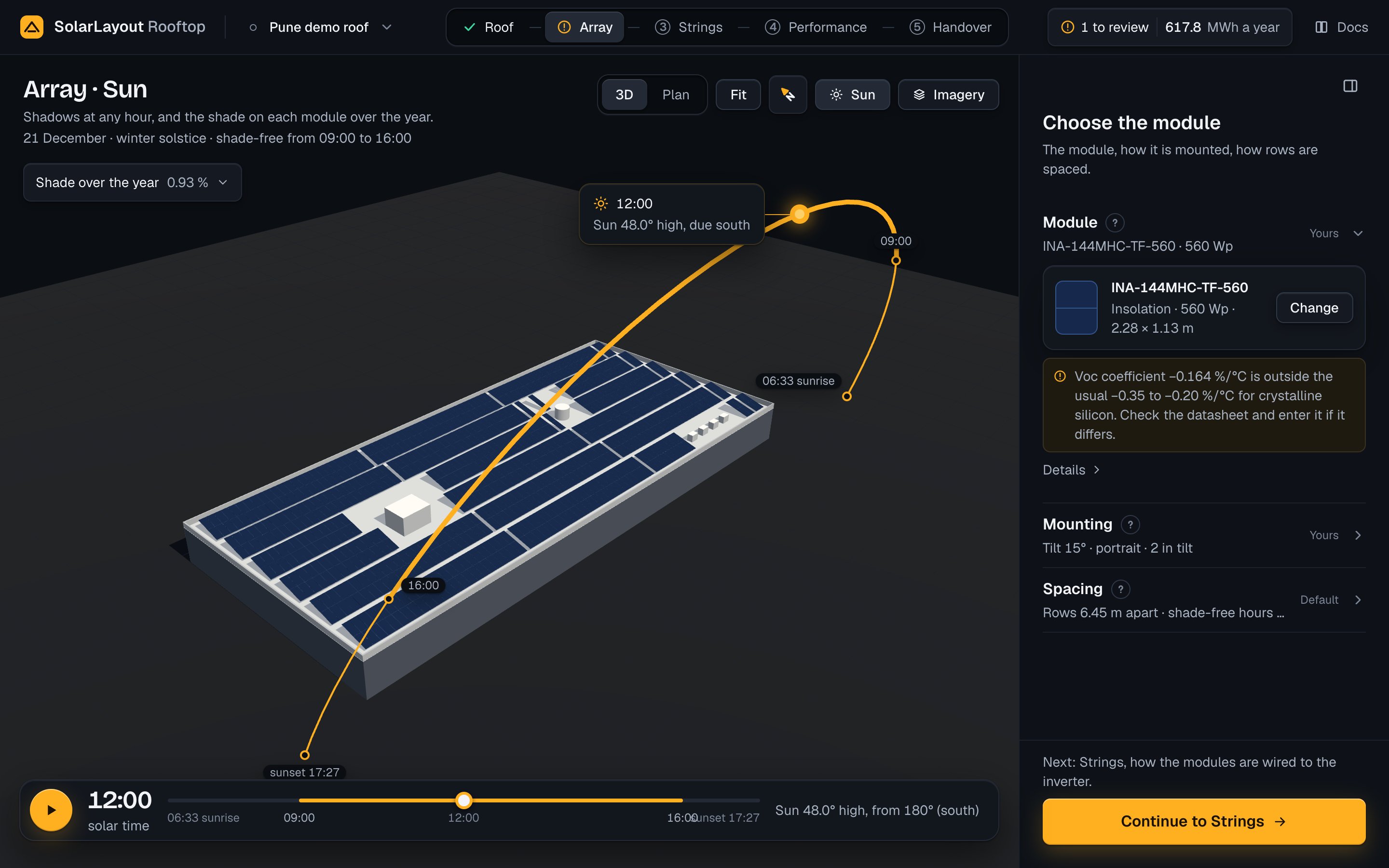
The figures change with the obstacles and their heights (Obstacles), the parapet, the row spacing, the chosen option and the weather. Change them in their steps: the design runs again and the card follows. With a chosen option, the same losses stand in Performance's Where the energy goes, as Shade from rows, obstacles and the horizon and Shade on a string.
How shading is worked out
The app uses the sun in two ways. The view draws the sun of one day by a simple model, in solar time. The year's shading uses the sun's true position at the middle of each hour of the weather year, so the time on the timeline plays no part in it.
The sun of the view
The sun's declination is Cooper's, δ = 23.45° · sin(360° · (284 + n) / 365), n the day of the year, and the hour angle is 15° an hour from solar noon. Azimuth is measured clockwise from north. Sunrise and sunset are the hours at which that model puts the sun at 0°; on a day the sun stays up or stays down, there are none.
Near shading
Near shading is the share of the direct light on a module that the layout itself takes: the row in front, the parapet and the obstacles.
- The row in front is worked out exactly. Its top edge, at a height H above the module's lower edge and a horizontal distance D in front of it, shades the table from its lower edge up to u* = (H − D · tan ψ) / (sin β + cos β · tan ψ), where ψ is the sun's profile angle and β the tilt. Modules whose rows stand alike shade alike and are worked out once.
- The parapet and the obstacles are prisms. Their shadows are projected on the plane at each module's mid height and intersected with the module's outline. The sun's positions over the year are grouped by 1° of height and 2.5° of azimuth, and each group is worked out once.
- Both together. The share of direct light shaded is 1 − (1 − f_row) · (1 − f_obstacles).
- The sky. The diffuse light is taken as coming evenly from the sky. Round each module the sky is cut into 36 sectors. In each, the highest thing that blocks it, the obstacles' tops sampled each metre along their outlines or the horizon, at a height h, hides sin² h of that sector. A module with a row in front also loses the sky that row masks, by Passias' masking angle. The part the horizon alone hides, the same for each module, is counted as horizon shading, not near shading.
Horizon shading
Horizon shading is the direct light lost while the sun stands above 0° but under the horizon at its azimuth,
the horizon's height taken between its points round the circle, and the diffuse light the horizon hides. The
horizon is the site's own, from PVGIS, fetched with the weather Typical year. 2023, measured and
Your file have none. When PVGIS sends the weather without its horizon, a note to review says The weather for this site came without a horizon. The run leaves horizon shading out., under Weather · Performance (Notes to review).
String shading loss
A string's modules are in series, so a partly shaded module drags down the whole string. The app counts this hour by hour, from each module's shaded share f:
- A shaded share under 1 % is left out.
- A module in portrait loses the whole module once any of it is shaded; a half-cell module in portrait loses half at a time, ⌈2f⌉ / 2.
- A module in landscape loses its bypass sections one at a time, ⌈f · n⌉ / n with n bypass diodes.
- A module never loses less than its shaded share.
- A string takes the loss of its most shaded module. The loss beyond near shading, weighted by the direct light's share of the light on the module, comes off the string's power.
What each figure is a share of
| Figure | A share of |
|---|---|
| Horizon | The irradiation in the plane of the modules |
| Rows and obstacles | The irradiation that passes the horizon |
| Strings | The energy after the loss to the cells' temperature |
| A position on the shade map | The irradiation that passes the horizon, lost to near shading at that position |
The folded chip adds the three percentages as they are shown, each a share of its own quantity.
The area kept clear
The area kept clear is the union of the shadows of the parapet and the obstacles, cast on the plane of the modules' lower edge, with the sun taken each 15 minutes through the shade-free hours of the design day. The layout keeps modules out of it unless Allow shaded positions is on, on the Array step (How the layout is placed). With it on, the modules placed there take their shade into the energy, through the figures above.