Design warnings
Every design warning — what triggers it, the text the application shows, where it appears, and what to change to clear it.
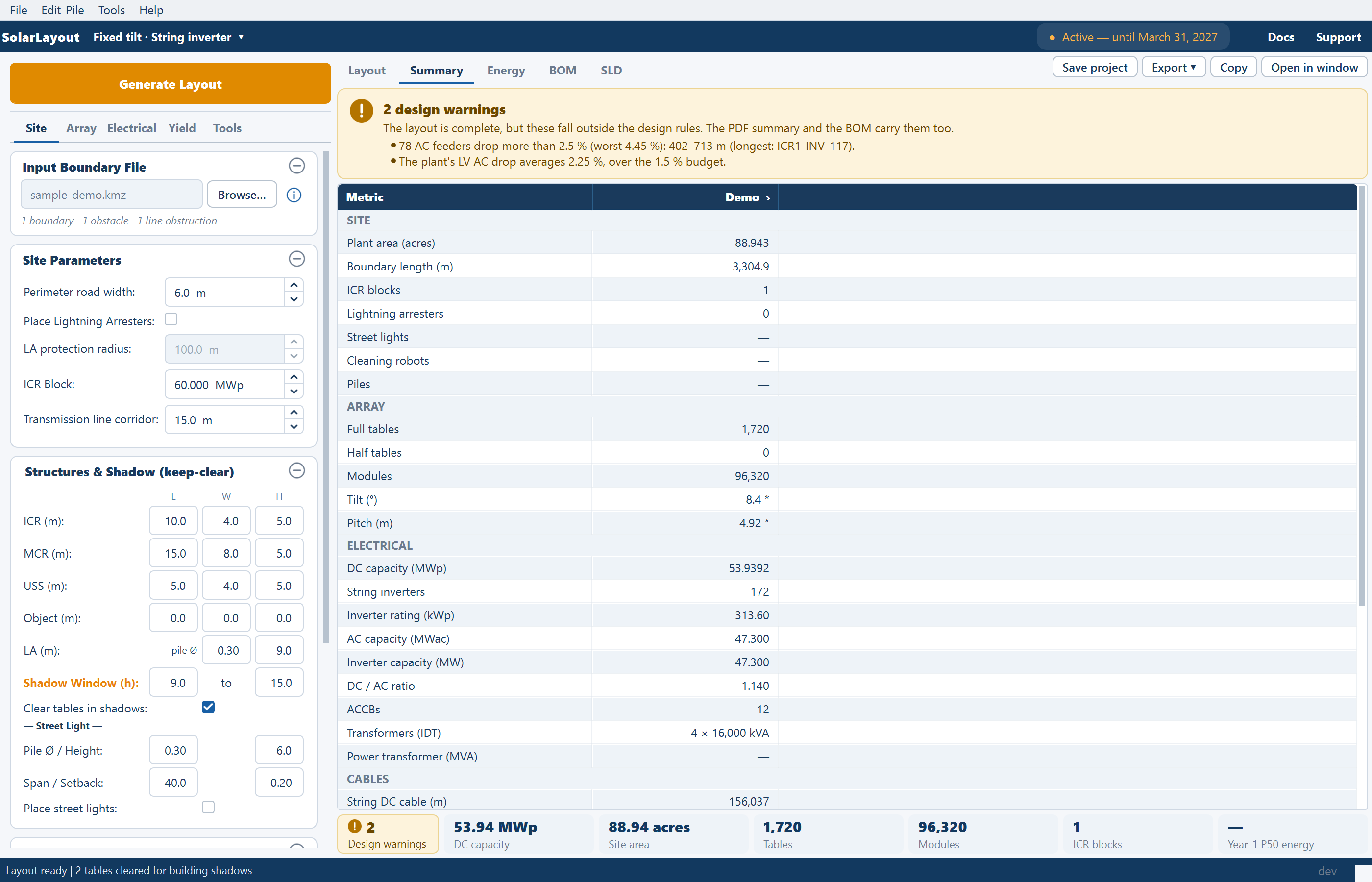
A design warning says that the layout is complete but part of it falls outside the design rules: a control room carrying more inverters than it is rated for, a trench that could not be kept inside the plant, a feeder whose voltage drop is too high. It describes the design as it stands and never blocks anything — generating, calculating energy, exporting and saving all work as usual. A clean design shows no warnings at all.
Warnings are worked out from the last run's results and are recomputed every time the Summary view refreshes: after Generate Layout, a cable run, a regroup of the electrical equipment, an ICR drag, leaving Sketch Mode, and drawing an obstruction. They disappear as soon as the design is clean again. While the layout is out of date they stay on screen, greyed with everything else from the last run.
The checks
Each check has a short name, printed in the PDF and used below, and a sentence the application writes with the real figures in it. The examples show the wording; the numbers are whatever your design gives.
| Check | Raised when | What the application shows |
|---|---|---|
| ICR over rating | An ICR is assigned more inverters than its rating — the ICR Block capacity divided by one inverter's capacity, rounded up. Checked only when the plot has more than one ICR. | "ICR 3 carries 60 inverters; it is rated for 53." With several: "4 ICRs carry more inverters than their rating of 53: ICR 2 (60), ICR 4 (58), …" — six are named, then "and N more". |
| ICR not placed | The plot needs more ICRs than found room in it | "2 of the 6 ICRs this plot needs found no room in it." |
| Trench outside plant | AC runs that the router could not keep inside the plant boundary | "1 AC trench runs outside the plant boundary; it keeps its original route in the drawing, the DXF and the quantities." With several: "3 AC trenches run outside the plant boundary; they keep their original route …" |
| Trench under a table | Runs that still cross a table | "1 AC trench still runs under a table." / "2 AC trenches still run under a table." |
| Feeder over one run | An inverter-to-ACCB feeder carries more current than one 630 mm² aluminium run can, derated | "1 AC feeder carries 812 A, more than one 630 mm² run can." |
| Feeder drop over limit | A feeder's voltage drop is above 2.5 % | "59 AC feeders drop more than 2.5 % (worst 4.00 %): 447–711 m (longest: ICR1-INV-113)." For one feeder the end reads "…: ICR2-INV-05, 910 m."; for two, "…: 692 m and 759 m." |
| Drop over budget | The plant's LV AC voltage drop, averaged over every feeder and weighted by current, is above 1.5 % | "The plant's LV AC drop averages 2.04 %, over the 1.5 % budget." This one is about the whole site, not one plot. |
| DC trunk too long | Central-inverter design only: a DC trunk whose drop stays above twice the 1.5 % limit even at 630 mm² | "1 DC trunk is too long for 1.5 % drop even as 2 parallel 630 mm² runs: …", ending with the SMB and the length |
In a central-inverter design the wording follows the equipment: ICR over rating counts SMBs rather than inverters, and the two trench checks speak of DC trunk trenches rather than AC trenches.
On a multi-plot site each line starts with the plot's name in bold, so a warning points to the plant it belongs to.
The checks on trenches, feeders and trunks, and the drop budget, need Calculate cables on and routed cables. With cable calculation off they say nothing — which does not mean the cables would pass. Feeders are sized from the design's own module and inverter files, the same way the cable schedule sizes them. See Cables.
Where warnings appear
| Place | What it carries |
|---|---|
| Summary view | A banner above the sheet, in the warning colour with an exclamation mark |
| Plant chips | A Design warnings chip with the count |
| PDF summary page | A DESIGN WARNINGS (N) block |
| Word report | The same block on its Design Summary page |
| Bill of materials | A remark starting Check: on the row each warning concerns, or a Design warning row of its own |
The Summary view
The banner's title counts the warnings — "1 design warning" or "2 design warnings". Under it: "The layout is complete, but this falls outside the design rules. The PDF summary and the BOM carry it too." (with several, "…but these fall outside the design rules. The PDF summary and the BOM carry them too."), then one bullet per warning. When the layout is also out of date, the out-of-date banner sits above it. See Views, layers and tools.
The Design warnings chip

The chip leads the row of plant chips under every view, in the warning colour with an exclamation disc; its value is the number of warnings. Its tooltip reads "Open the Summary view", which is what a click does. It is never hidden when the row is narrow. When the layout is out of date, the Out of date chip comes first and this one second.
The PDF and the Word report
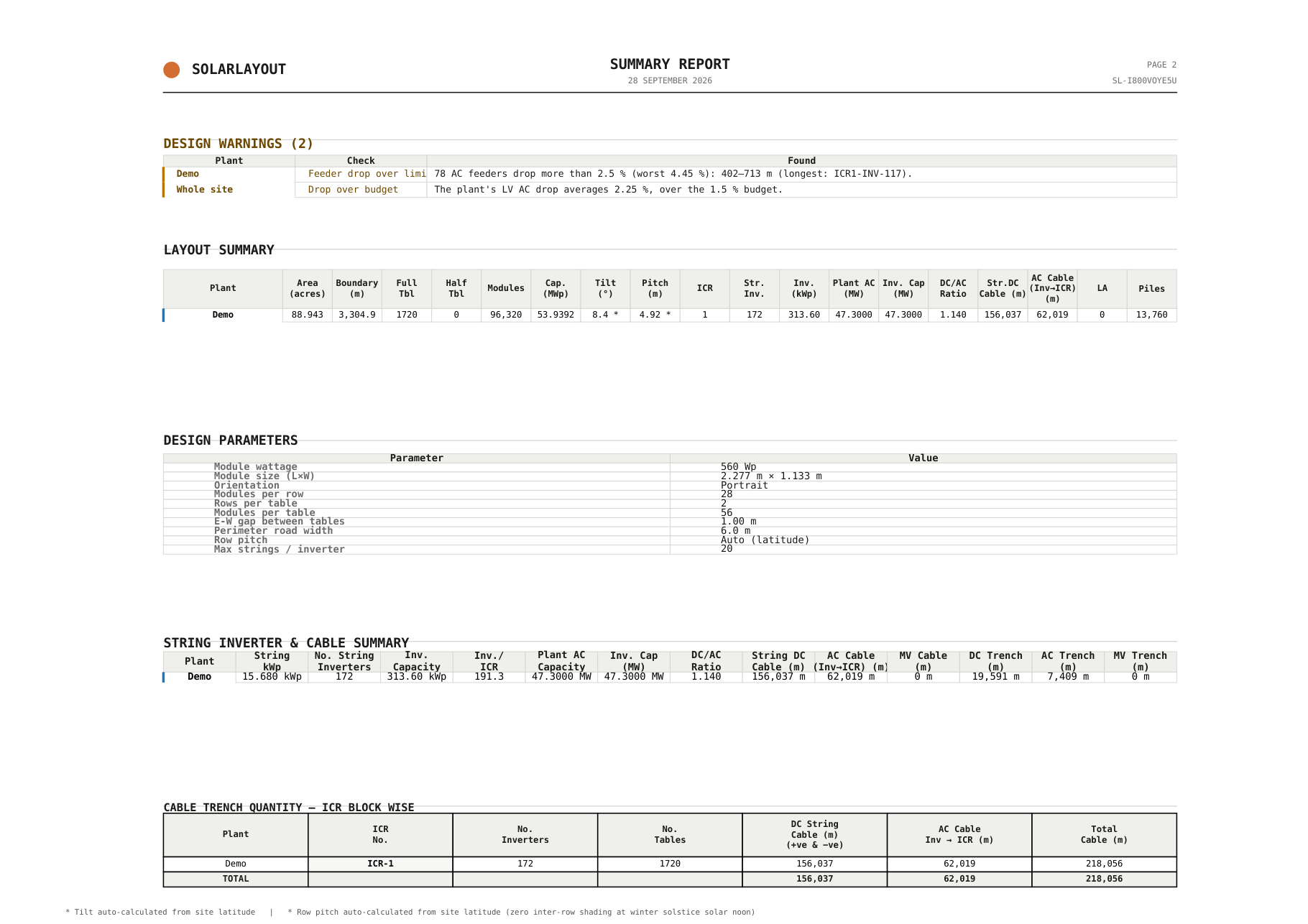
Page two of Export PDF (with Piles) — the summary page — gains a block headed DESIGN WARNINGS (N), a table with the columns Plant, Check and Found. The drop budget reads Whole site in the Plant column. A clean design's page is unchanged. The Design Summary page of the Word report (Export Detailed Project Report) is the same page and carries the same block. See The project report.
The bill of materials
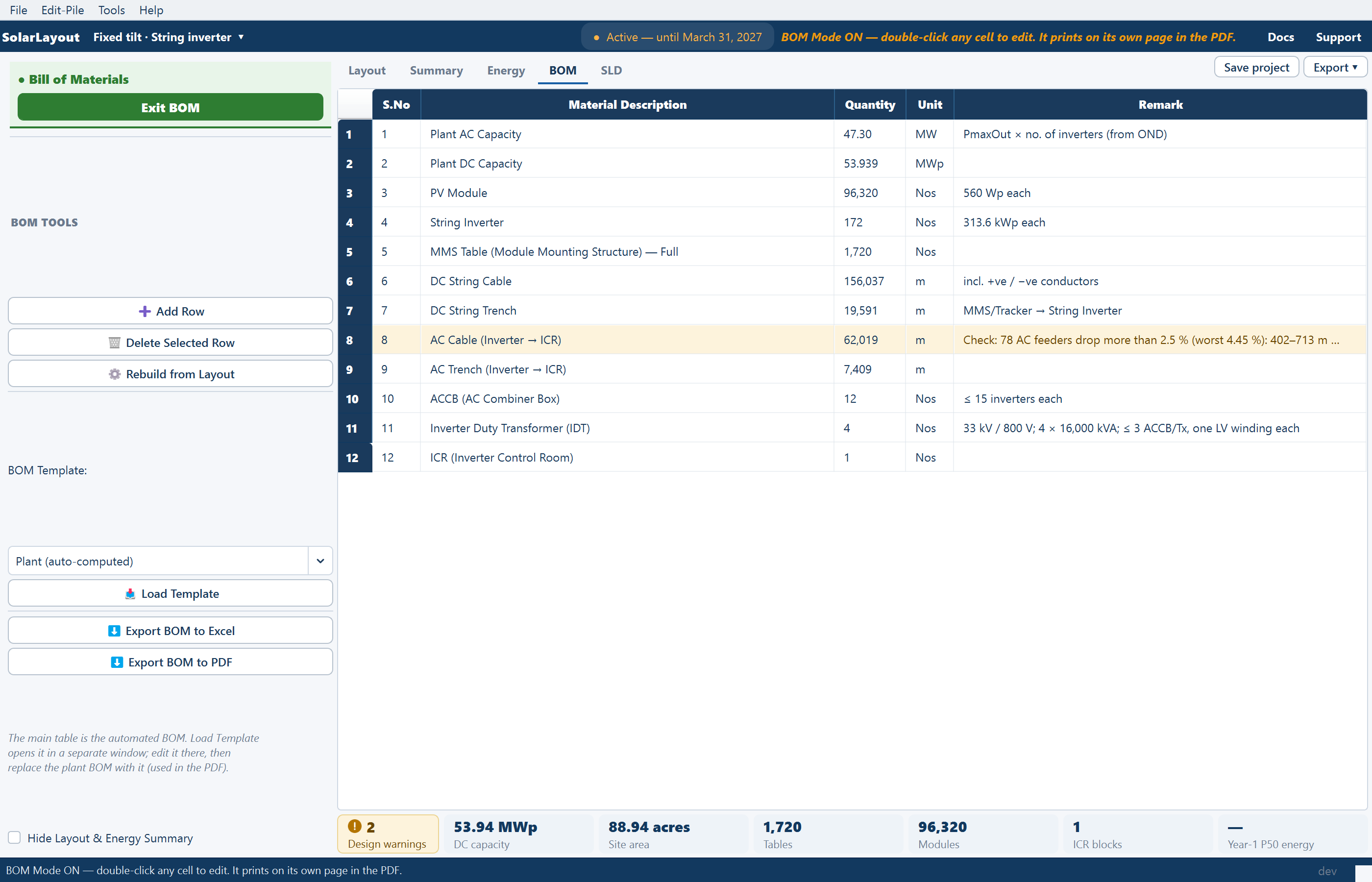
Each warning becomes a remark starting Check: on the materials row it qualifies:
| Warning | BOM row |
|---|---|
| ICR over rating, ICR not placed | ICR (Inverter Control Room) |
| Feeder over one run, Feeder drop over limit, Drop over budget, DC trunk too long | AC Cable (Inverter → ICR), or DC Cable (SMB → Central Inverter) in a central design |
| Trench outside plant, Trench under a table | AC Trench (Inverter → ICR), or DC Trench (SMB → Central Inverter) in a central design |
Several warnings on one row are joined by semicolons. A warning whose row is not in the list gets a row of its own, Design warning, with no quantity and no unit. In the BOM view those rows are tinted in the warning colour and the remark is also their tooltip. The remark travels with the row into the BOM Excel and PDF and the report's bill of materials page. See Bill of materials.
Where they do not appear
The Open in window Summary window, Copy on the Summary view, the ICR block summary windows, the Google Earth export, the CAD drawing export, and the cable schedule, which marks its own feeders in a Flag column.
Clearing a warning
A warning clears itself once the design no longer triggers it. What to look at for each:
| Check | What to look at |
|---|---|
| ICR over rating | The number of ICRs and each one's rating both follow ICR Block on the Site tab. Revisit it and generate again. See Inverter control rooms. |
| ICR not placed | Each ICR must fit entirely inside the usable area at the ICR length and width in Structures & Shadow. A smaller footprint, or a larger ICR Block so the plot needs fewer rooms, gives it room. |
| Trench outside plant, Trench under a table | Switch on the AC cables layer (DC trunks in a central design) in Layers ▾ and find the run. Dragging the ICR it serves re-places the inverters and re-routes the cables. See Cable routing. |
| Feeder over one run | The inverter's output current, not the feeder's length, is the cause: the current comes from the inverter file, or from the inverter's DC capacity when none is loaded. The cable schedule's Flag column marks the feeder no single run carries … A. |
| Feeder drop over limit, Drop over budget, DC trunk too long | Shorter runs. An AC feeder is never made thicker for its drop, and a trunk that raises this warning is already at 630 mm², so length is the lever. A smaller ICR Block gives more ICRs, each nearer the inverters it serves, and so shorter runs; a larger one lengthens them. |
Changing ICR Block makes the layout out of date, so regenerate before reading the warnings again. An ICR drag re-routes the cables straight away and the warnings follow it; generate again before you quote trench lengths.
Where to go next
Summary view
Every row of the Summary view — how the per-plant sheet is laid out, the banners above it, what each row reports, and when a row reads — or 0.
Shortcuts and commands
Every keyboard shortcut, the typed command line in Sketch Mode, the ribbon, the tools row of each view, the Export menu, the SLD and BOM tools, and the full menu map.