Out-of-date results
How the application knows a layout no longer matches its inputs, everything that says so, the exports it refuses meanwhile, and how the state clears.
Every layout knows which inputs produced it. When Generate Layout starts, the application records the inputs it reads, and from then on it compares the live inputs with that record. While nothing differs the layout is current. As soon as anything differs it is out of date: the drawing, the figures and the exports still describe the last run, and every place that shows them says so until you generate again.
Nothing is thrown away when a layout goes out of date. The last run stays on screen, greyed, so you can still read it while you decide what to change. What changes is that nothing leaves the application on the strength of it — exports are refused and energy is not calculated for a layout its inputs no longer describe.
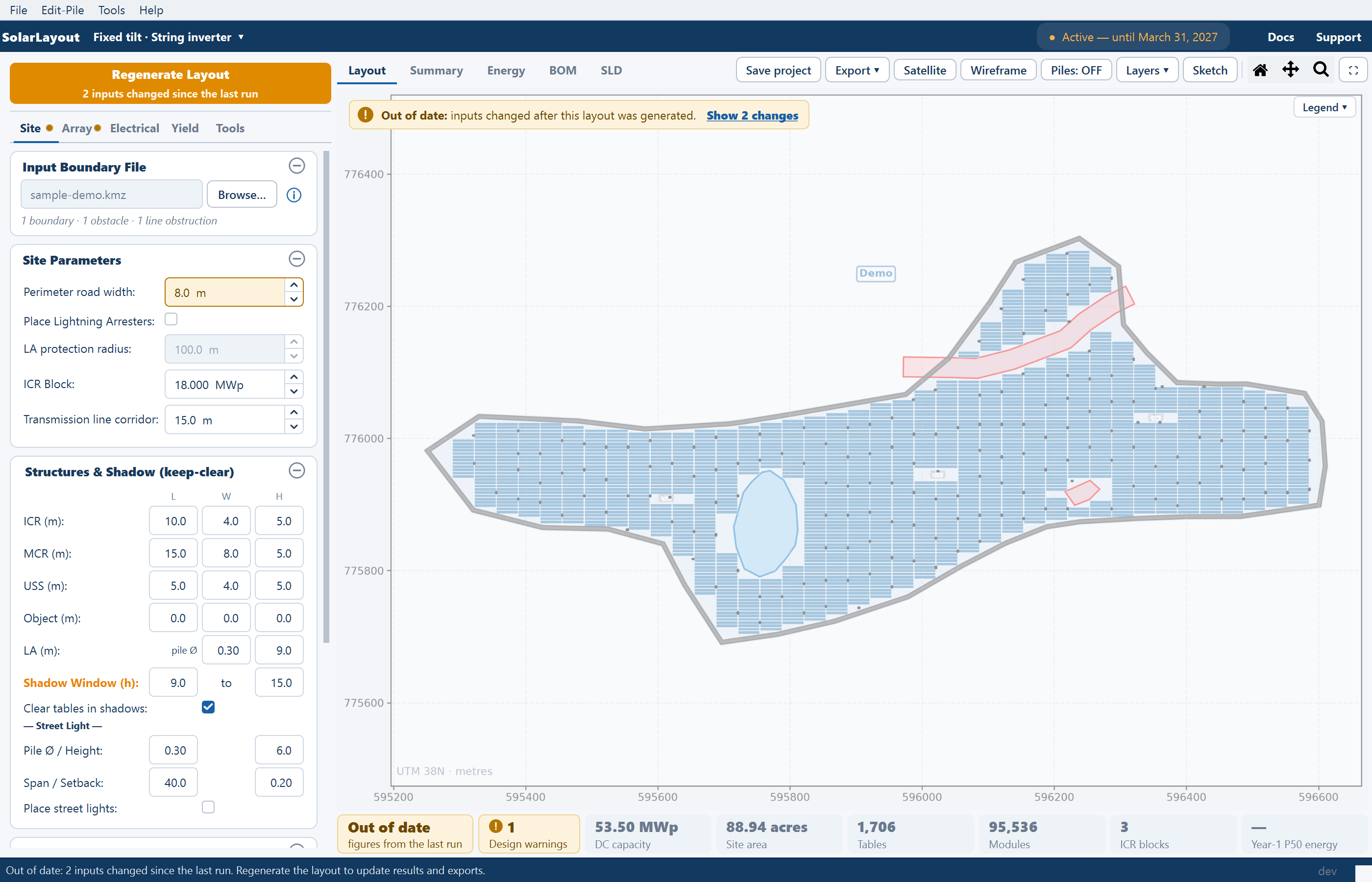
What marks a layout out of date
Every input on the five stage tabs counts, with a few conditions:
| Input | Counts |
|---|---|
| Array — the module size and wattage, bifacial and its factor, orientation, modules per row, rows per table, the gaps, the Override tilt angle and Override row pitch ticks, Maximize placement, half tables, every tracker field | Always |
| Tilt angle, Row pitch | Only while its override is ticked |
| Site — road width, the arrester tick and radius, ICR Block, the corridor, every Structures & Shadow field (the footprints and heights, the arrester height and pile Ø, the shadow window, Clear tables in shadows, street lights and their fields), every Topography field | Always |
| Electrical — max strings per inverter or SMB, max SMBs per central inverter, Calculate cables, the three cable allowances | Always |
| Yield — the weather source, every loss, ambient temperature, wind, mounting, albedo, degradation, lifetime, uncertainty and the three exceedance probabilities | Always |
| Temperature losses | Only while no module file is loaded |
| Shading losses | Only while the automatic shading value is off |
| Tools — the AC-capacity target, inverter count and start point | Always |
| The Site reference choice and the image scale | Always |
| The boundary, module and inverter files | Always |
| The contour file | Only while Avoid steep ground is on |
| The weather file | Only while Hourly GHI file (CSV) is the weather source |
Numbers are compared at the precision the field displays, so typing a value back to what it was makes the layout current again. Files are compared by their content, not their date: a module file edited in another program and saved counts as a change, and re-picking the same unchanged file does not.
The comparison runs whenever an input changes, whenever a file is loaded, before every export, and whenever the application window becomes active again — so a file changed in another program is noticed when you switch back.
Changing any loss on the Yield tab makes the whole layout out of date, not only the energy. Calculate Energy is refused until you regenerate.
What does not
- GHI and GTI on the Yield tab.
- Values the application fills in itself — the automatic tilt and pitch, the automatic shading value, the temperature loss recomputed from a module file.
- The ACCB & Transformer card, which regroups the equipment live without a new layout. See ACCBs and transformers.
- Hand edits: Sketch Mode, dragging an ICR, drawn obstructions, Place MCR and Place Object, and pile patterns.
- Layer toggles and switching views.
What you see while out of date
Regenerate Layout
The pinned button reads Regenerate Layout, with a second line inside it naming what changed — "Module wattage changed since the last run" for one input, "2 inputs changed since the last run" for several. The button keeps its height, so nothing on the tabs moves.
Amber fields and tab dots
Each changed field turns amber. Its tooltip gives the value at the last run — "Module wattage: 610.0 Wp at the last run" — and the normal tooltip returns once the layout is current. A small amber dot follows the name of every stage tab that holds a change, with the tooltip "Inputs on this tab differ from the last run", so a change made on a tab you have since left is still easy to find.
The note on the Layout view and the list of changes
The plot dims, and an amber note sits at its top-left: Out of date: module wattage changed after this layout was generated. — or inputs changed after this layout was generated. when there are several. The note carries a link, Show 1 change or Show 2 changes, that reads Hide changes while the list is open. The note appears on the Layout view only, not on the SLD view.
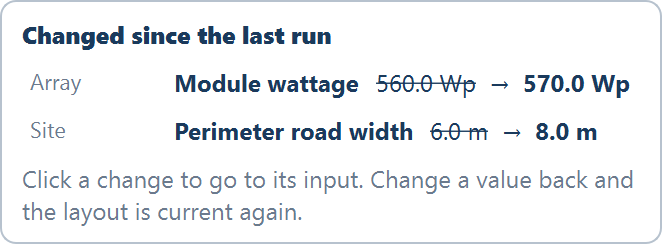
The list is titled "Changed since the last run". Each row gives the tab, the field, the old value struck through and the new value. Its footer reads "Click a change to go to its input. Change a value back and the layout is current again." — clicking a row opens the tab, unfolds the card, scrolls to the field and puts the cursor in it.
How a change reads in the list:
| Kind of input | Example |
|---|---|
| A number | 610.0 Wp, with its unit |
| A tick box | on / off |
| The site location | not set, drawing's coordinates, UTM 42N, placed at 27.0739, 70.3413 or layout only |
| The image scale | 100 m on site = 10 mm |
| The AC-capacity start point | E 1,234.5, N 6,789.0 |
| A file edited on disk | as at the last run → changed on disk |
| A file that has gone | <name> → not found at <path> |
| A file that cannot be opened | … → can't be read |
| A file added, or swapped for another | none → <name>, <old> → <new> |
The plant chips
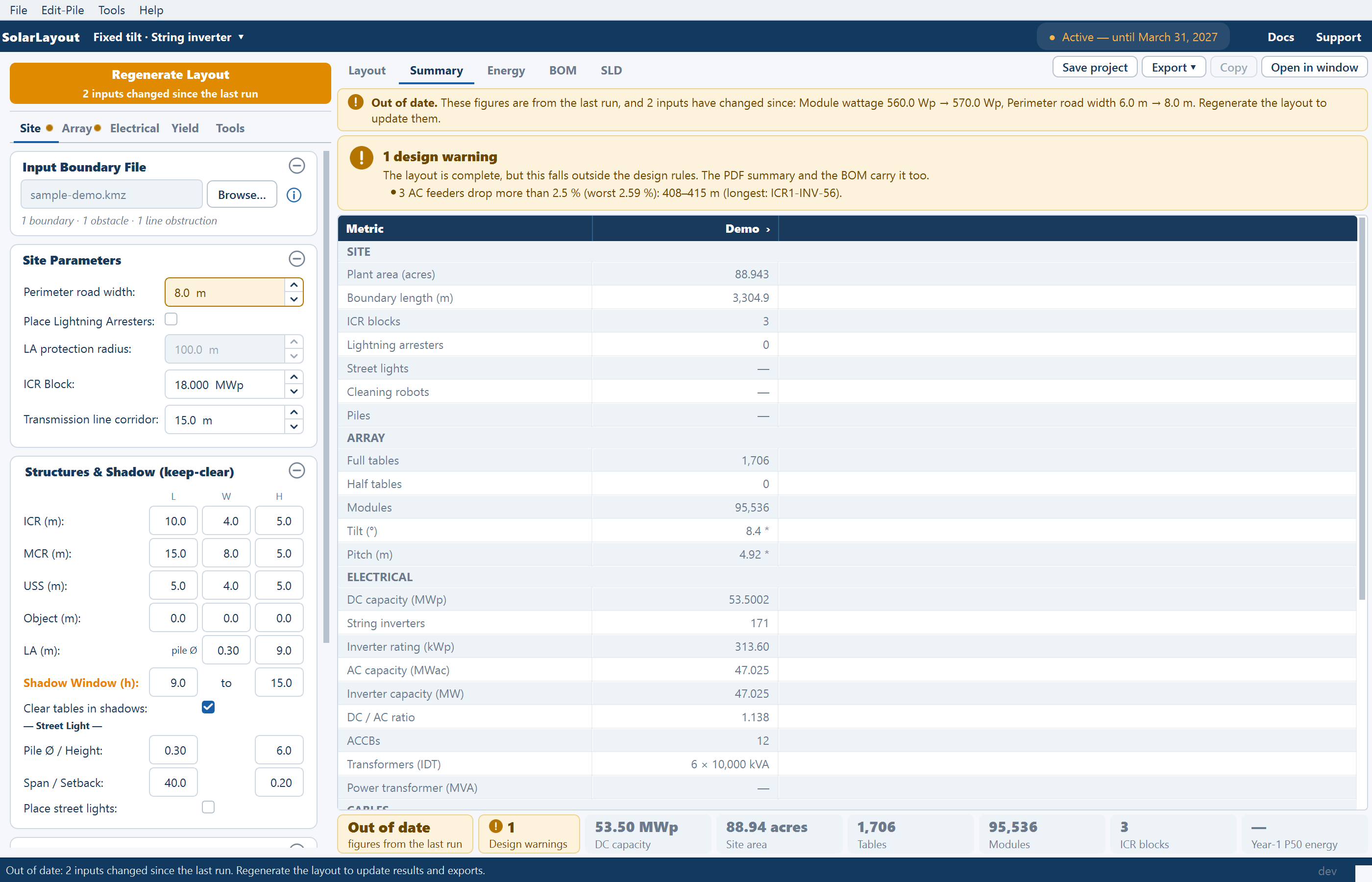
An amber Out of date chip comes first in the row under every view — value Out of date, caption figures from the last run — and every other chip is greyed. Clicking it opens the Summary view.
The Summary view and its window
A banner above the sheet names the changes: Out of date. These figures are from the last run, and 2 inputs have changed since: Module wattage 610.0 Wp → 700.0 Wp, Soiling losses 2.0 % → 3.0 %. Regenerate the layout to update them. The sheet is greyed, and Copy is disabled with the tooltip "Inputs changed since the last run. Regenerate first." Open in window shows the same banner on its Summary tab.
An ICR block summary window carries a shorter banner — Out of date. These figures are from the last run, and 1 input has changed since. Regenerate the layout to update them. — without the list, and its PDF… and Copy buttons are disabled with the same tooltip. See ICR blocks.
The Energy view and the Yield tab
With an energy result on screen, a banner sits above the tiles — Out of date. This energy was calculated for the last run, and 2 inputs have changed since. Regenerate the layout, then calculate energy again. — and the tiles, table and bars are greyed. The Monthly energy (Year 1) tab of the Summary window carries the same banner.
With no energy result yet, the view reads No energy result yet with the note "Energy calculation is not available right now.", and its Calculate energy button is disabled. On the Yield tab, Calculate Energy is disabled, and its tooltip and status line read "Regenerate the layout first: inputs changed since the last run."
The BOM and SLD views carry no banner, but their exports are refused like every other.
The status bar
The status bar reads "Out of date: module wattage changed since the last run. Regenerate the layout to update results and exports." — or "Out of date: 2 inputs changed since the last run. …" when there are several. The ribbon's status mirror does not repeat it.
Exports are refused
Export ▾ opens with an amber row at the top — Inputs changed since the last run. Regenerate first. — and every item disabled, Export Image (PNG) included.
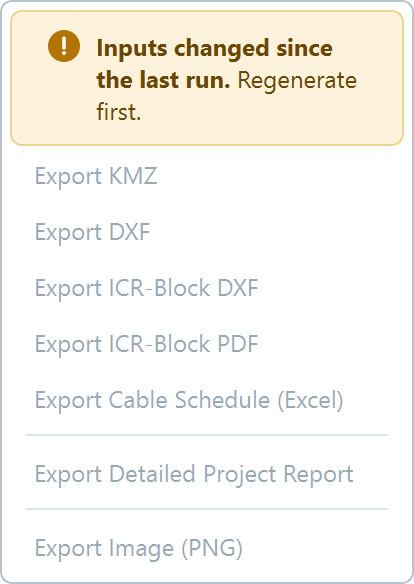
These exports outside the menu are refused too. A refused export opens no window and no file dialog; the status bar reads "Inputs changed since the last run. Regenerate first."
- PDF… in an ICR block window;
- Export to Excel… in the pile editor;
- Export TMY data CSV on the Yield tab;
- ⬇ Export BOM to Excel and ⬇ Export BOM to PDF;
- ⬇ Export SLD to DWG and ⬇ Export SLD to PDF.
Save project is always allowed, out of date or not.
How it clears
Only three things make a layout current again:
- Regenerate Layout (or F5). The new run becomes the record.
- Changing the values back. Once every input matches the last run, the amber, the dots, the banners and the chip disappear and the exports return, without a new run.
- Loading a boundary file. The layout is replaced by a preview of the boundary with no tables on it; generate to place the plant.
Nothing else clears it — not saving, not reopening, not switching views.
A Generate clears the energy result
Energy is not checked separately: it follows the layout it was calculated for. So every Generate that replaces a layout carrying an energy result clears that result, even when no input changed. Afterwards:
- the Energy view reads Layout regenerated — "The energy result belonged to the previous layout, so it was cleared. Calculate energy again on the Yield tab for this layout.";
- the Yield tab's status line reads "Layout regenerated: calculate energy again for this layout.";
- the status bar ends "Layout ready | the energy result was cleared: calculate energy again".
The order is always Regenerate Layout, then Calculate Energy. See How yield is calculated.
Saving and reopening while out of date
Saving stores the record along with the layout, so the state travels with the file:
- A project saved out of date opens out of date, with the same status line, the same amber and the same refusals.
- A project whose module, inverter, weather or contour file is missing or has moved also opens out of date. The list of changes reads "not found at <path>" for each one, the file's row on its card reads "Not found: <name>", and exports stay refused. The path is kept in the file the next time you save.
- Opening a project restores exactly the files that project was saved with, never those of another open window.
A project that matches its inputs opens current, with its exports and layout tools ready without a new run. See Saving and reopening projects.
Where to go next
Views, layers and tools
The five views of the plant, the tools beside the view tabs, the Layers popover, the plant chips, and the Summary and Energy views.
Which boundary file to use
The three kinds of boundary file the application accepts, what each one carries, and how the Input Boundary File card on the Site tab reads them.