Activate this device
Add this device to your account's access from the License window, complete it in your browser, and confirm it with Refresh.
Activation adds this device to your account's access — there is no file to send or receive. Open the License window, copy this device's Device ID, request access, and complete it in your browser. Coming back and clicking Refresh confirms it. Access belongs to your account and covers one device; see How access works.
You can also see this at a glance without opening the License window: the header banner always shows an access-status chip. On a device that has never been activated it reads ● No active access, with a Get Free Access button right beside it that does exactly what the License window's button does.
Until then, ▶ Simulate, ⚙ Optimise and every export won't run — the app offers to open the License window instead. Everything else in the application works. See How access works for the full list of what stays free.
Open Help ▸ License…
The License window opens. On a device with no active access, the status headline reads ✗ No access, with the message "No active access for this device. Click 'Get Free Access' to get started." beneath it.
Below that: the read-only Your Device ID (identifies this computer to SolarLayout:) field with its Copy button, then Get Free Access, Contact Us, Refresh and Close.
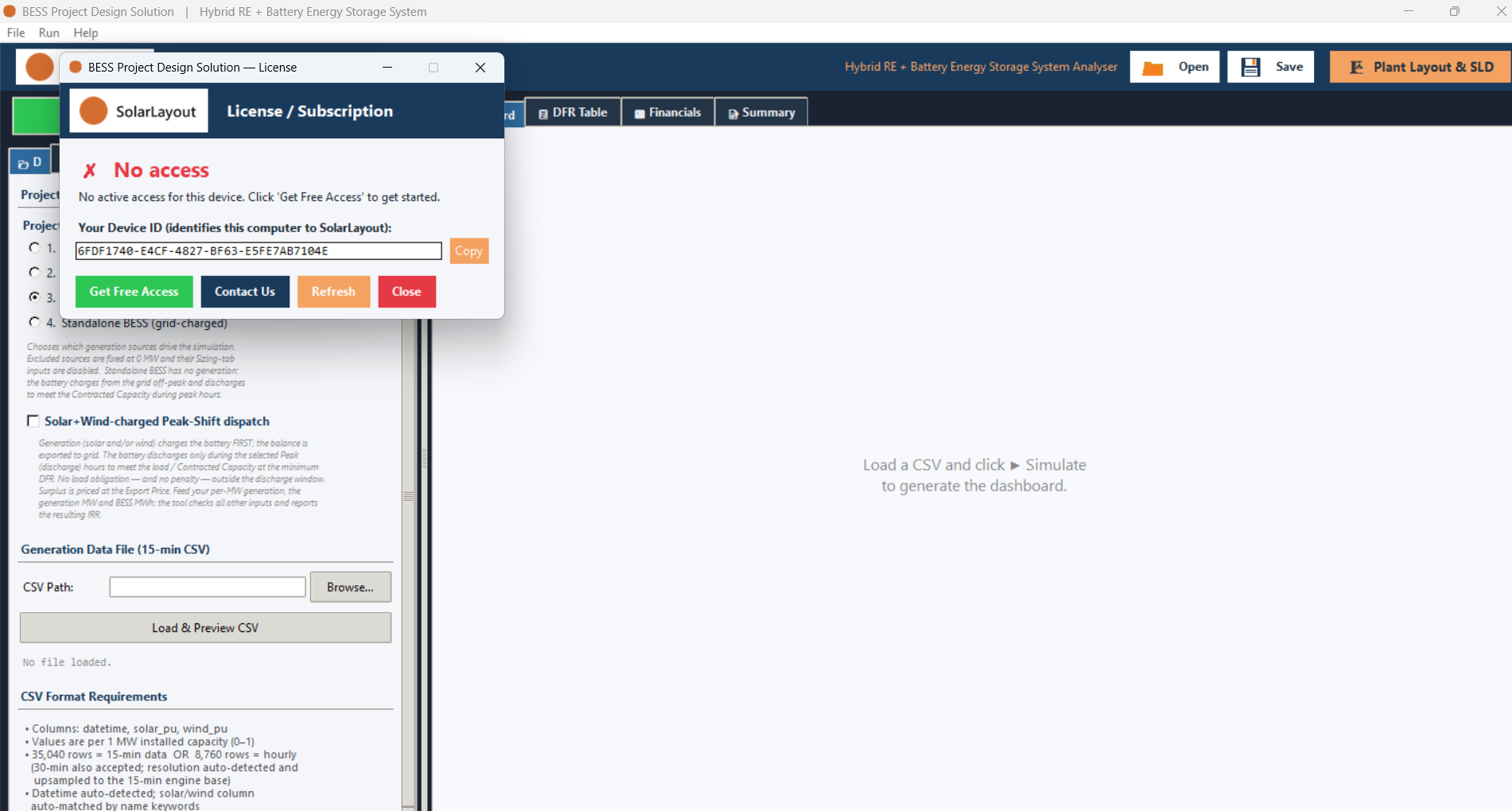
Copy the Device ID
Click Copy beside the Device ID field rather than reading the value off the screen. It goes straight to the clipboard.
Click Get Free Access
The status headline changes at once to ⏳ Waiting for activation, and a page opens in your browser, addressed to this device's Device ID.
Sign in and activate in the browser
Sign in — or create an account — if the page asks, then click Activate free access for this device.
If the page reads Your access is already on another device or This device is already in use, activation stops there — see How access works for what each means and what to do.
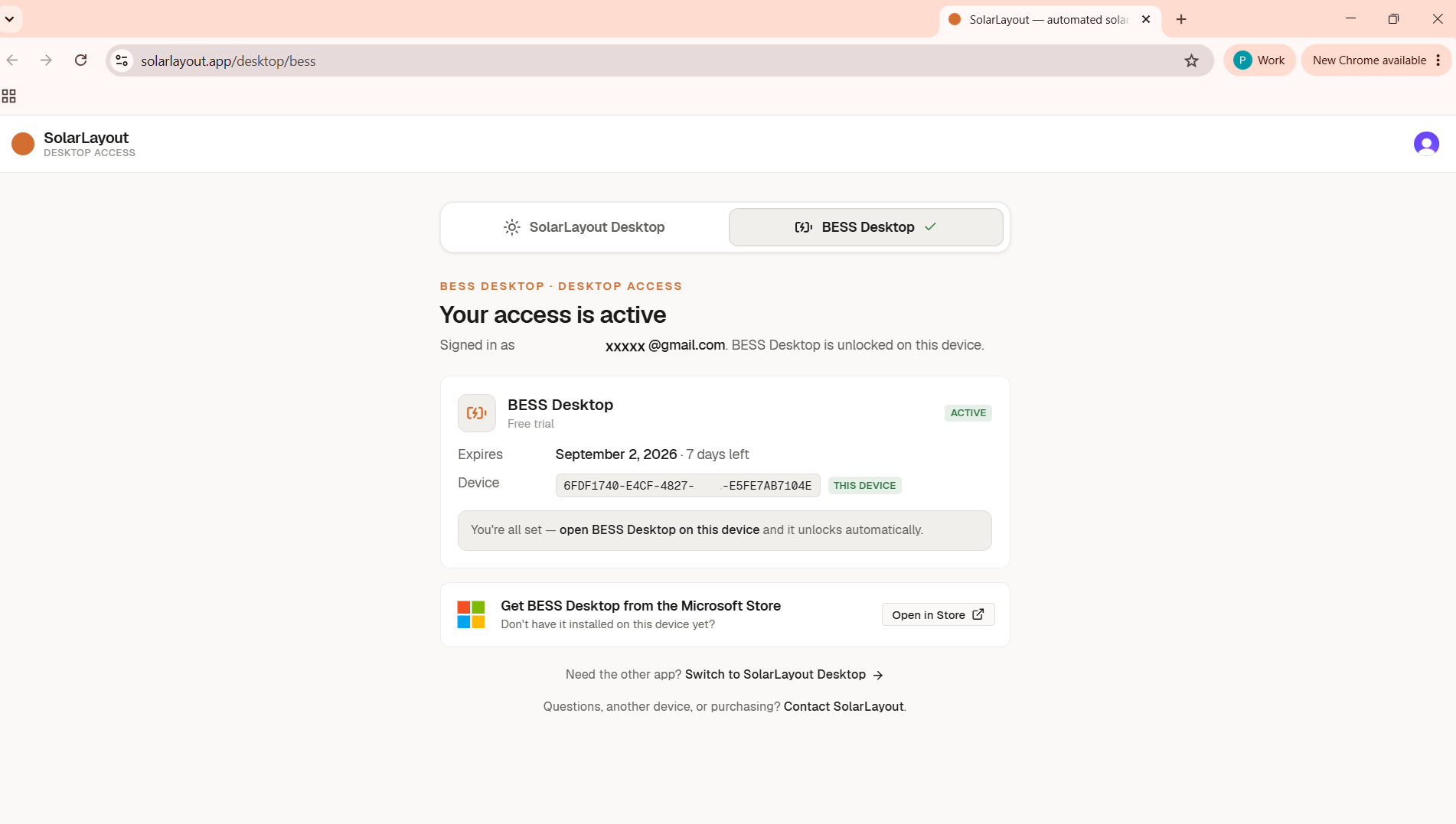
Return and click Refresh
Back in the License window, click Refresh. It re-checks straight away, bypassing any cached result, so a change made moments ago on the server side shows up immediately. The window also checks again on its own whenever it regains focus.
A device with active access shows ✓ Active, with Access Details, Refresh and Close in place of the earlier buttons.
If the status reads ✗ No access with a message about access having ended or been revoked, Get Free Access will not help — see Access problems or contact SolarLayout at sales@solarlayout.app.