Getting started
What you need before running an analysis, a tour of the main window, and the order the work happens in.
BESS Desktop opens fully usable — no start-up window and no activation check stand between launch and the input tabs. Three things put you in a position to run something.
Before you start
| What you need | Why |
|---|---|
| The application, installed on a Windows PC | The only supported platform |
| This device activated | ▶ Simulate, ⚙ Optimise, and every export need an active device; everything else works without it |
| A generation profile, unless the project type is 4. Standalone BESS (grid-charged) | Solar and Wind sources need a generation CSV; Standalone BESS needs none — a full year's calendar is built internally |
Activating this device
A status chip in the top banner always shows this device's access at a glance — ● Active — until <date>, ● No active access with a Get Free Access button, ● Access expired or ● Access revoked with a Contact Us button, or ● Access status unavailable if the app can't reach the server or a cached status. Open Help ▸ License… for the Device ID and the full detail.
Help ▸ License… opens the License window. Its headline reads ✓ Active, ✗ No access, or — right after you request access — ⏳ Waiting for activation.
A read-only field labelled Your Device ID (identifies this computer to SolarLayout:) identifies this installation, with a Copy button beside it. The buttons below change with the status:
| Status | Buttons shown |
|---|---|
| Active | Access Details, Refresh, Close |
| Not active | Get Free Access, Contact Us, Refresh, Close |
Get Free Access opens an activation page in your browser, addressed to this Device ID. Refresh re-checks the server immediately, so a device just activated — or just revoked — shows its new status without waiting. If access has expired or been revoked, contact SolarLayout at sales@solarlayout.app.
Activation gates: ▶ Simulate, ⚙ Optimise, and every export — the PDF report, the Word report, the plain-text report, the DFR CSV, the time-series CSV, the dashboard plot, and the CSV export from the Sensitivity Analysis window's Single Variable Sweep tab. It does not gate Sensitivity Analysis… itself once a base case exists, the 🏗 Plant Layout & SLD designer, saving or opening a project, or loading a generation profile — all of those work on an unactivated device.
The main window
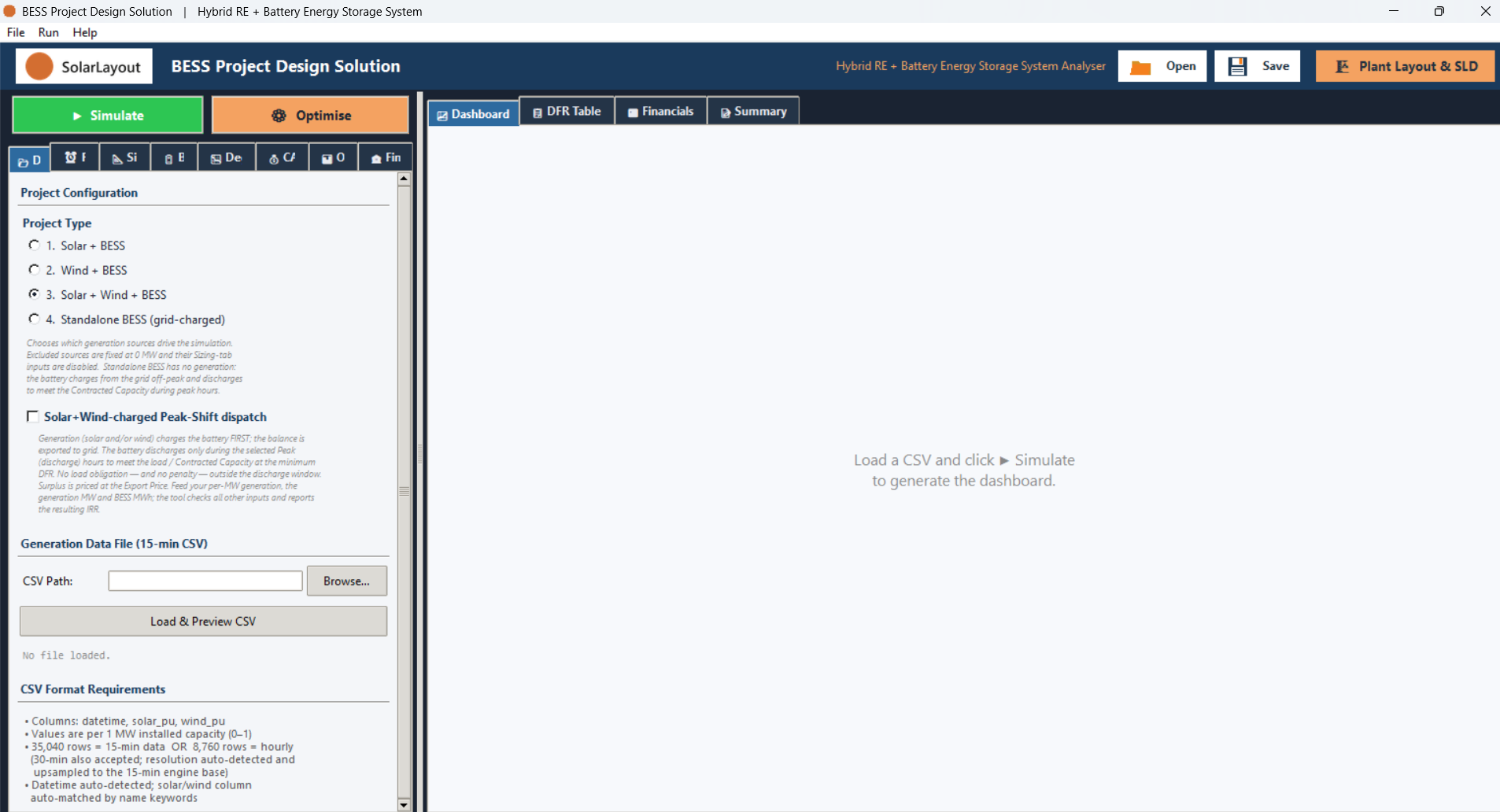
| Region | What it is |
|---|---|
| Top banner | The title BESS Project Design Solution, an access-status chip, and, right-aligned, the 🏗 Plant Layout & SLD button, Save and Open icon buttons, and Support and Docs buttons |
| Menu bar | File, Run, Help |
| Left — input notebook | ▶ Simulate and ⚙ Optimise, above 8 tabs |
| Right — result notebook | 4 tabs, filled in once a run finishes |
| Status bar | Status text, an elapsed-time reading, a progress bar, and the installed app version |
The input notebook's 8 tabs

| Tab | Covers |
|---|---|
| 📂 Data | Project type and the generation profile |
| ⏰ Peak | Peak and off-peak hours |
| 📐 Sizing | Contracted Capacity (the firm load the plant must serve), delivery targets, and starting Solar/Wind/BESS size |
| 🔋 BESS | Round-trip efficiency, depth of discharge, end-of-life and augmentation |
| 📉 Degrad. | Solar and Wind generation degradation |
| 💰 CAPEX | Capital cost per MW or MWh |
| 📊 OPEX | Operating cost, tariffs, export pricing, grid charging |
| 🏦 Finance | Discount rate, debt, tax, and other financing assumptions |
The result notebook's 4 tabs
| Tab | Covers |
|---|---|
| 📈 Dashboard | Six charts covering generation, dispatch, delivery performance and cash flow |
| 📋 DFR Table | One row per month of Year 1, showing DFR (Delivery Fulfilment Ratio) against target |
| 💹 Financials | Headline IRR, NPV and CAPEX, plus a year-by-year cash-flow table |
| 📝 Summary | The same result as a plain-text report, with export buttons |
The order the work happens in
| Stage | What you do |
|---|---|
| 1. Choose a project type | 📂 Data tab — see Choosing a project type |
| 2. Load a generation profile | 📂 Data tab, unless the project type is Standalone BESS |
| 3. Set the delivery obligation | Peak/off-peak hours on ⏰ Peak; Contracted Capacity and targets on 📐 Sizing |
| 4. Set battery and cost assumptions, or leave the defaults | 🔋 BESS, 📉 Degrad., 💰 CAPEX, 📊 OPEX, 🏦 Finance |
| 5. Run | ▶ Simulate for one case, or ⚙ Optimise to search for the best mix |
| 6. Read the result | 📈 Dashboard, 📋 DFR Table, 💹 Financials, 📝 Summary |
| 7. Export or save | A report, a CSV, or the whole project |
See Your first analysis for all of this worked through once, on a single run.