Cable routing
When to turn on cable routing, what it places, and what to expect for run time and cable BoM.
Cable routing is a single switch in the Inspector — Calculate cables. When it's on (and your plan allows it), SolarLayout places DC string cables, AC home-run cables to ICRs, and the shared AC trench corridor, and reports the cable bill of materials in the Cables tab and the PDF report. When it's off, no cables are drawn and generation is faster.
When to turn it on
Turn Calculate cables on when:
- You're producing a BoQ or BoM that needs cable lengths.
- You want the PDF report's cable section populated.
- You're comparing plant designs where cable cost matters.
Leave it off when:
- You only need capacity and energy yield numbers (first-look estimates, parcel screening, early-stage BD work).
- You want the fastest possible generation. Cable routing adds meaningful compute time, especially on large multi-plot projects.
Where to find the switch
The switch is in the Cables tab in the Inspector, labelled Calculate cables, with a one-line note under it: "Routes DC string and AC trunk cable trenches on the plant layout." If your plan doesn't include cable routing, this tab instead shows a locked card headed Cable routing — available in Pro — cable routing is a Pro-plan (and above) feature.
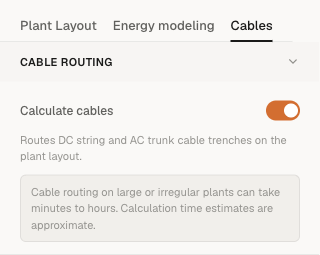
Change the switch before clicking Generate layout. Changing it after a layout has been generated doesn't re-route the cables for that result — you need to click Generate layout again.
What gets placed when it's on
With Calculate cables on, the layout includes:
- DC string cables from each string of modules to its assigned inverter.
- AC home-run cables from each string inverter to its ICR. (In central-inverter topology, the SMB → central-inverter leg is a DC trunk, not AC.)
- The AC trench corridor — a single shared trench / cable-tray path through the plant, computed as a minimum spanning tree over the inverter and ICR positions. This is what the EPC civils team digs once.
The PDF report's cable section lists:
- Total DC cable — sum of per-string copper lengths.
- Total AC cable (copper BoM) — sum of per-inverter home-run copper, what your procurement team orders.
- AC trench length — the physical corridor length; usually considerably shorter than total AC copper because the corridor is shared.
These totals are read off the Cables tab in-app and from the PDF report — there's no separate per-cable BoQ CSV export. (The only CSV the app produces is a 15-minute energy time-series file, and only on runs that used a custom hourly weather CSV.)
What it costs in run time
Cable routing adds compute time on top of the layout placement step. On a typical 50 MWp single-plot project, expect a few minutes of additional generation time compared with the no-cable run. On large multi-plot projects, it scales with plot count and table density.
If you're iterating on table parameters (tilt, GCR, table size) and only care about capacity, leave the switch off — you'll iterate much faster. Turn it on for the final pass once the layout shape is settled.
What gets placed when it's off
With Calculate cables off, the layout still includes:
- Module tables.
- ICRs.
- String inverters (in string-inverter mode) or central inverter positions (in central mode).
- Lightning arresters.
- Perimeter road and setbacks.
The PDF report's cable section has no lengths to report and the cable BoM rows are empty. You can re-run the project with the switch on later — the previous result stays on file in the Runs list on the canvas controls bar.
A note on multi-plot
Cable routing is plot-local — each plot's cable trench is computed independently within that plot's boundary. There's no inter-plot trench yet. If your civil design needs a shared inter-plot corridor, you'll need to add that on top of what SolarLayout produces.
Under the Calculate cables switch the Cables tab also shows a standing reminder: "Cable routing on large or irregular plants can take minutes to hours. Calculation time estimates are approximate."